# Complete Guide for LinkedIn Posts, Banners & Profiles
Getting your LinkedIn images right can make a big difference in how your profile, posts, and company page look. Whether you’re updating your profile picture, creating a banner, or sharing a post, using the correct image dimensions helps everything look sharp and professional.
The tricky part? LinkedIn doesn’t use the same image size everywhere.
A personal profile banner, for example, needs a completely different layout from a regular feed post. Company page covers have their own dimensions, too. Upload the wrong size, and you might end up with cropped text, stretched images, or blurry visuals.
This guide covers the latest recommended LinkedIn image sizes, including profile photos, banners, posts, company pages, and link previews. You’ll also learn how to resize your images so they look good before you publish them.
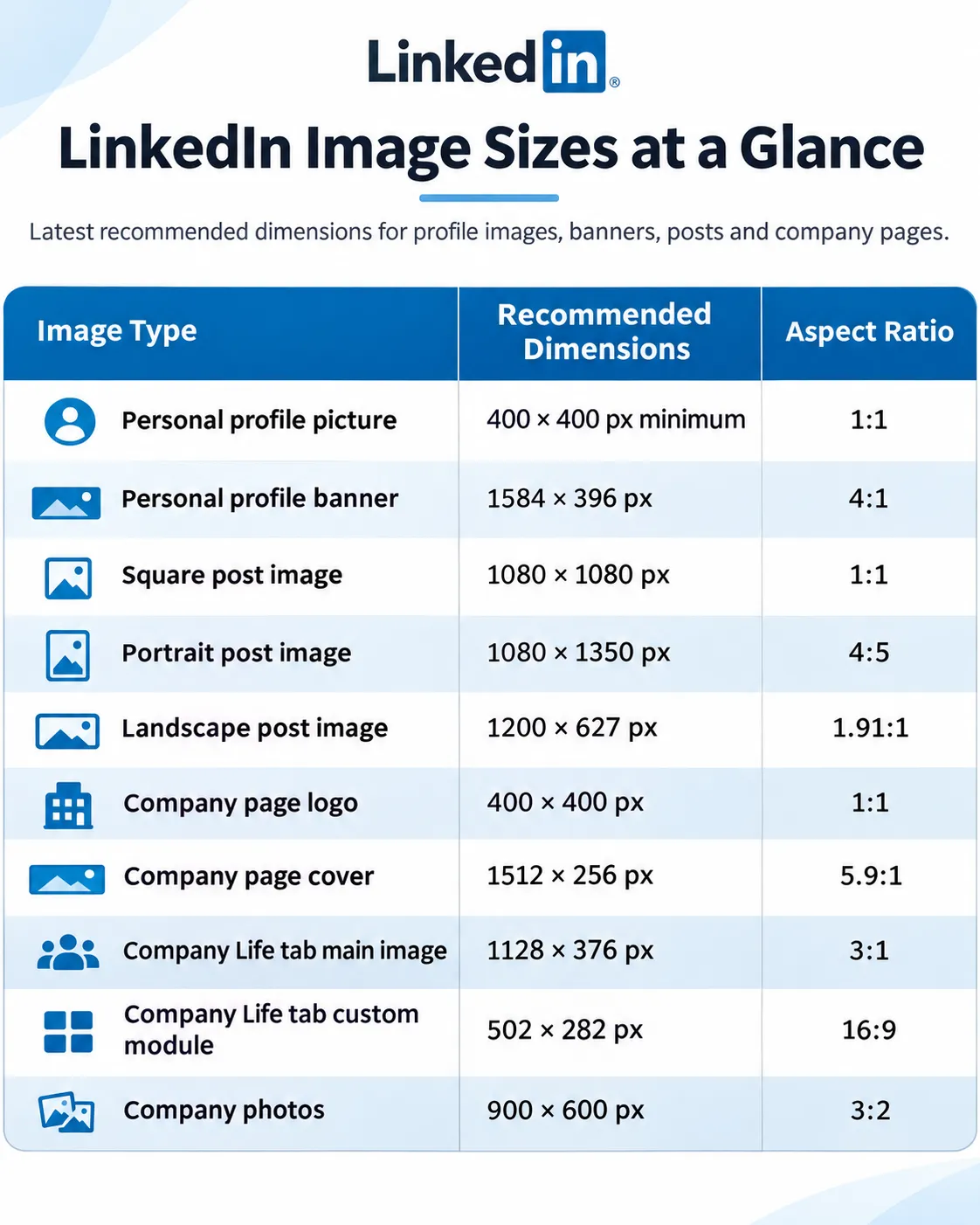
Need a quick answer? Here’s a handy reference table with the most commonly used LinkedIn image dimensions.
A quick note: Not every size in this table is a strict LinkedIn requirement. Some, like 1080 × 1080 px and 1080 × 1350 px, are practical sizes commonly used to create good-looking posts.
For regular photo posts, LinkedIn recommends a width of 1080 pixels and supports aspect ratios ranging from 3:1 to 4:5.
If you’ve already designed an image but it doesn’t match these dimensions, you don’t necessarily need to start over. You can use the LinkedIn Image Resizer to prepare images for different LinkedIn placements.
Images are a great way to make your LinkedIn posts more engaging. You might be sharing a company update, announcing a new product, posting an infographic, or simply adding a photo to support your message.
Whatever you’re posting, choosing the right dimensions helps your content appear as intended in the feed.
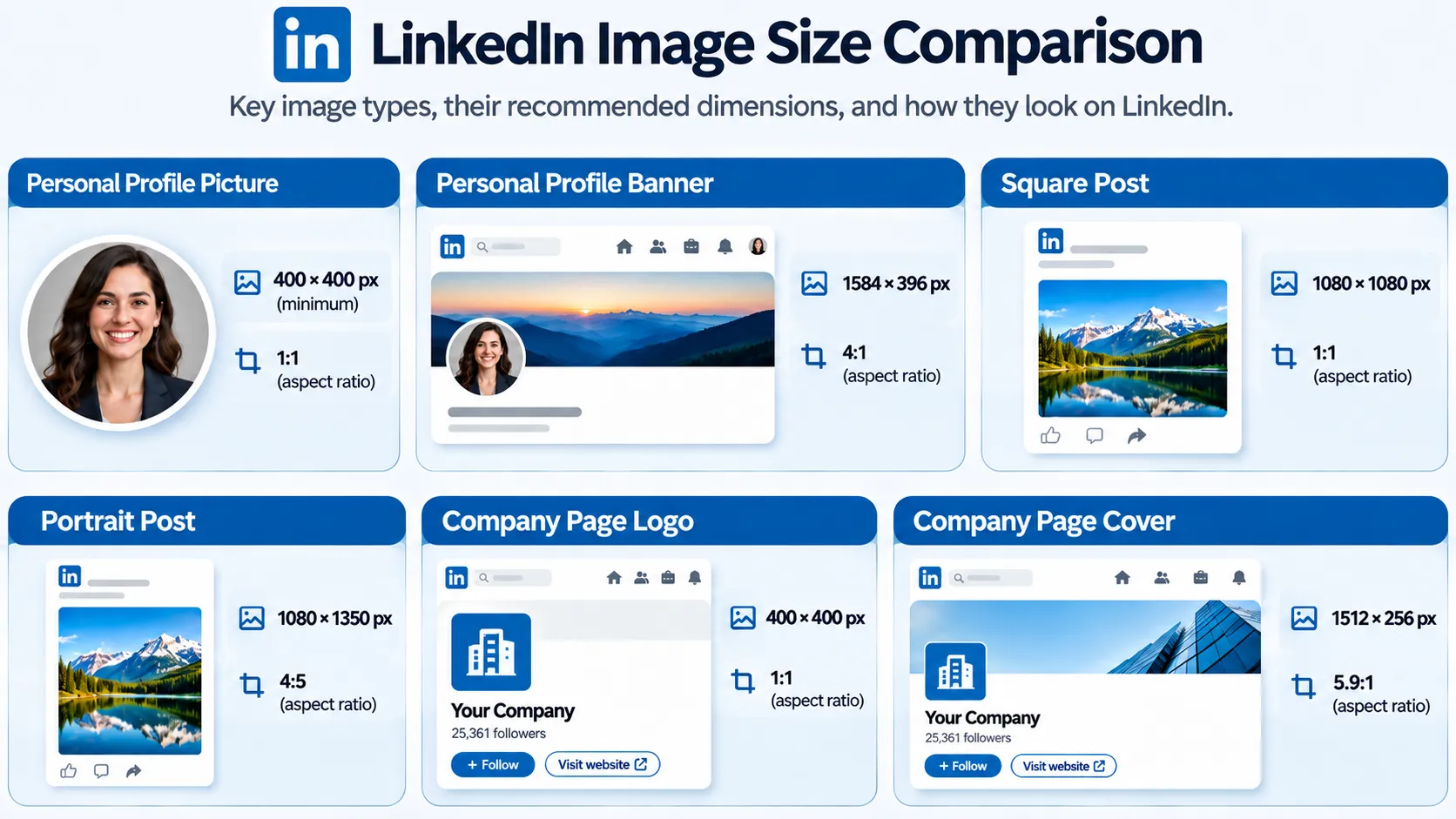
LinkedIn recommends the following specifications for photo posts:
There isn’t one perfect size for every post. It depends on the type of content you’re sharing.
Square posts (1080 × 1080 px)
Square images are a reliable choice for most LinkedIn content. They’re easy to design, work well for announcements, and provide enough space for a photo or a short message.
Portrait posts (1080 × 1350 px)
Portrait images take up more vertical space in the feed, especially on mobile devices. They’re useful when you want to share an infographic, a checklist, or a visual with more information.
Landscape posts (1200 × 627 px)
Landscape images are better suited to wider designs. This size is also commonly used for link preview graphics.
LinkedIn supports up to 20 photos in a multi-photo post. The arrangement can change depending on how many images you upload and the orientation of the first image.
If your graphic doesn’t fit the format you want, try resizing it with the LinkedIn Image Resizer. Just make sure important text and design elements remain visible after resizing.
Your profile picture is one of the first things people notice on LinkedIn. It appears on your profile, alongside your posts, in comments, and in search results.
A clear, properly sized picture makes your profile easier to recognise.
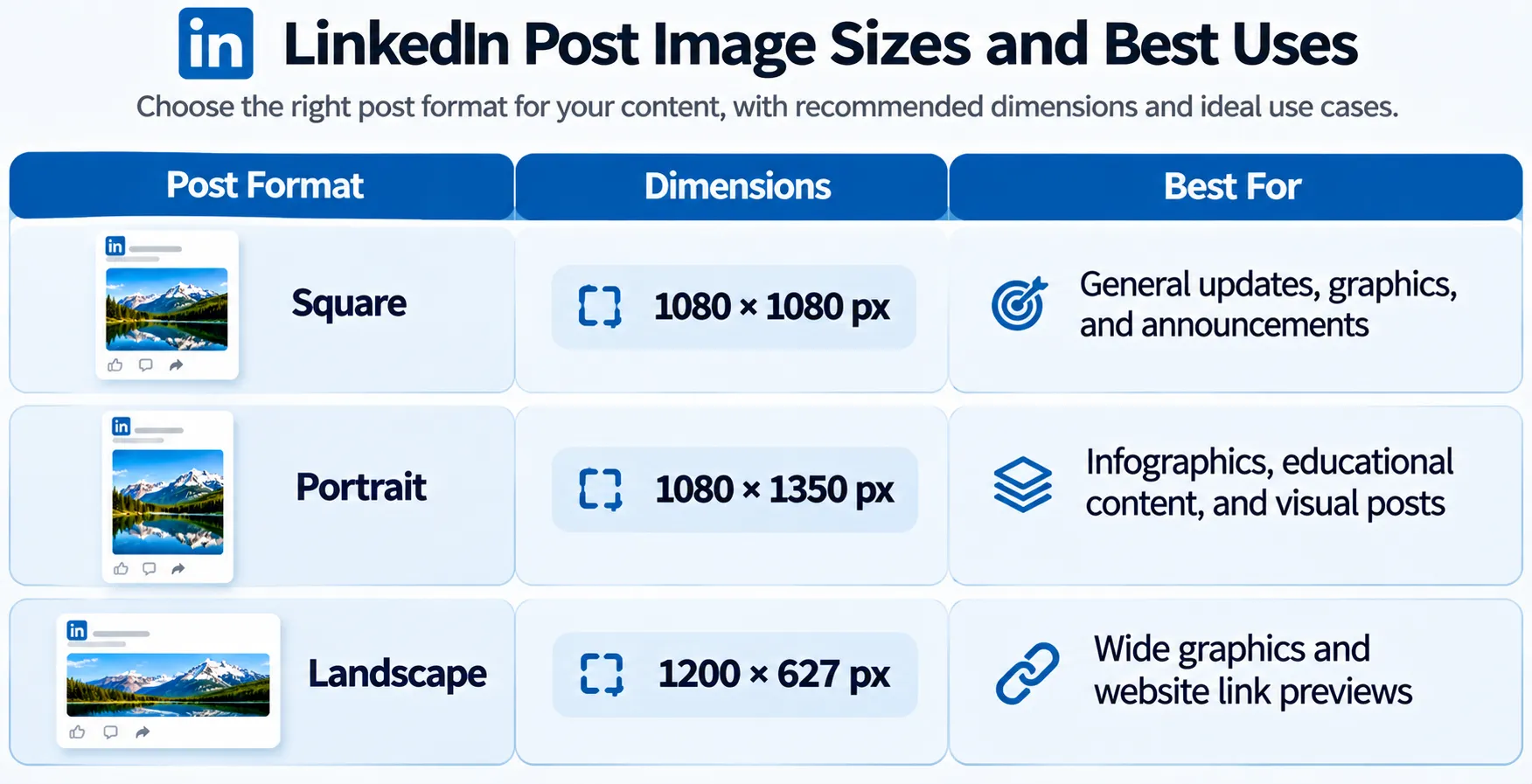
Here are the recommended specifications:
LinkedIn also accepts larger image resolutions, with supported dimensions extending up to 7680 × 4320 pixels.
Start with a clear photo where your face or main subject is easy to see.
Although you upload a square image, LinkedIn usually displays profile pictures inside a circle. That means the corners of your image won’t be visible.
To avoid awkward cropping:
You can use the Image Resizer to prepare a 400 × 400 pixel picture before uploading it.
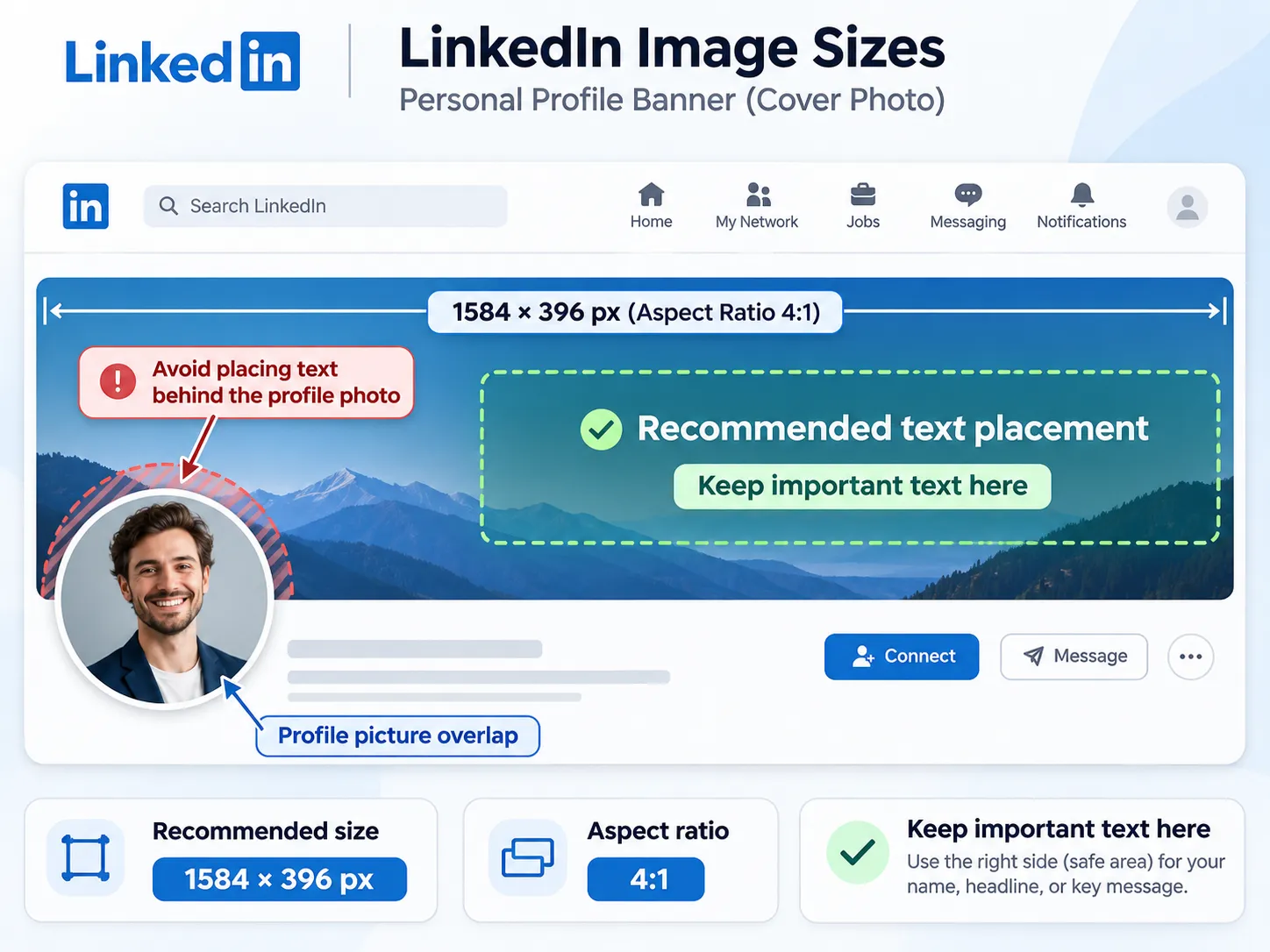
Your LinkedIn banner is the wide image displayed behind your profile picture.
It’s a useful space to show a little more about yourself, your work, or your professional interests. Some people use it to highlight their expertise, while others prefer a simple background that complements their profile.
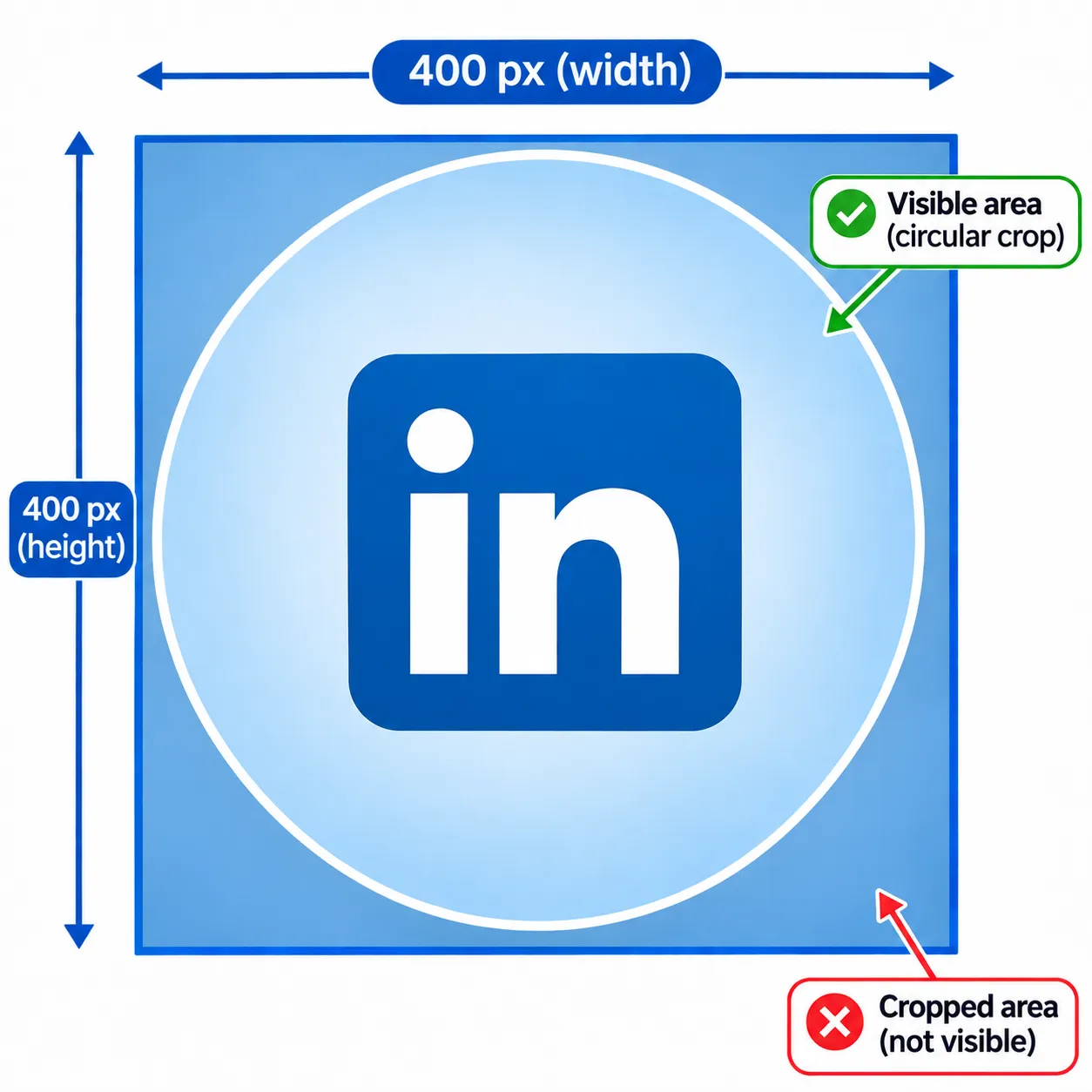
The recommended LinkedIn personal banner size is 1584 × 396 pixels.
Other specifications include:
The main thing to remember is that your profile picture overlaps part of the banner.
If you place important text or a logo in that area, it might become partially hidden.
A few simple design choices can help:
LinkedIn can display banners differently depending on the screen size, so it’s worth checking the final result after uploading.
If your existing banner is too large or has the wrong proportions, the LinkedIn Image Resizer can help you adjust its dimensions.
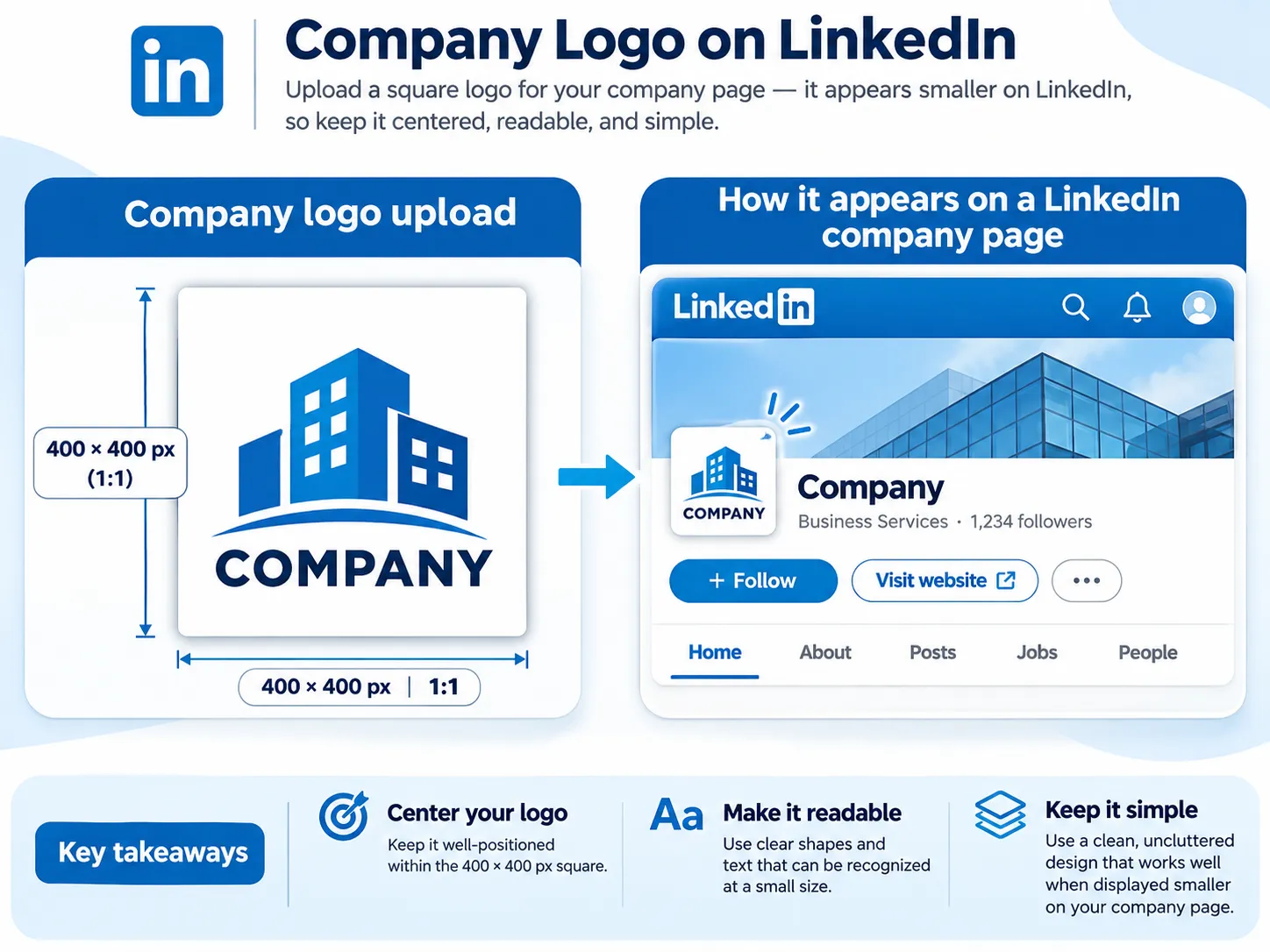
If you manage a LinkedIn company page, your logo is an important part of your brand’s appearance.
It appears on your company page and alongside your organisation’s activity across LinkedIn.
For the best results, prepare a clean, square logo that remains recognisable even when displayed at a smaller size.
The recommended dimensions are 400 × 400 pixels.
Other specifications:
A logo that looks great on your website might not fit perfectly into LinkedIn’s square format.
If your logo is wide or includes a long company name, consider using a simplified version.
Leave some breathing room around the design so it doesn’t look cramped.
For logos with transparent backgrounds, it’s also worth checking how they appear against different background colours.
Need to create a square version of your logo? Use the Image Resizer to adjust the dimensions while keeping the original design in proportion.
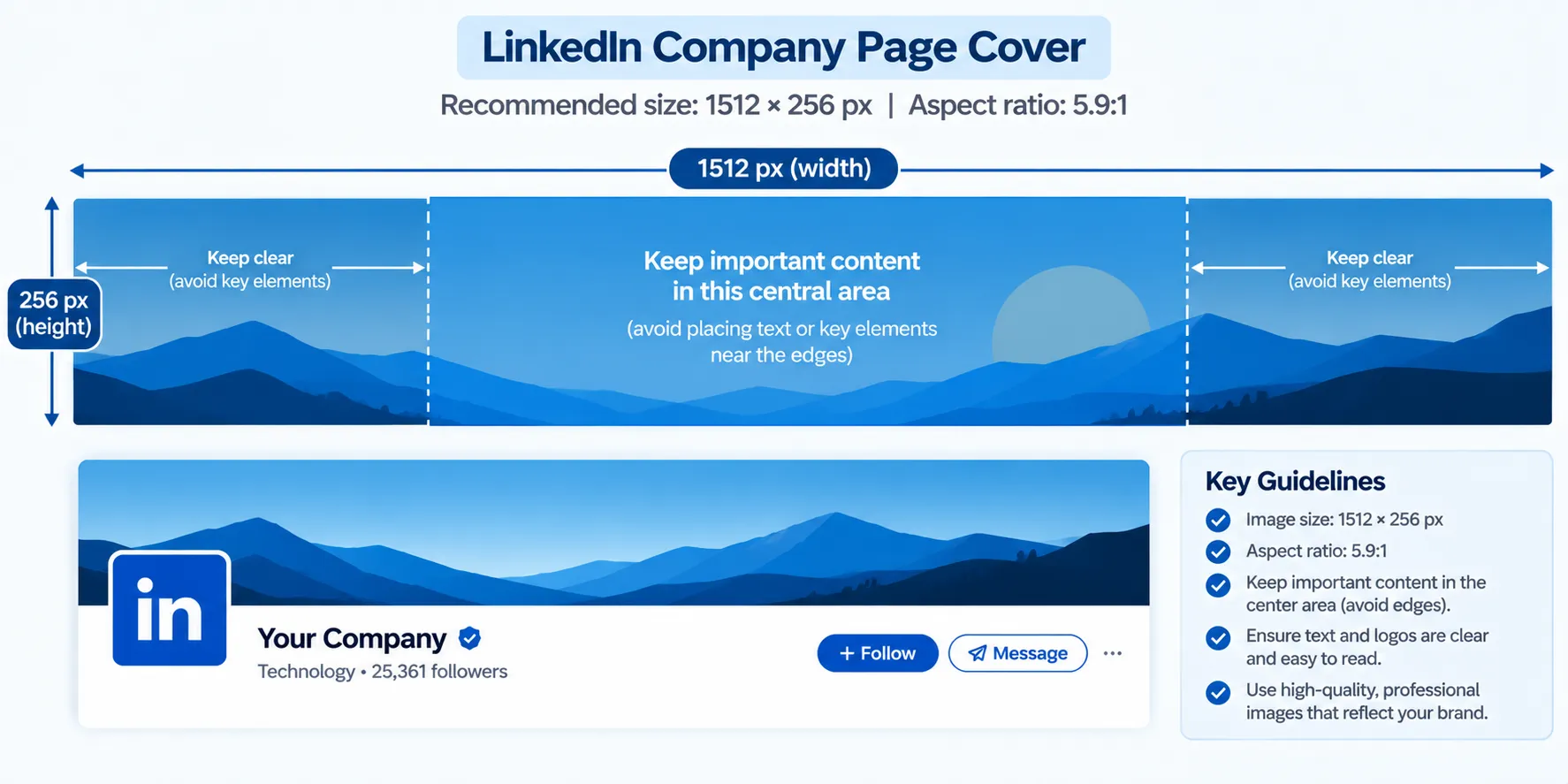
A LinkedIn company page cover is different from a personal profile banner.
Both appear at the top of a page, but they use different dimensions.
For company pages, the recommended cover image size is 1512 × 256 pixels.
Here are the specifications:
Your cover image can help communicate what your company does without making visitors read a long description.
You might use it to feature your brand colours, a product, a short tagline, or a simple visual that reflects your business.
Because the cover is quite wide and short, avoid packing too much information into it.
Keep important elements closer to the centre, and leave enough space around the edges in case LinkedIn adjusts the display on smaller screens.
You may come across older guides recommending 4200 × 700 pixels for company covers. However, LinkedIn’s more recent Page specifications list 1512 × 256 pixels.
If you need to update an older cover image, you can prepare it using the LinkedIn Image Resizer.
Have you ever shared a website link on LinkedIn and noticed that a preview image appears above the headline?
That’s a link preview image.
It gives people a quick idea of what they’ll find when they click the link.
For a custom image used with a URL in a LinkedIn Page post, the recommended size is 1200 × 627 pixels.
Recommended specifications:
If an image is too small, LinkedIn may display it as a small thumbnail instead of a larger preview.
A good link preview should be easy to understand at a glance.
Use a clear, relevant image and avoid adding too much small text. If you include a headline or logo, make sure it stays readable when the image is displayed at a reduced size.
It’s also worth remembering that link preview images and regular uploaded post images aren’t exactly the same thing.
The 1200 × 627 pixel recommendation applies specifically to custom images accompanying URLs in LinkedIn Page posts.
You can use the Image Resizer to prepare landscape images for your shared links.
You’ve designed an image, uploaded it to LinkedIn, and suddenly something looks off.
Maybe your text is cut off, your banner doesn’t fit properly, or your image appears less sharp than the original.
These problems are common, and they’re usually related to image dimensions, resolution, or how the image was resized.
Here are a few things worth checking.
If you upload a wide image into a space designed for a square or portrait layout, LinkedIn may crop it to fit.
The easiest way to prevent this is to use the correct aspect ratio from the beginning.
Banners and profile images can appear differently across devices.
Text or logos placed near the edges might get cropped or covered by another profile element.
Keep important content in a safe central area whenever possible.
Increasing the size of a small image doesn’t automatically improve its quality.
If the original resolution is low, enlarging it can make the image look pixelated or blurry.
Whenever possible, start with a high-resolution image.
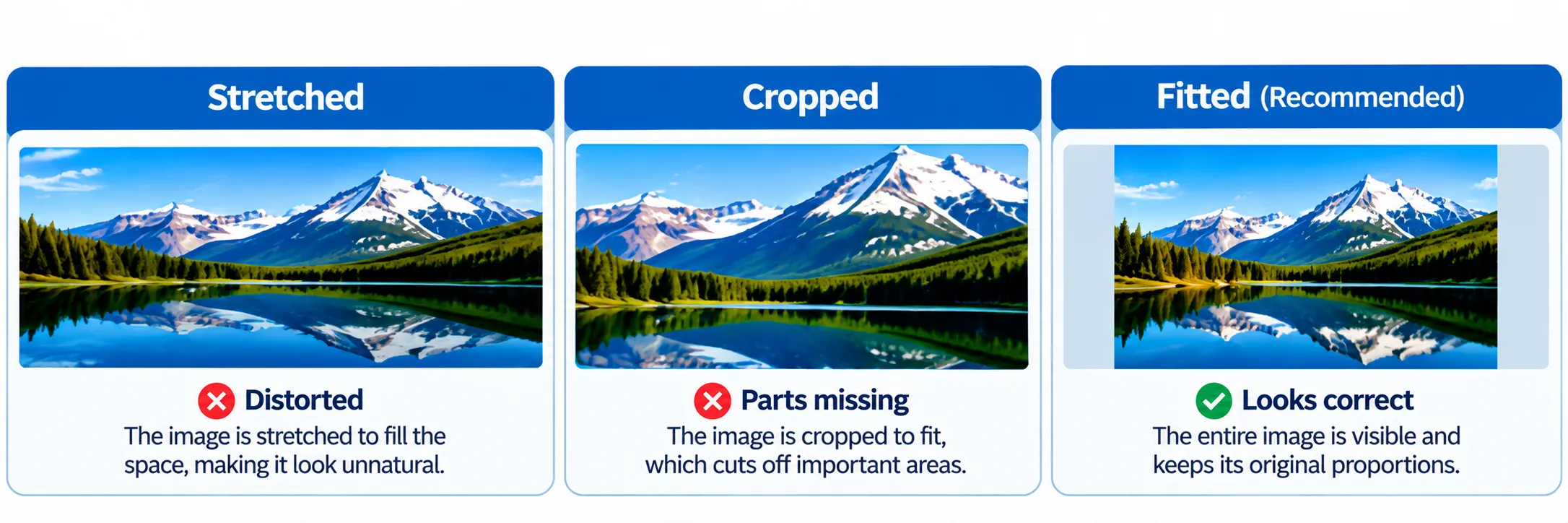
Resizing and stretching aren’t the same thing.
If you force an image into a different aspect ratio without preserving its proportions, people, logos, and objects can look distorted.
Instead, choose an appropriate crop or fit option.
Even when the dimensions are correct, it’s worth looking at how the image appears before publishing.
LinkedIn doesn’t let you resize or edit uploaded photos after they’ve been posted. Taking a moment to check the preview can save you from having to delete and repost your content.
You don’t need to be a graphic designer to prepare images for LinkedIn.
Once you know the dimensions you need, resizing an image is straightforward.
With ImgResizers, you can adjust image dimensions for LinkedIn posts, profile pictures, banners, and other placements.
Step 1: Open the image resizing tool
Visit the LinkedIn Image Resizer or use the general Image Resizer if you want to work with custom dimensions.
Step 2: Upload your image
Choose the photo, logo, banner, or graphic you want to resize.
Step 3: Enter your required dimensions
Set the width and height in pixels based on where you plan to use the image on LinkedIn.
Step 4: Check the proportions
If your original image has a different aspect ratio, you’ll need to decide whether to crop it or fit it within the new dimensions.
Cropping fills the available space but may remove parts of the image.
Fitting preserves the full image, although it may leave some empty space around the edges.
Step 5: Preview your image
Check that the important parts of your image are visible and nothing looks stretched.
Pay particular attention to text, faces, and logos.
Step 6: Download your resized image
Once everything looks right, download the image and upload it to LinkedIn.
That’s it. Your image is ready to use.
Getting LinkedIn image sizes right doesn’t have to be complicated.
The important thing is to remember that different parts of LinkedIn need different image dimensions. A profile picture, feed post, personal banner, and company cover won’t all work with the same layout.
Before uploading, check the recommended size, keep your image proportions intact, and make sure important details won’t be cropped.
And if your image isn’t quite the right size, there’s no need to redesign it from scratch.
Use the LinkedIn Image Resizer to prepare images for your profile, posts, and banners, or try the Image Resizer when you need custom pixel dimensions.
A few small adjustments before uploading can help your LinkedIn images look clearer, cleaner, and more professional.