Correctly resized images are essential for social media success in 2026: they prevent awkward cropping, keep visuals sharp on every device, and reduce file size so posts load quickly and perform better in algorithms. With one smart workflow and a few dedicated resizing links, you can prepare platform‑perfect assets for Instagram, Facebook, LinkedIn, Twitter/X, Pinterest, Snapchat, TikTok, Discord, and WhatsApp from a single master design.
Why Image Resizing Matters in 2026
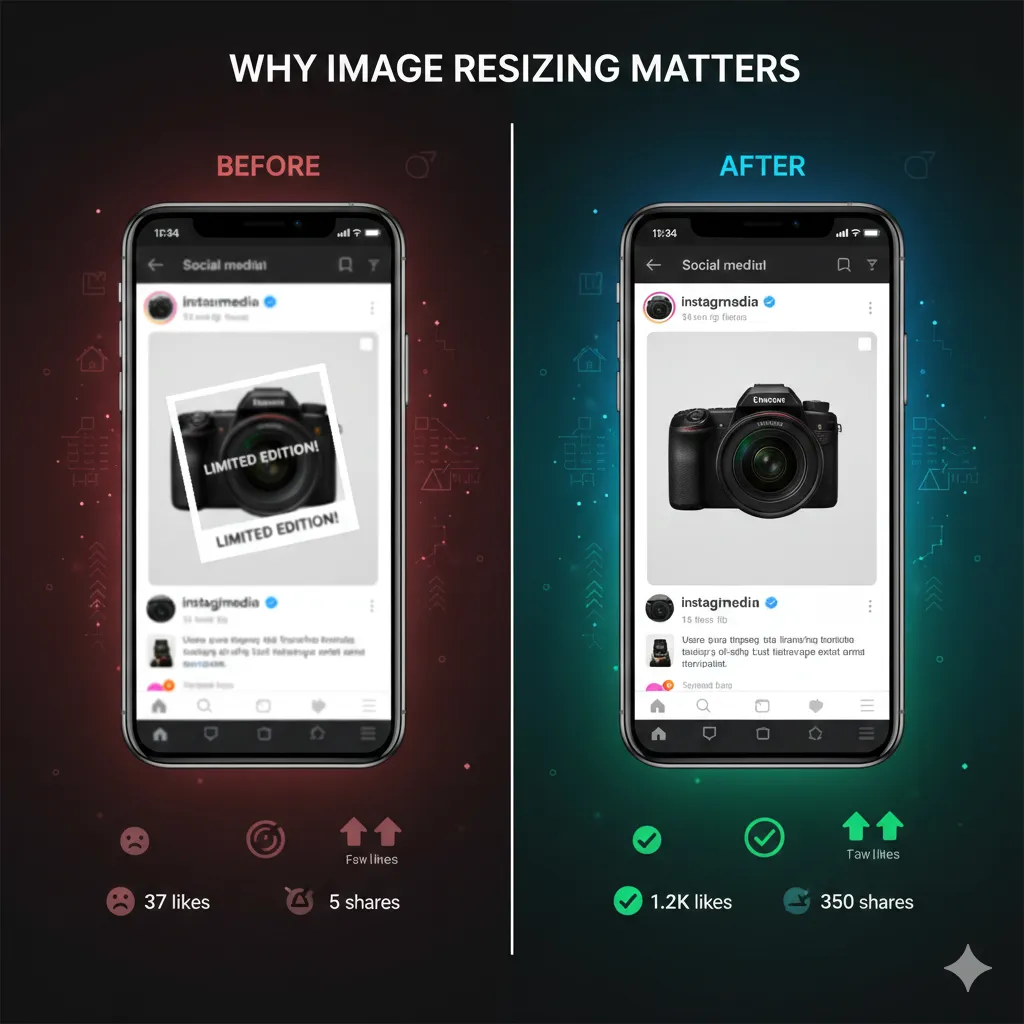
Social platforms are now heavily optimized around specific aspect ratios like 1:1, 4:5, 9:16, and 16:9, and content that matches these formats tends to earn more impressions, watch time, and engagement. When images are too wide, too short, or off‑ratio, important parts get cropped out in feeds and grids, hurting click‑throughs and overall reach.
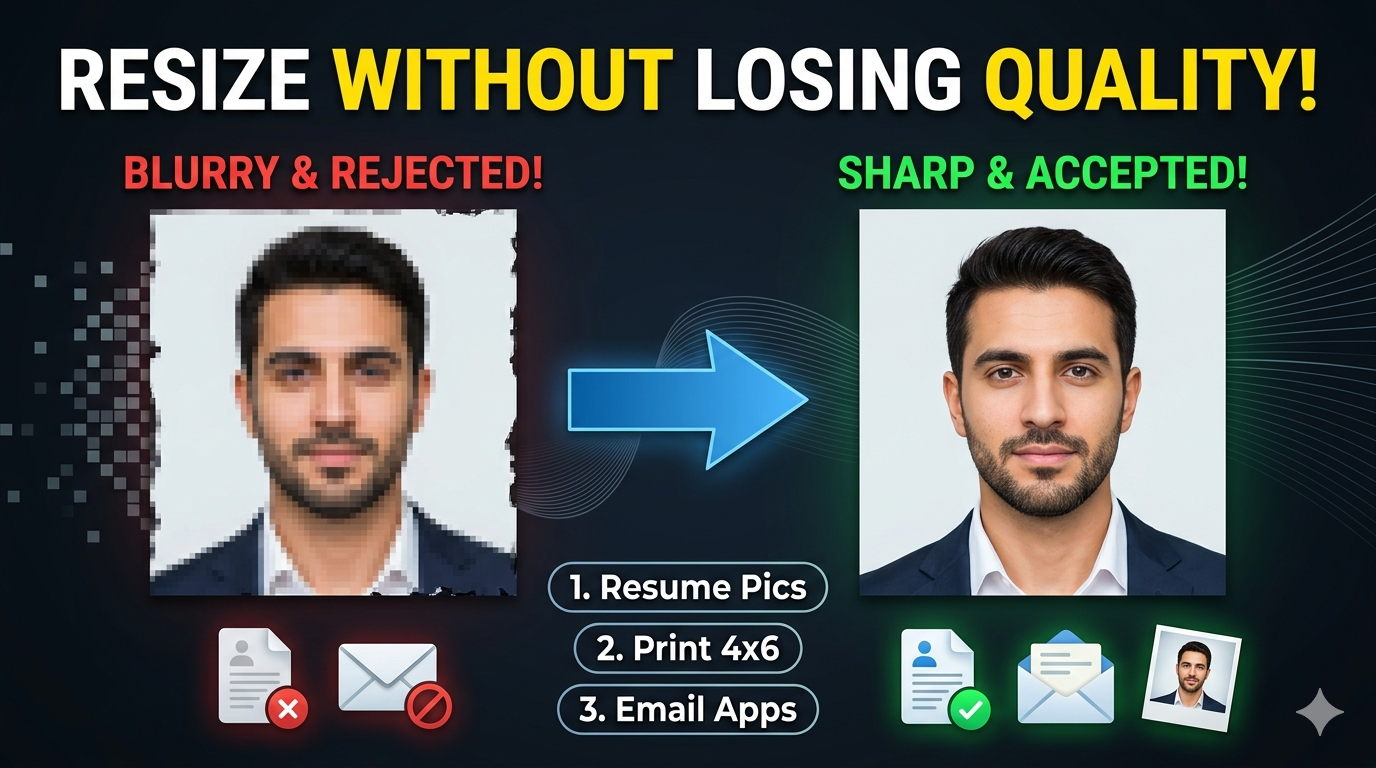
Proper resizing also controls compression: platforms re‑compress anything you upload, but well‑sized images start with a lower file weight and suffer less visible quality loss. This balance of clarity and light file size helps posts load quickly on mobile networks, keeping users scrolling instead of abandoning your content.
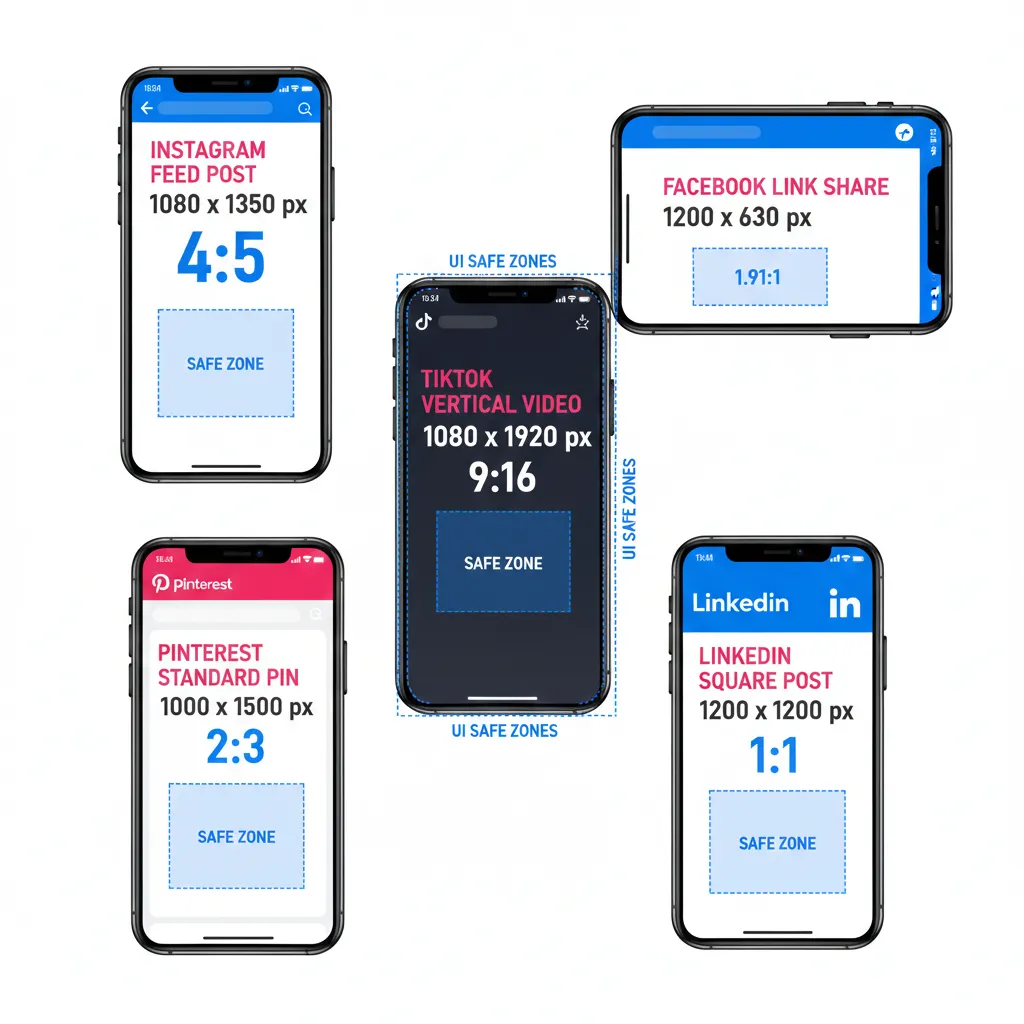
Exact Image Sizes by Platform (2026)
These commonly recommended sizes are based on late‑2025/early‑2026 specs and are safe defaults for most organic posts.
Instagram remains highly visual and favors vertical formats that fill more of the screen.
- Profile picture: 320 × 320 px (displayed as a circle).
- Feed posts:
- Portrait (best for reach): 1080 × 1350 px, 4:5 ratio.
- Square: 1080 × 1080 px, 1:1 ratio.
- Landscape: 1080 × 566–608 px, 1.91:1 or 16:9.
- Stories: 1080 × 1920 px, 9:16 ratio.
- Reels: 1080 × 1920 px, 9:16 ratio; cover thumbnail 1080 × 1080 px.
Keep key text and faces within the central safe zone so they remain visible under overlays and in the grid.
Facebook supports many placements, but a few core sizes work for most creators.
- Profile picture: at least 320 × 320 px.
- Page cover photo: 820 × 312 px (often exported at 1640 × 624 px for sharper displays).
- Feed image post:
- Square: 1080 × 1080 px (1:1).
- Vertical: 1080 × 1350 px (4:5) for more screen space.
- Landscape/link share: 1200 × 630 px (1.91:1).
Never upload tiny images under 200 × 200 px; Facebook will upscale them and introduce blur.
LinkedIn prioritizes professional, readable visuals in many different modules.
- Personal profile photo: 400 × 400 px.
- Personal cover/background: about 1584 × 396 px.
- Company logo: 300 × 300 px.
- Company cover image: around 1128 × 191–376 px.
- Single image post:
- Landscape: 1200 × 627–630 px, 1.91:1.
- Square: 1200 × 1200 px for feed flexibility.
Centered branding and clear typography are crucial, because LinkedIn’s multi‑column layouts can crop edges on smaller screens.
Twitter / X
X still leans toward horizontal assets, especially for previews and headers.
- Profile photo: 400 × 400 px.
- Header image: 1500 × 500 px (keep important content in a narrower central band).
- In‑feed images:
- Landscape: 1200 × 675–628 px (~16:9).
- Square: 1200 × 1200 px, 1:1.
Use generous margins around text so multi‑image layouts don’t crop copy or faces.
Pinterest is built around tall, vertical pins optimized for discovery.
- Profile photo: at least 165 × 165 px.
- Standard pin: 1000 × 1500 px, 2:3 ratio (ideal default).
- Square pin: 1000 × 1000 px, 1:1.
- Long pin/infographic: 1000 × 2100 px (very tall images may be truncated in feed).
High‑contrast text overlays and clear imagery perform best in search results and recommendation feeds.
Snapchat
Snapchat relies on full‑screen vertical content similar to Stories and Reels.
- Snaps and public stories: 1080 × 1920 px, 9:16 ratio.
- Ads and filters: same 1080 × 1920 px template with safe zones for text and UI.
Avoid placing important details near the very top or bottom where app controls sit.
TikTok
TikTok is nearly all 9:16 vertical, with a few alternative ad options.
- Profile picture: 200 × 200 px or larger.
- Vertical posts and ads: 1080 × 1920 px, 9:16 ratio.
- Square assets: 1080 × 1080 px for some ad placements.
- Landscape ads: 1920 × 1080 px, 16:9, used less frequently.
Keep main elements clear of the lower caption area and right‑side buttons so they remain readable.
Discord
Discord visuals are small but important for recognition in busy sidebars.
- Server icon: 512 × 512 px (displayed as a small circle).
- User avatar: upload 512 × 512 px for a crisp look everywhere.
- Server banner / background: around 960 × 540 px or 1920 × 1080 px depending on Nitro perks and layout.
Simple, bold shapes read better than detailed logos at small sizes.
WhatsApp is minimal, but visuals still matter for branding and communication.
- Profile photo: ~640 × 640 px (displayed as a circle).
- Status images: 1080 × 1920 px, 9:16 ratio.
- Channel/Community covers (where available): wide rectangular banners similar to other platforms, often around 1080 × 608–720 px.
Design Status and Channel assets like short‑lived stories—bold, legible, and optimized for small screens.
How Resizing Affects Reach, Clarity, and Compression
Resizing is not just cosmetic; it directly affects how algorithms treat your content and how users respond.
- Reach and engagement
- Correct aspect ratios prevent automatic cropping that might hide products, faces, or CTAs, which can otherwise reduce clicks, likes, and shares.
- Vertical 4:5 and 9:16 images occupy more mobile screen space, helping posts stand out in crowded feeds on Instagram, Facebook, and TikTok.
- Visual clarity
- Uploading at recommended dimensions keeps text overlays crisp and avoids ugly stretching or blurring from platform‑side scaling.
- Consistent sizing across carousels and stories reinforces brand polish and trust, especially important for ads and B2B content.
- Compression and load speed
- Properly sized images start with sensible file weights, so platform compression has less work to do and introduces fewer artifacts.
- Lighter images load faster on weak connections, improving watch‑through for stories and reels and reducing drop‑offs.
Overall, the more precisely your images match official specs, the better your chances of earning stronger distribution and engagement.
Using One Workflow and Tool for Every Platform
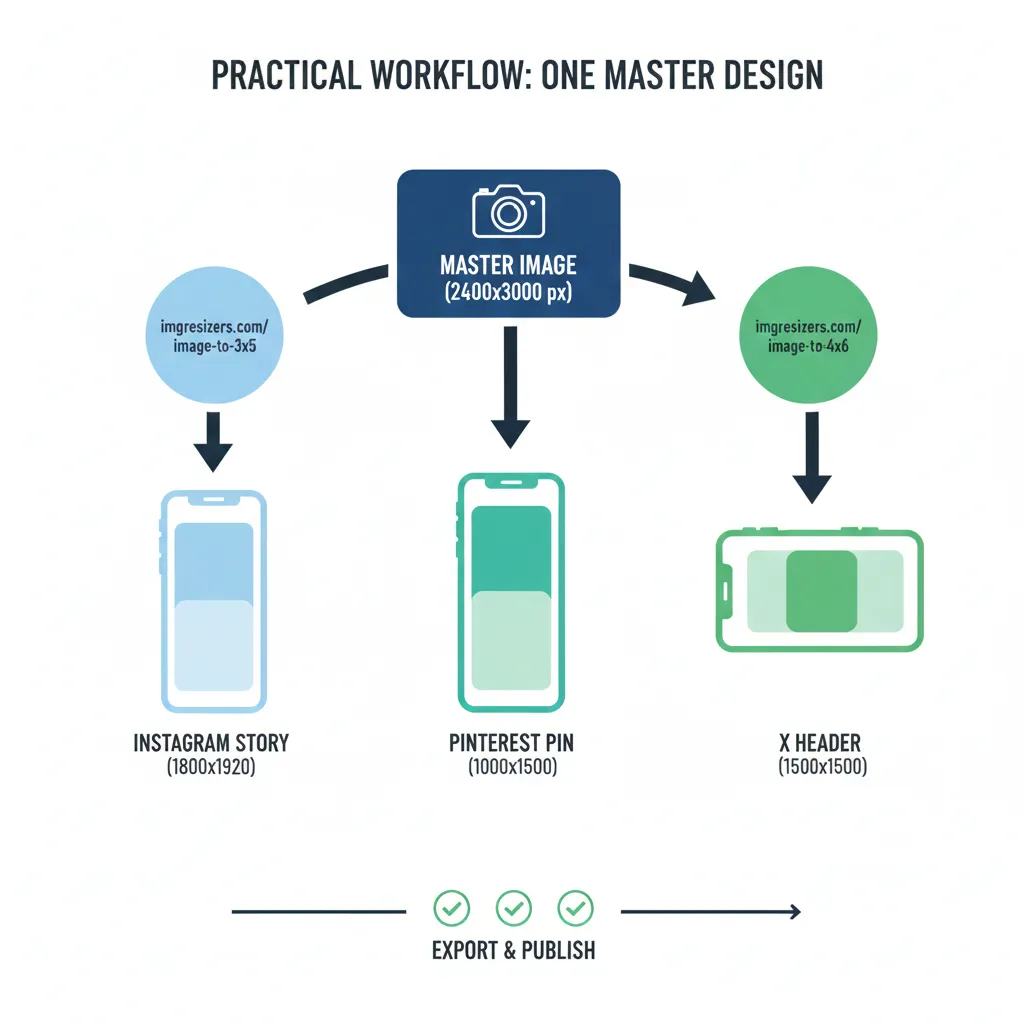
Instead of designing separately for each network, you can work from one master visual and generate multiple platform‑ready crops using smart presets.
Most creators start with a high‑quality master layout—often in 4:5, 1:1, or 16:9—and then adapt that base to vertical or horizontal formats. To keep this process fast and consistent, you can use specialized, size‑focused links that instantly convert your base design into precise print and social‑friendly aspect ratios.
Here are practical ways to build that unified workflow:
- Start from a flexible master
- Design a master image at a generous resolution, such as 2400 × 3000 px (4:5) or 1920 × 1080 px (16:9), keeping important content centered so it survives multiple crops.
- Use safe margins for text and logos so nothing critical is lost when converting for stories, pins, or banners.
- Use targeted cropping tools
- For card‑style posts, covers, and story assets that should mimic classic print sizes on social, convert your base design into a clean 3 × 5 format using **
- https://imgresizers.com/image-to-3x5
When you need a slightly more unusual frame—for example, unique carousels or ad variations—
- [https://imgresizers.com/image-to-3-24x4-25](https://imgresizers.com/image-to-3-24x4-25)
- helps you reach that exact proportion without guesswork.
Standard horizontal posts, banners, and thumbnails can be quickly refit to 4 × 6 via
- [https://imgresizers.com/image-to-4x6](https://imgresizers.com/image-to-4x6)
- giving you a reliable landscape base that adapts well to X headers, Facebook link previews, and YouTube‑style graphics.
- Cover more portrait and hybrid formats
- For tall promo graphics and Pinterest‑friendly visuals,
- https://imgresizers.com/image-to-5x7
- offers a balanced portrait frame that can be re‑exported to 4:5 or 2:3 social ratios with minimal cropping.
- When you need a slightly taller canvas (for example, tutorial images, infographics, or multi‑section carousels),
- https://imgresizers.com/image-to-5x8
- gives extra vertical room while staying manageable on mobile screens.
- Flip orientation cleanly
- If you have a vertical concept that must be repurposed as a wider post or banner,
- https://imgresizers.com/image-to-6x4
- helps you create a 6 × 4 horizontal version, close to the 3:2 and 16:9 formats commonly used on Facebook, X, and LinkedIn.
By saving these links as presets in your workflow, you can turn one master asset into a family of images that map cleanly onto Instagram posts, Reels/Stories, Facebook feeds and covers, LinkedIn updates, X posts, Pinterest pins, Snapchat/TikTok stories, Discord banners, and even WhatsApp statuses.
Practical Workflow for 2026 Social Media Resizing
A simple, repeatable process will keep your visuals consistent and algorithm‑friendly across every channel.
- Choose your primary ratio
- Decide whether the campaign will be vertical‑first (4:5 or 9:16) or more horizontal (16:9) based on your main platform.
- Design one master visual
- Create the full layout once, with safe zones for text and logos that will work when cropped to square, portrait, and landscape.
- Generate alternate ratios with resizing links
- Use image‑to‑3x5, 3‑24x4‑25, 4x6, 5x7, 5x8, and 6x4 conversions to produce all necessary aspect ratios from the same master file.
- Export at platform‑ready resolutions
- Map those ratios to real pixel sizes: for example, 4 × 5 → 1080 × 1350, 1:1 → 1080 × 1080, 9:16 → 1080 × 1920, 2:3 → 1000 × 1500, 16:9 → 1200 × 675.
- Test and refine
- Preview how each image appears in mock feeds or scheduling tools, checking for text cut‑offs and clarity on mobile.