




FAQ's
What does 170×170 mean in an image?
It means the image has equal width and height, both set to 170 units (usually pixels). This creates a square image that fits well in places where equal dimensions are required. It is commonly used in digital platforms where consistency in layout is important.
Why are square images like 170×170 important?
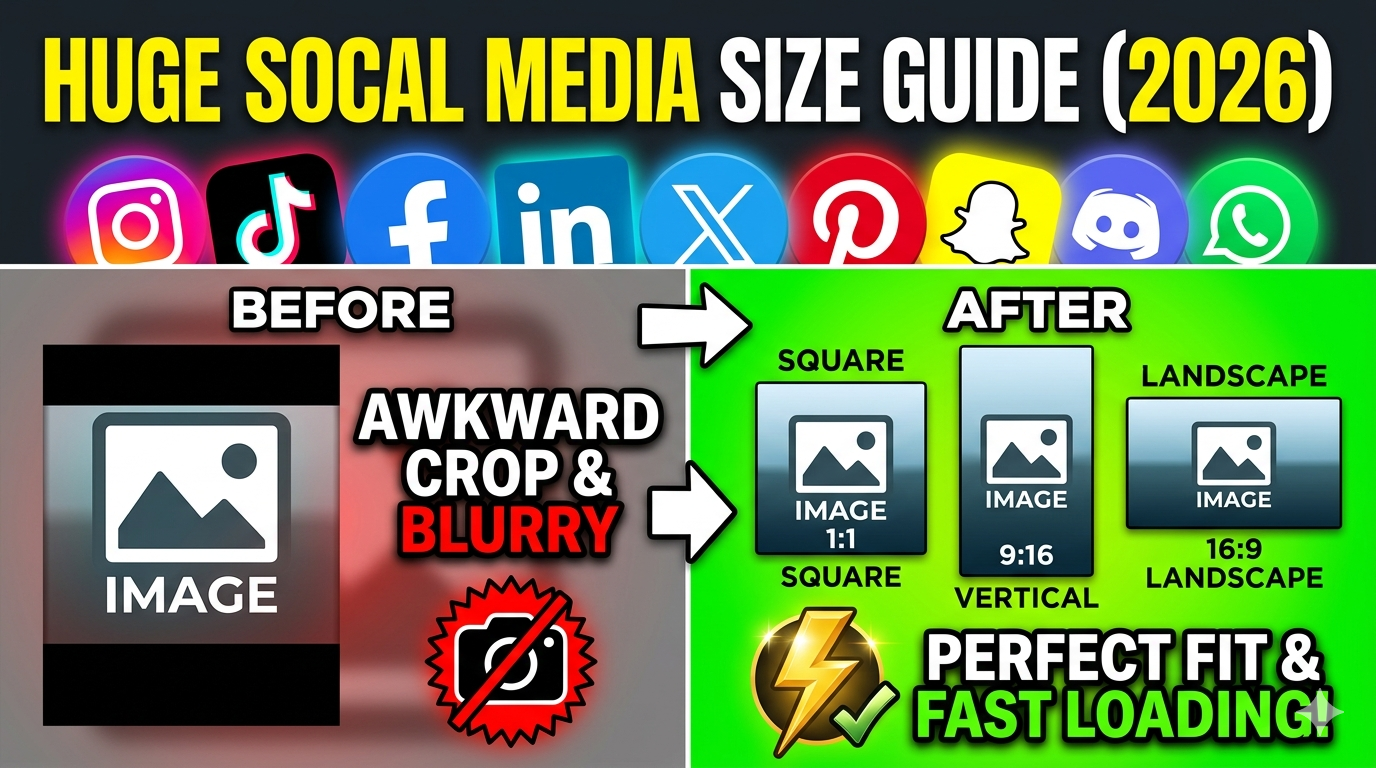
Square images help maintain a clean and uniform design, especially on websites and apps. Many platforms automatically crop images into squares, so using a 170×170 size avoids unwanted cutting. It also ensures your image looks centered and properly aligned.
Can I convert a rectangular image into 170×170?
Yes, you can upload any rectangular image and convert it. The tool gives options like "stretch," "blur background," or "color background" to fit it into a square. This way, you can decide how the image should look after resizing.
Will resizing affect the clarity of my image?
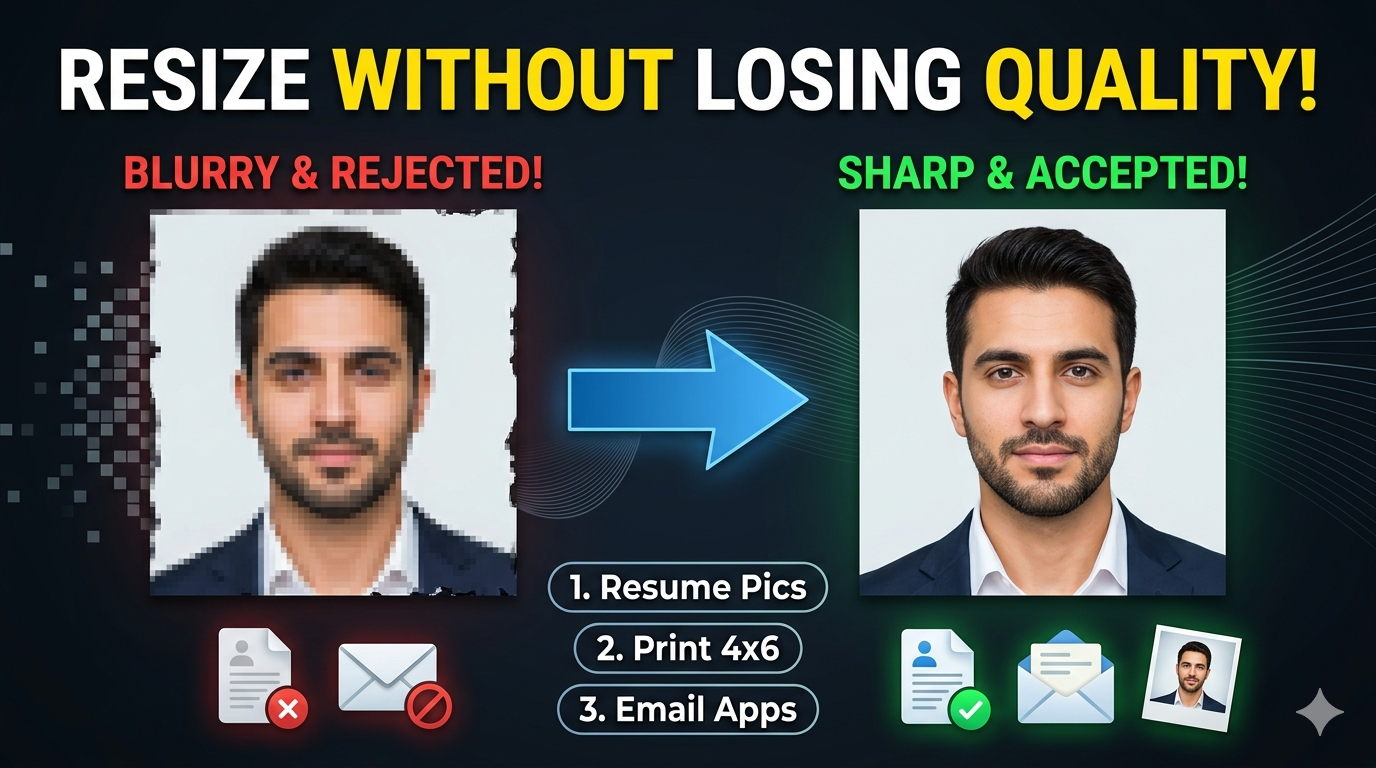
It depends on how you set the quality and DPI. If you choose higher values, the image will remain clear. If you lower the quality too much, the image may lose some sharpness. So it’s better to adjust settings carefully.
Which resize option should I choose for best results?
If you want the image to look natural, use fit options instead of stretch. Stretch is only useful when exact filling is needed. Blur and color background options usually give better visual results without distortion.
What is the use of DPI in this tool?
DPI controls how detailed your image appears, especially in print. Higher DPI like 300 is good for printing, while lower DPI is enough for digital use. It helps you choose the right output quality.
Can I use 170×170 images for profile pictures?
Yes, many platforms support square profile images. Using 170×170 ensures your image fits properly without cropping. It helps maintain a clear and centered profile picture.
Is this tool suitable for beginners?
Yes, the tool is very simple to use. You don’t need any editing skills. All options are easy to understand. Even first-time users can resize images without difficulty.
Can I upload images from cloud storage?
Yes, you can upload images from Google Drive or Dropbox. This makes it easy to access your files without downloading them first. It saves time and effort.
Does the tool support different formats?
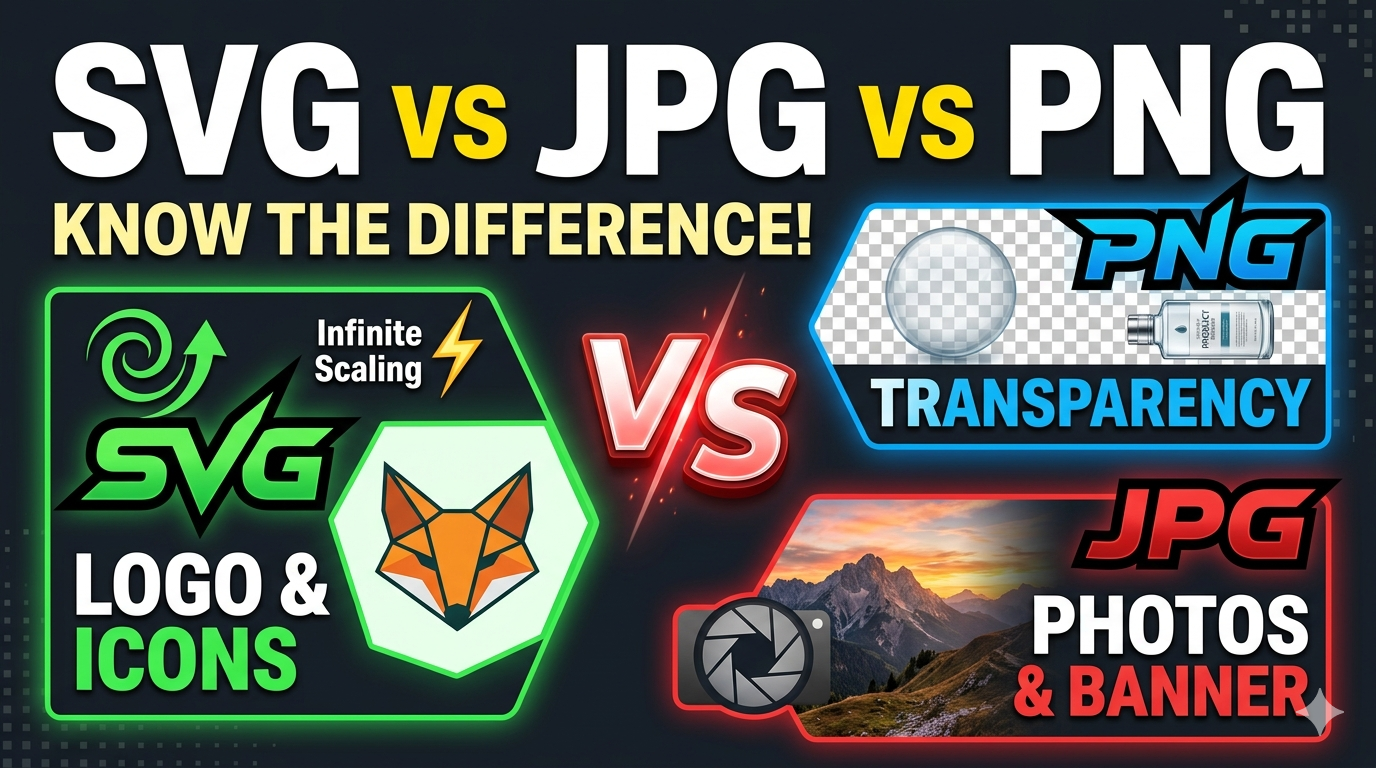
Yes, you can download images in formats like JPG, PNG, WEBP, and GIF. This allows you to use your image on different platforms easily.
Can I reduce the file size of my image?
Yes, by lowering the quality setting, you can reduce file size. This is useful for uploading images online or saving storage space.
Can I use this tool for website thumbnails?
Yes, 170×170 is a good size for thumbnails. It keeps images neat and properly aligned. It works well for blogs and websites.
What happens if I upload a very small image?
If the image is too small, enlarging it may reduce quality. It may look slightly blurry. It’s better to use high-resolution images for best results.
Can I choose a custom background color?
Yes, you can select any color from the palette. This helps match your image with your design or theme.
Can I resize images for apps or icons?
Yes, square images like 170×170 are often used for icons. This tool is useful for such purposes.
Can I change dimensions other than 170×170?
Yes, you can enter any size you want. The tool is flexible and not limited to one dimension.
Does the tool maintain image position?
Yes, it keeps the image centered while resizing. This ensures a balanced look.
Can I use it for professional work?
Yes, it can be used for both personal and professional purposes. It provides accurate results.
What is the easiest option for beginners?
Fit with blur background is usually the easiest because it keeps the image natural and fills space smoothly.
Why should I use this tool instead of others?
Because it is simple, fast, free, and provides all advanced resizing options in one place. You don’t need multiple tools. It saves time and effort.