



FAQ's
Why is the 18x24 size important?
The 18x24 size is important because it is a standard and versatile dimension often used for posters, artwork, and prints. It provides a good balance of visibility and detail, making it ideal for display purposes.
Why is selecting the correct DPI important?
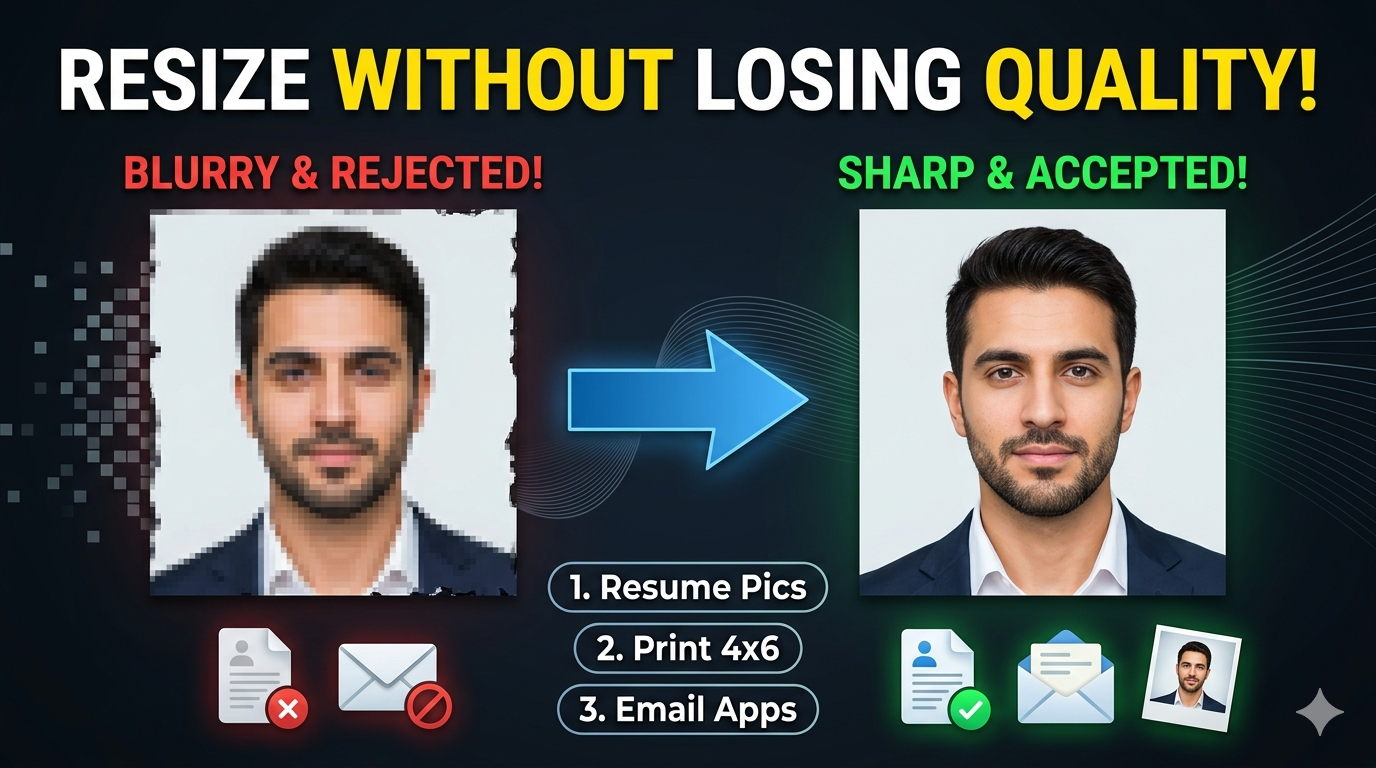
DPI affects the sharpness and clarity of your image, especially when printed. For online use, 72 or 96 DPI is sufficient, providing fast loading and small file sizes. For high-quality printing, 200 or 300 DPI ensures your images look professional and detailed on posters, flyers, or photographs. Adjusting DPI before saving guarantees your image meets the quality standards for its intended use. Proper DPI settings prevent pixelation and ensure your visuals look clear and professional.
Can I upload images from my mobile device?
Yes, the tool is fully mobile-responsive. You can upload images directly from your smartphone or tablet, as well as from cloud services like Google Drive or Dropbox. The upload process is simple, making it easy to resize images on the go.
Which units can I choose for dimensions?
You can set your width and height in centimeters, pixels, millimeters, or inches. This flexibility ensures your images can meet specific platform guidelines or print standards. You can switch units instantly, with the preview updating in real-time.
How do resize types affect the final image?
Stretch mode enlarges or shrinks the image to fit the 18x24 frame, which might distort the aspect ratio but can be useful for creative effects. Fit & background blur mode maintains the original aspect ratio and adds a blurred background to fill empty space, ideal for profile pictures or professional visuals. Fit & background color mode preserves aspect ratio but fills the background with a color from the palette, creating a clean, uniform look. Choosing the correct mode depends on your aesthetic and purpose.
How do I select a background color?
In fit & background color mode, you can pick a color from the palette or input a hex code. This feature helps create a cohesive look, especially for profile photos, portraits, or branding visuals. You can also adjust the opacity or brightness of the background color. This customization ensures your image looks polished and professional.
How do I ensure high image quality?
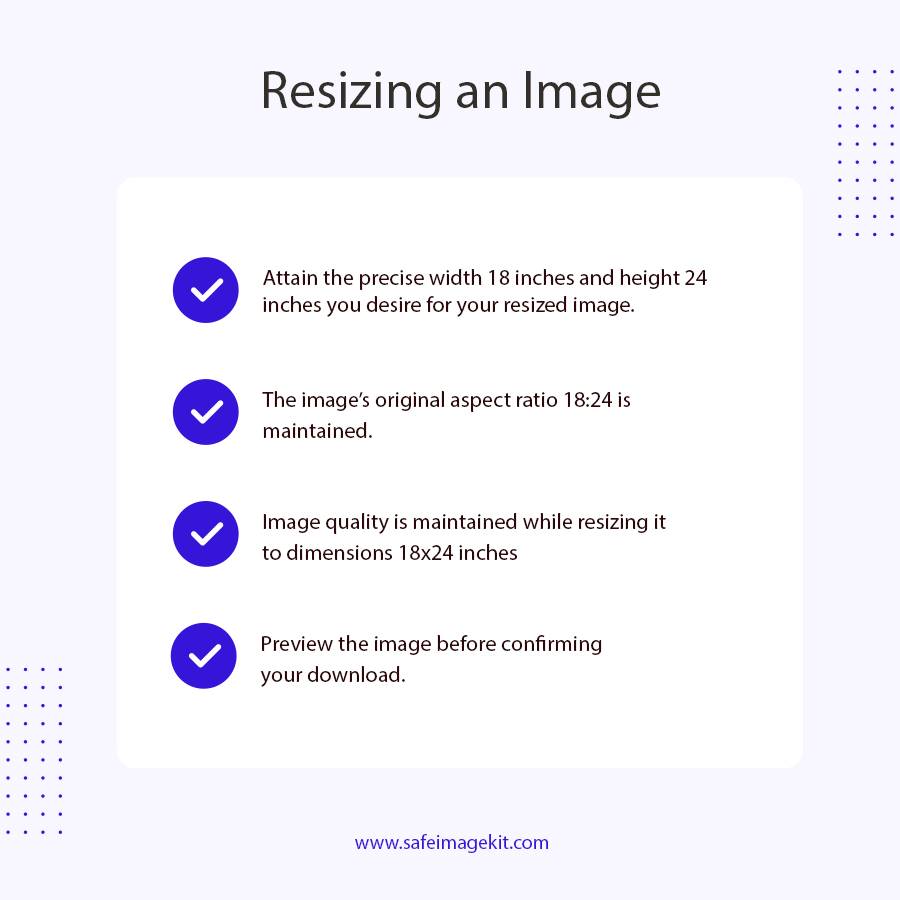
Adjust the quality slider from 0.1 to 1; higher values produce sharper images with more detail. For print, use a quality of 1 and DPI of 200-300 for best results. For web use, lower quality settings reduce file size without significantly impacting visual clarity. Always preview your image before downloading to check for any loss of detail.
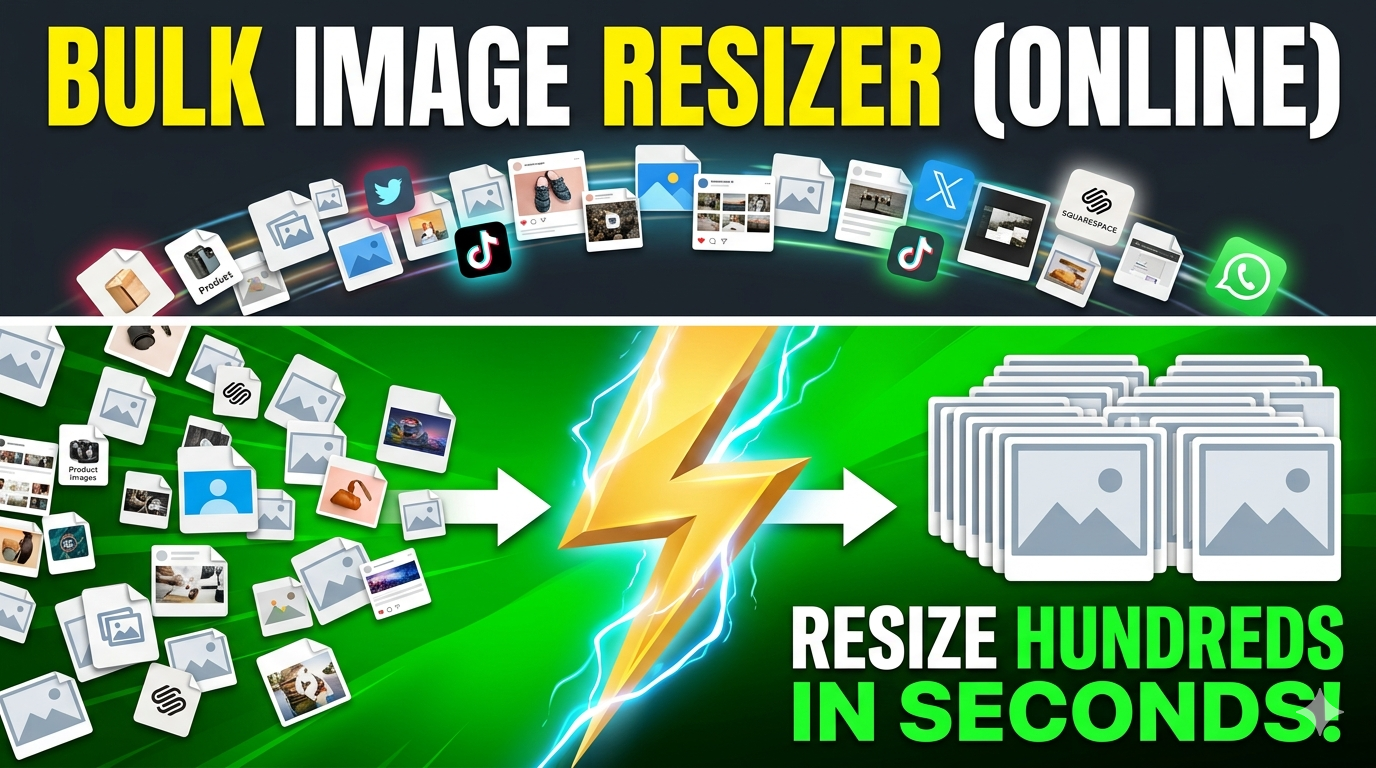
Can I resize multiple images at once?
Currently, the tool processes one image at a time. To resize multiple images to 18x24 size, visit https://imgresizers.com/multiimage, ensuring each image receives customized adjustments.
Is animated GIF resizing supported?
Yes, the platform supports animated GIFs.
How do I optimize images for online use?
Set DPI to 72 or 96, choose WebP or JPEG formats, and lower the quality slider as needed. Preview the image to balance clarity and file size. This helps your images load quickly and look sharp on websites and social media.
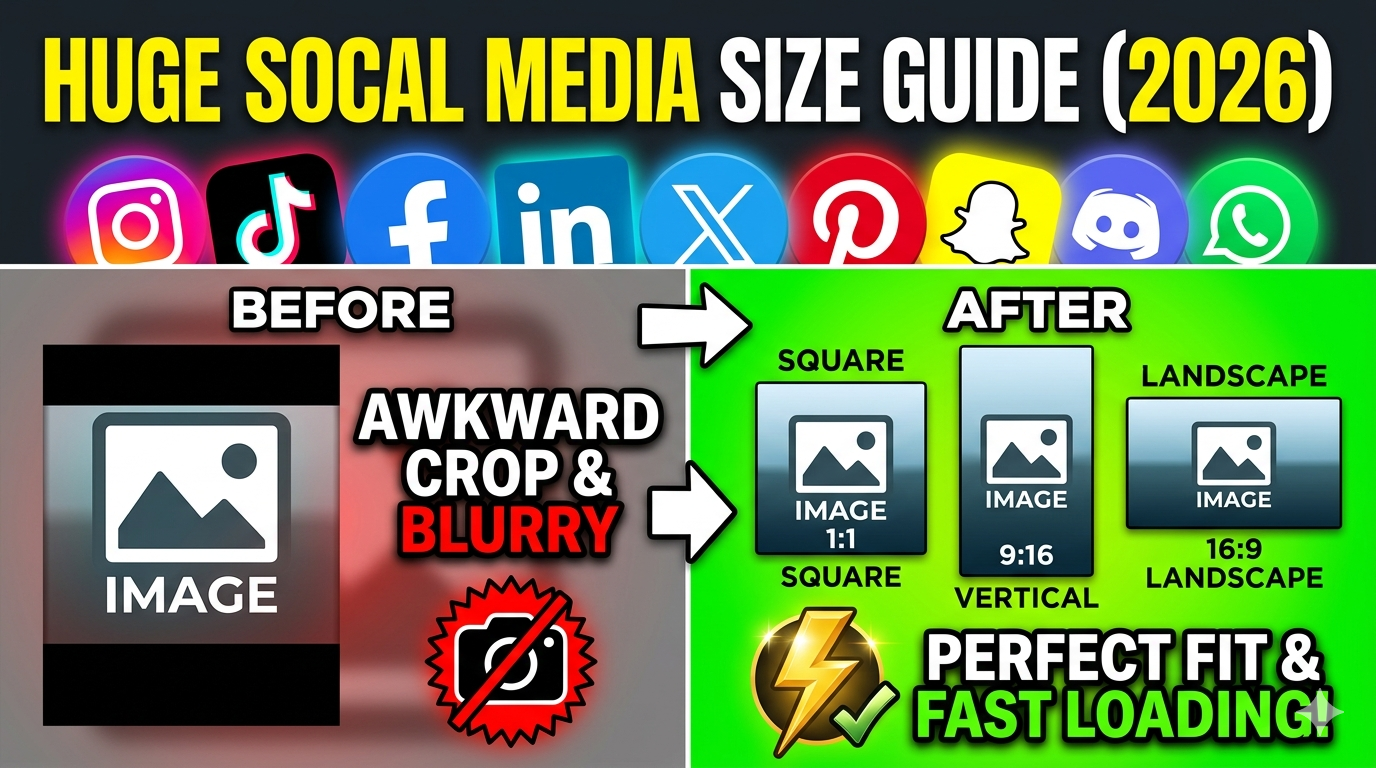
Can I resize images for Facebook profiles?
Yes. You can adjust dimensions, background, and resize modes to match Facebook platform standards or simply visit https://imgresizers.com/facebook.
Who should use this resizing tool?
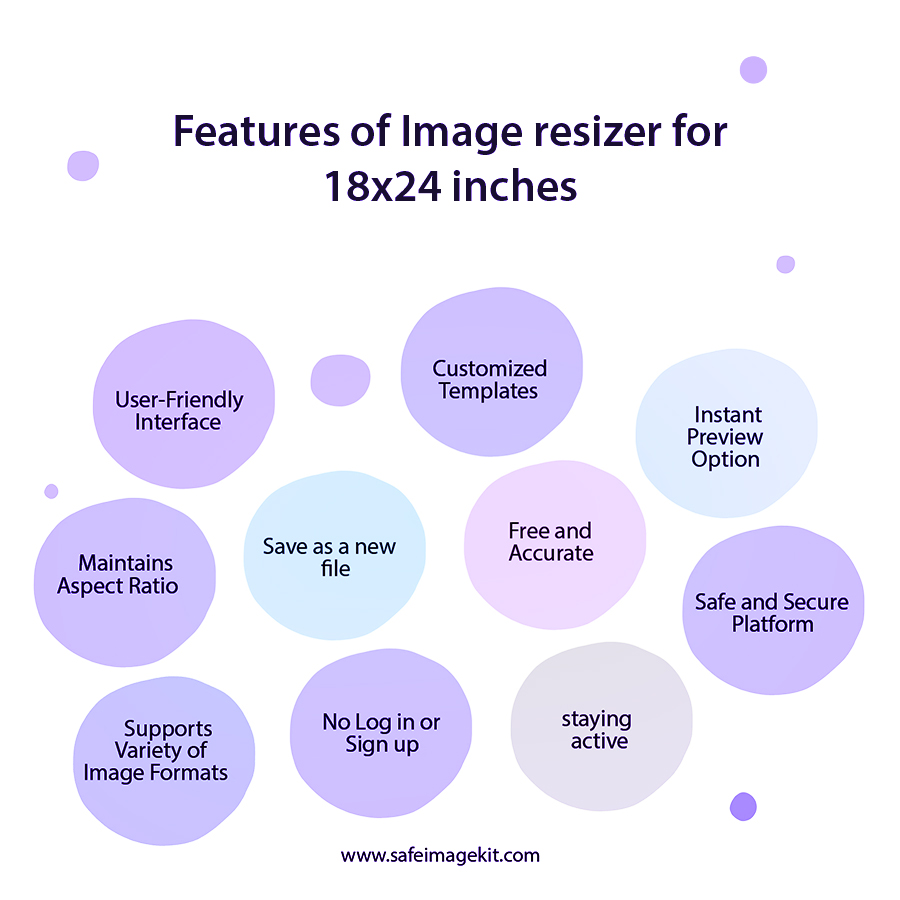
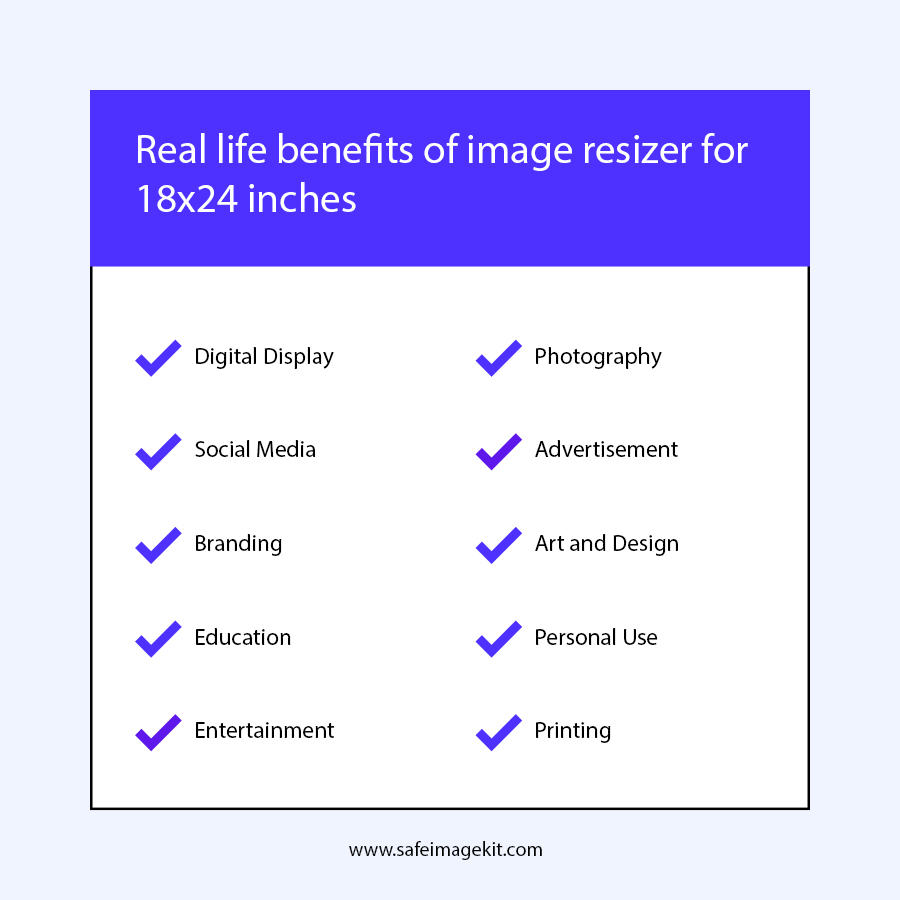
Anyone needing precise, high-quality visuals for digital or print purposes can use this resizing tool, like photographers, marketers, students, designers, and small business owners.
What formats can I download my resized image in?
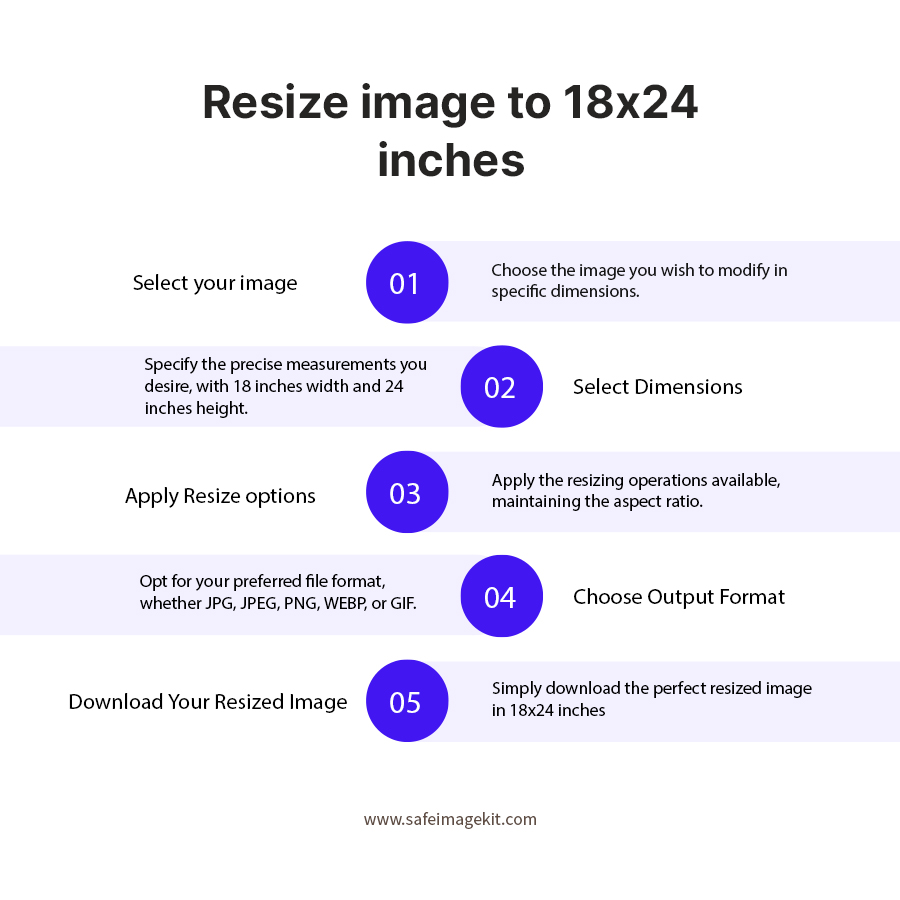
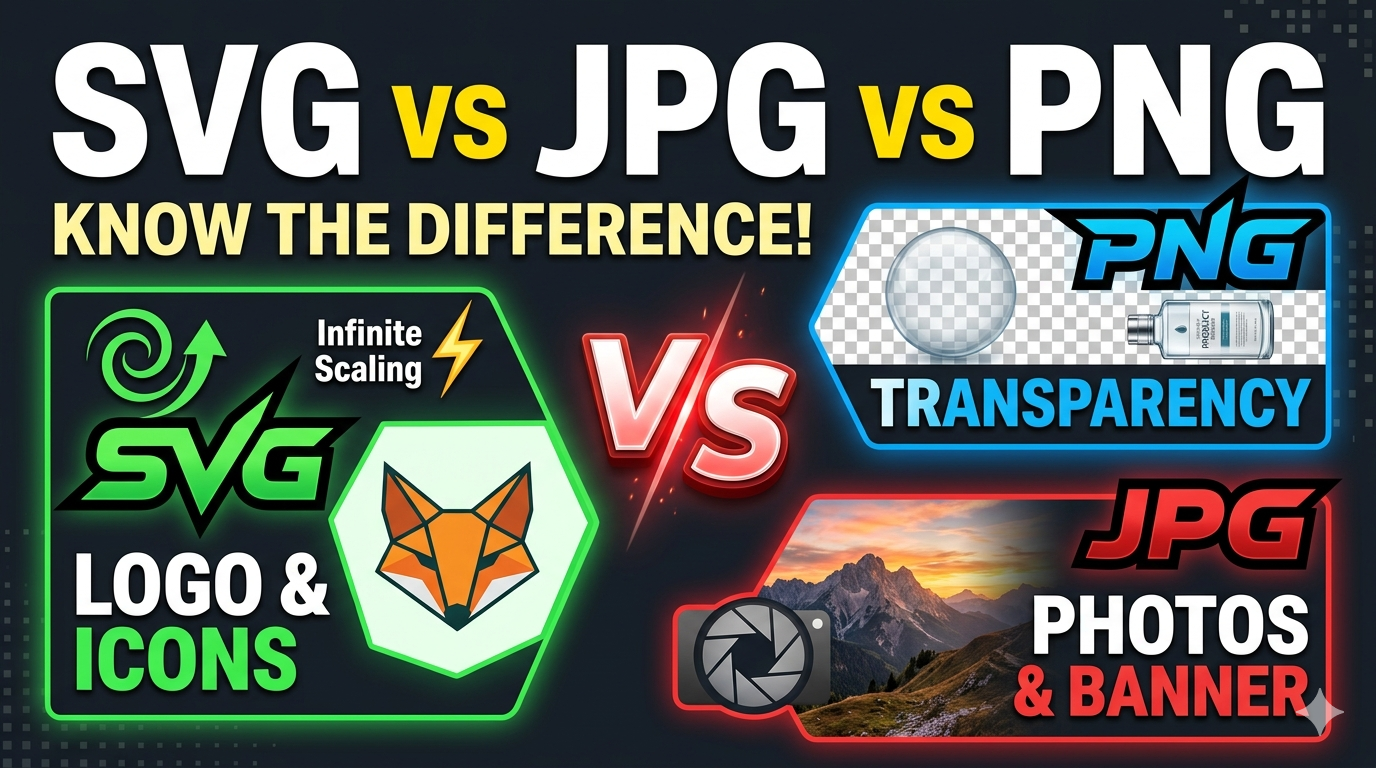
PNG, JPG, JPEG, WebP, and GIF. Choose based on your needs: PNG for transparency, JPG/JPEG for photos, WebP for web optimization, and GIF for animations.