



FAQ's
Why is resizing to 3.5x4.5 cm important?
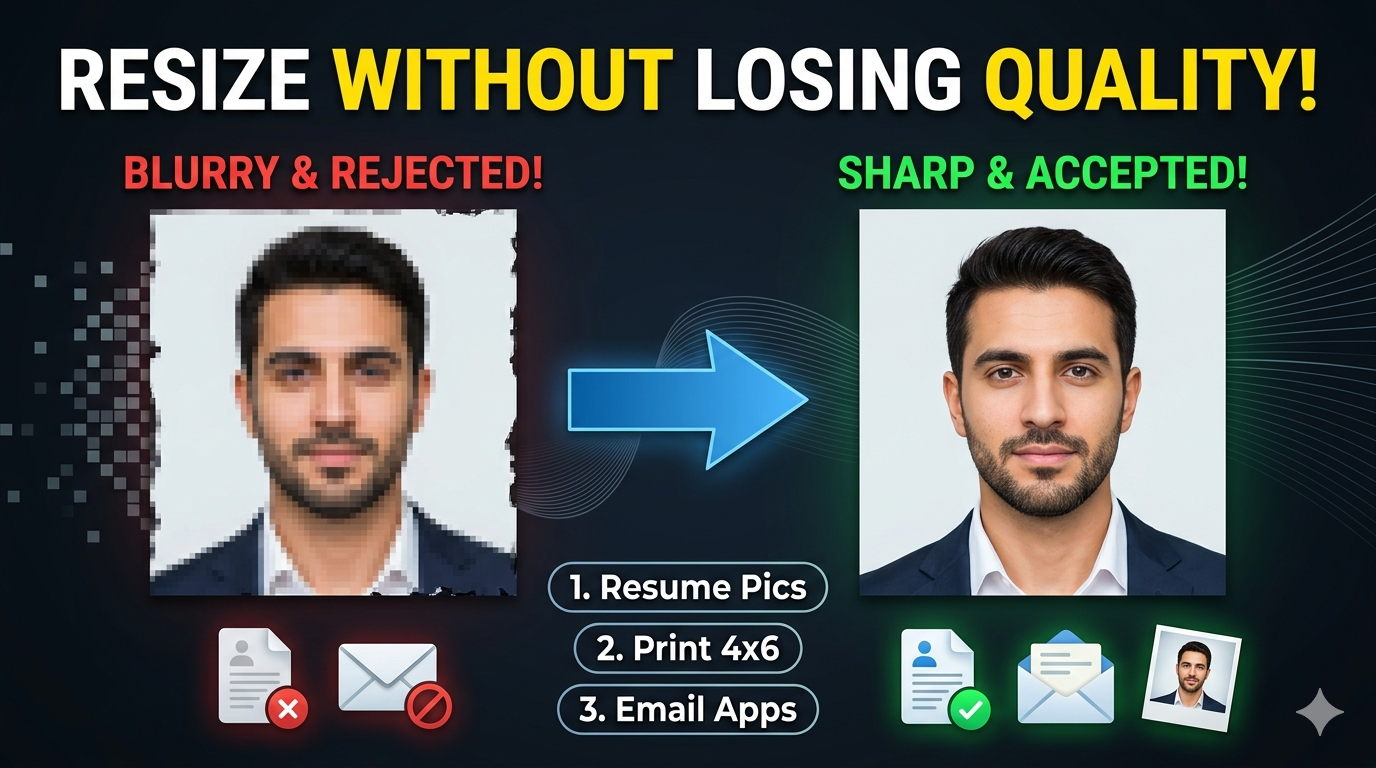
This size is a standard dimension used for ID photos, passport photos, and small print materials. Resizing images to this precise size ensures they meet official specifications, making them suitable for official documents or standardized profiles. Resizing your image correctly saves time and avoids rejection or adjustments later.
Who can use this tool to resize images to 3.5x4.5 cm?
Anyone needing standardized images can use this tool: students, professionals, photographers, or individuals preparing ID or passport photos. Businesses can resize product images or profile pictures for branding. Educational institutions and government agencies often require official-sized images for documentation. Social media users can optimize profile pictures, while print shops can prepare images for small-scale printing. The user-friendly interface makes it accessible even for those with little technical experience.
Where can I use a 3.5x4.5 cm image?
This size is commonly used for passport and visa photos, ID badges, and small-scale prints like gift cards. It’s suitable for online profiles or digital resumes that require standardized photo dimensions. It’s versatile for both digital and print applications, ensuring a professional appearance.
Why do I need to set the DPI when resizing?
DPI affects the resolution and clarity of your image. Higher DPI (200-300) is essential for printing high-quality photos that won’t appear pixelated. Lower DPI (72-96) is suitable for web use, ensuring faster load times. Proper DPI settings ensure your image looks professional and meets quality standards.
Can I resize images to 3.5x4.5 cm from any device?
Yes, the tool supports uploading images from any device via local upload or cloud services like Google Drive and Dropbox. This flexibility allows you to work from anywhere without needing specialized software. The process is straightforward, regardless of device type, making it accessible for all users. Cloud integration simplifies accessing images stored remotely. Compatibility across devices enhances convenience and usability.
What units can I use for dimensions?
You can set dimensions in centimeters (cm), pixels (px), millimeters (mm), or inches. This flexibility ensures your images meet specific requirements for any purpose. Simply select your preferred unit from the dropdown menu, and the tool will adjust accordingly. This helps in achieving precise sizing for various printing or digital needs. Switching units is quick and easy, providing full control over your resizing process.
How does the resize type affect the final image?
Choosing the right mode depends on your desired look and purpose. For ID photos, fit & background options often produce the most professional results. Experimentation helps determine the best setting for your image.
How long does the resizing process take?
Most images are resized instantly or within a few seconds. Larger files might take slightly longer depending on your internet speed and device performance. The interface provides real-time feedback, so you know when the process is complete.
How do I download my resized image of 3.5x4.5 cm?
After setting your preferences, click the "Download" button. The resized image will be generated in your selected format and quality, then saved directly to your device. The download is quick and straightforward, with no additional steps needed.
Can I resize images for multiple purposes at once?
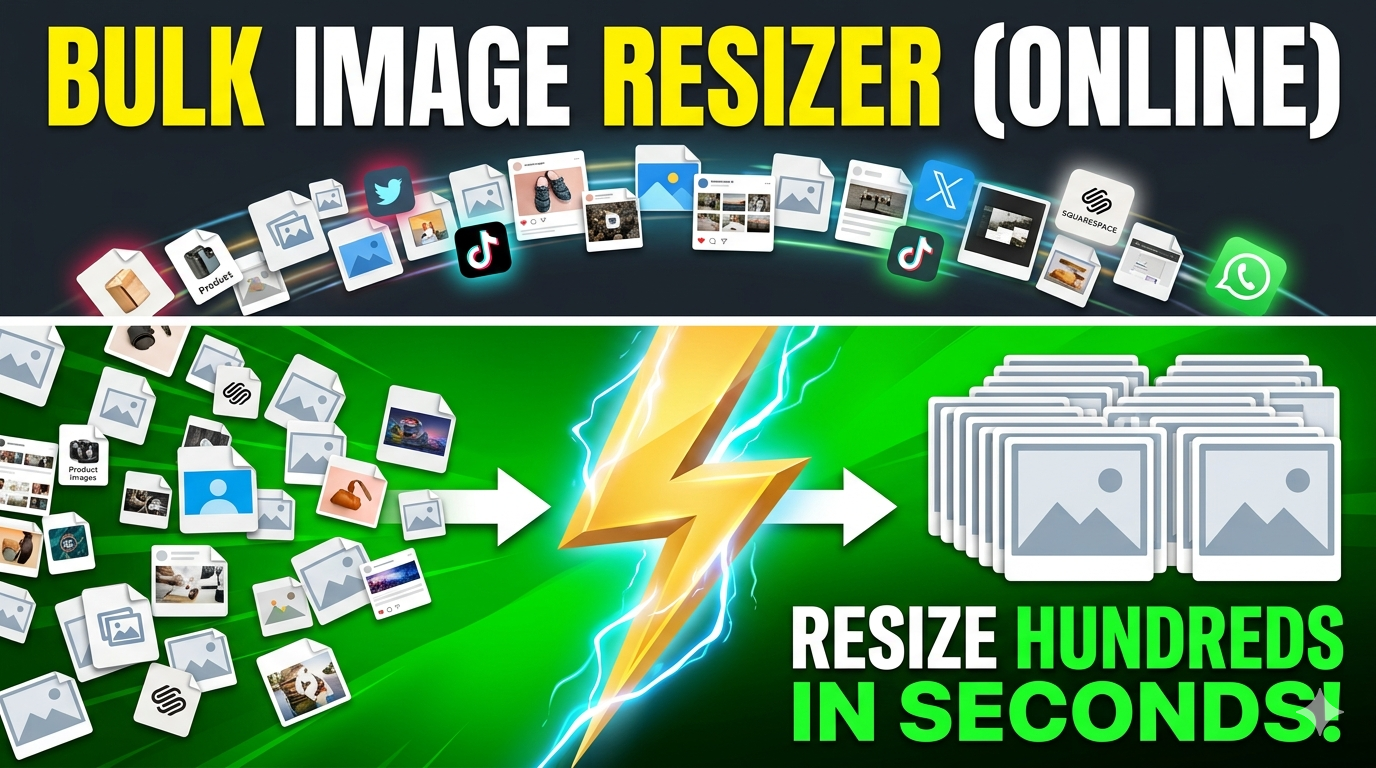
Currently, the tool handles one image at a time. To resize multiple images, visit https://imgresizers.com/multiimage and download images with appropriate settings.
Can I use this tool for professional printing?
Absolutely. Set dimensions precisely, select a high DPI (200-300), and choose the best quality setting for professional prints. This ensures your images are sharp, clear, and print-ready. Otherwise, you can visit https://imgresizers.com/printing.
How do I ensure the best quality output?
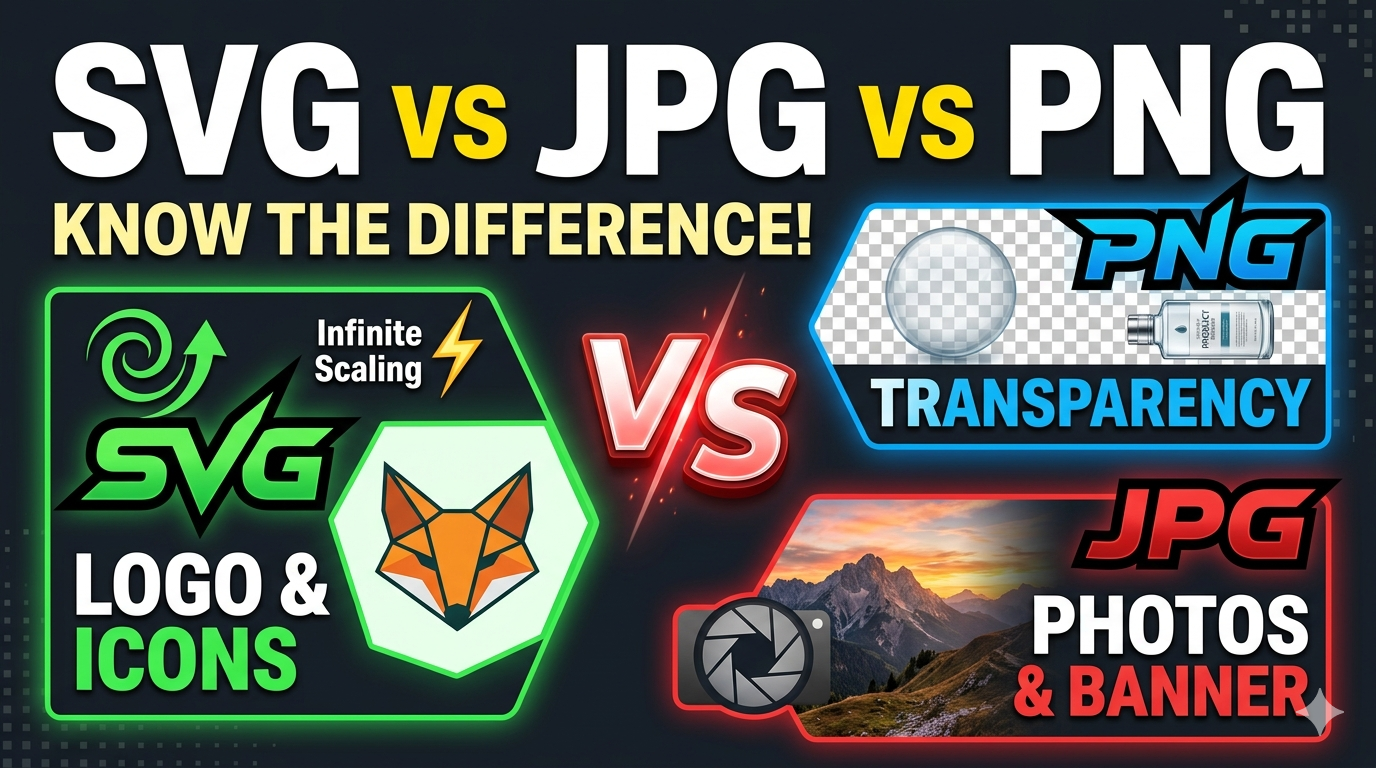
Use the highest quality setting (1), set the DPI to 200 or 300, and choose a suitable format like PNG or JPEG. Avoid excessive resizing that could reduce image clarity. Preview your image before downloading to confirm quality.
Can I customize the background color?
Yes. In fit & background color mode, you can select any color from the palette, which fills the surrounding space to match your preferred aesthetic or official requirements.
How do I prepare images for official documents?
Resize the image to the official guidelines, set DPI to 200 or 300, and ensure the background is plain and neutral. Use high-quality settings for clarity, and select the appropriate format (JPG or PNG).