



Resize Images to 320x320 Dimensions

Upload and save perfectly resized images instantly.

To resize image for 320 x 320 pixels
add-image CHOOSE FILE

or drop your file here

User-Friendly & Responsive Interface
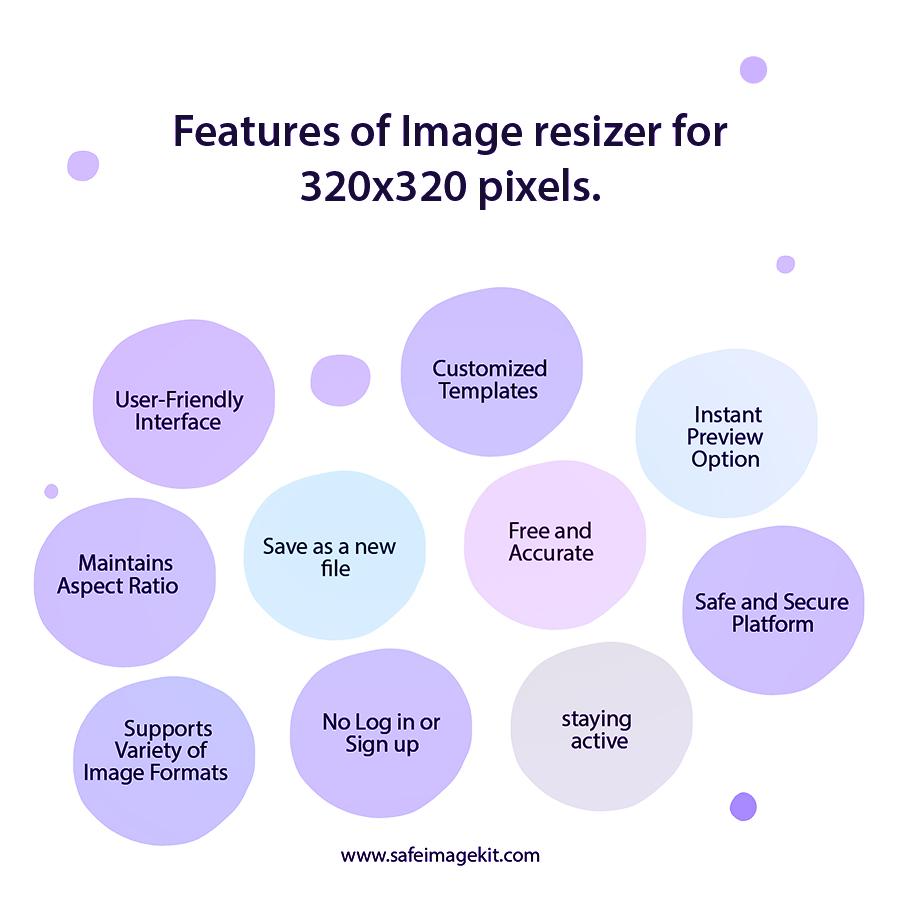
The image resizer can be used by all skill levels. The interface provides clear labels. Adjustments happen in real-time, with visual previews to help you see exactly how your image will look. The tool’s layout adapts seamlessly to desktops, tablets, and smartphones, ensuring accessibility anywhere.
Flexible Upload Options
Upload your images directly from your device by clicking the "Choose File" button. You can also connect your Google Drive or Dropbox accounts to access images stored online, making it easy to work with files from anywhere. The uploads are encrypted to ensure your data remains private and secure.
Precise Dimension Control with Multiple Units
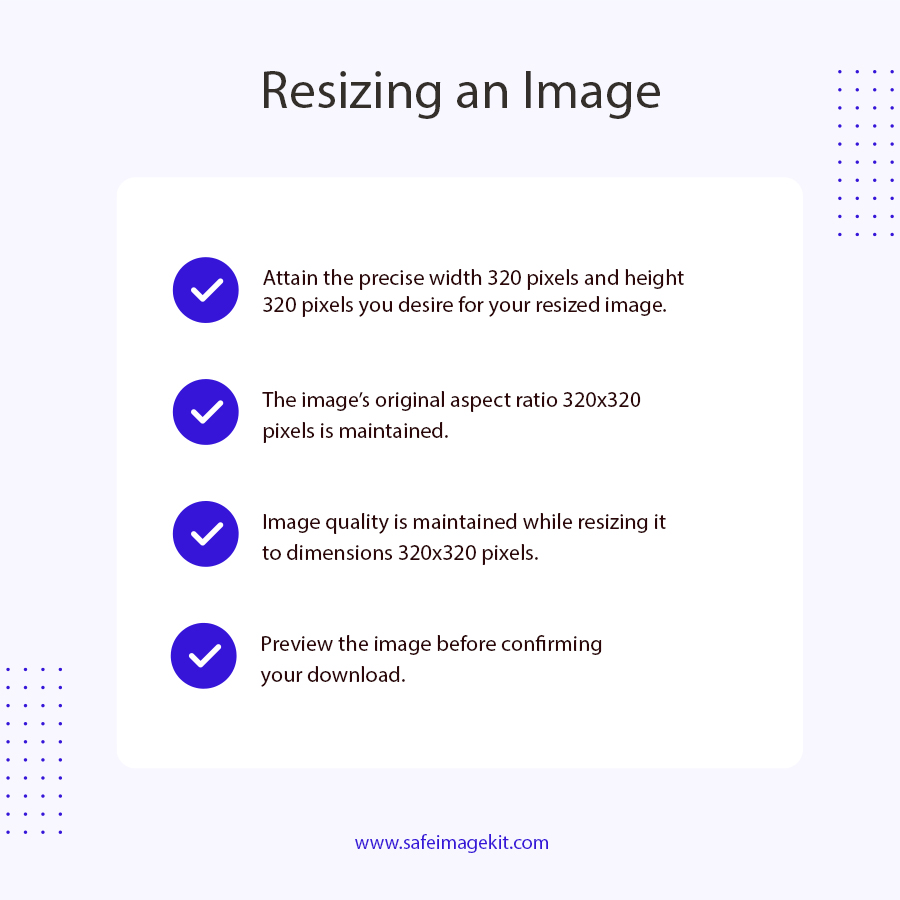
Set the width and height exactly to 320 pixels, or choose other units like centimeters, millimeters, or inches for more flexibility. You can change these dimensions at any time, with real-time updates displayed in the preview. This feature guarantees your images will meet all size specifications.
Multiple Resize Types for Different Effects
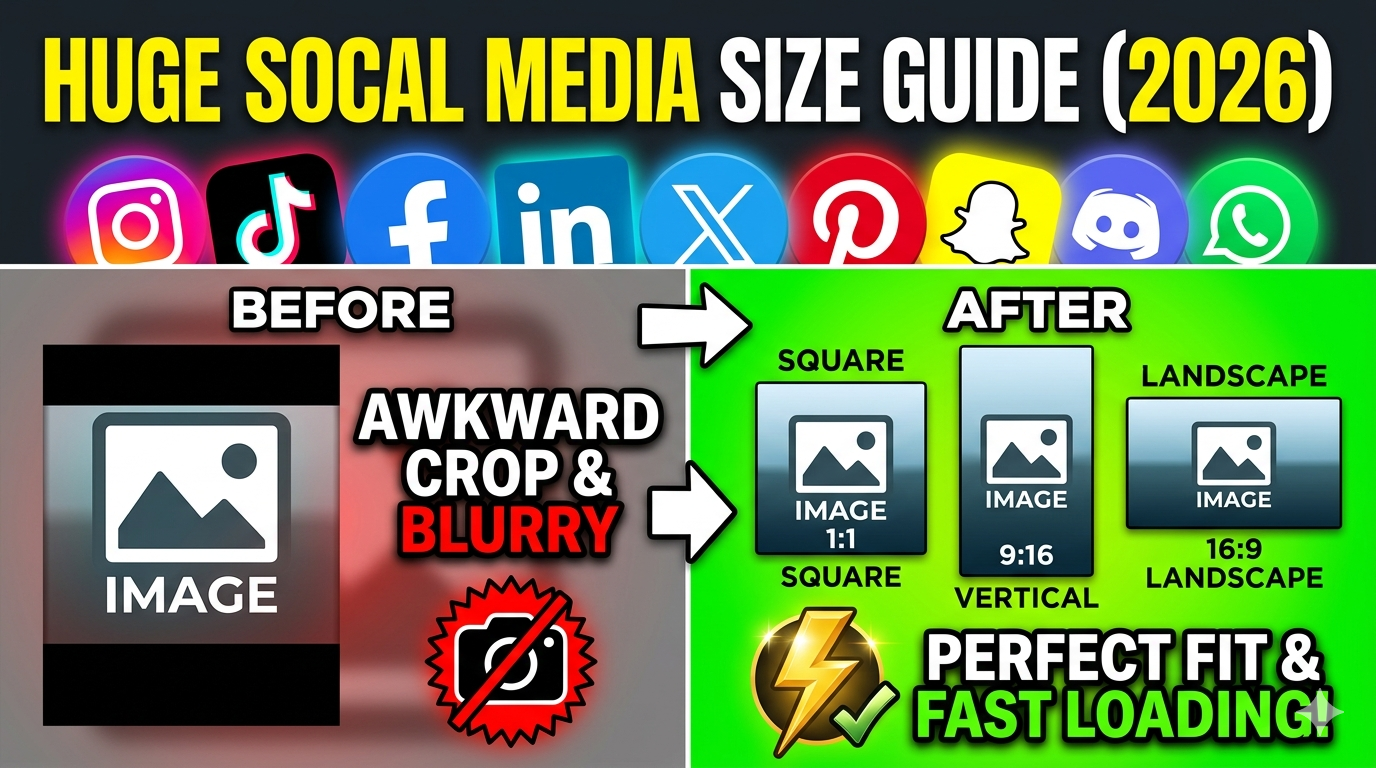
Choose from types like stretch, fit with background blur, or fit with background color. Stretch mode enlarges or shrinks the image to fill the 320x320 frame, Fit & background blur mode maintains the aspect ratio and adds a blurred background to fill empty space, and Fit & background color mode fills the background with a color from the palette.
DPI Settings for Optimal Quality
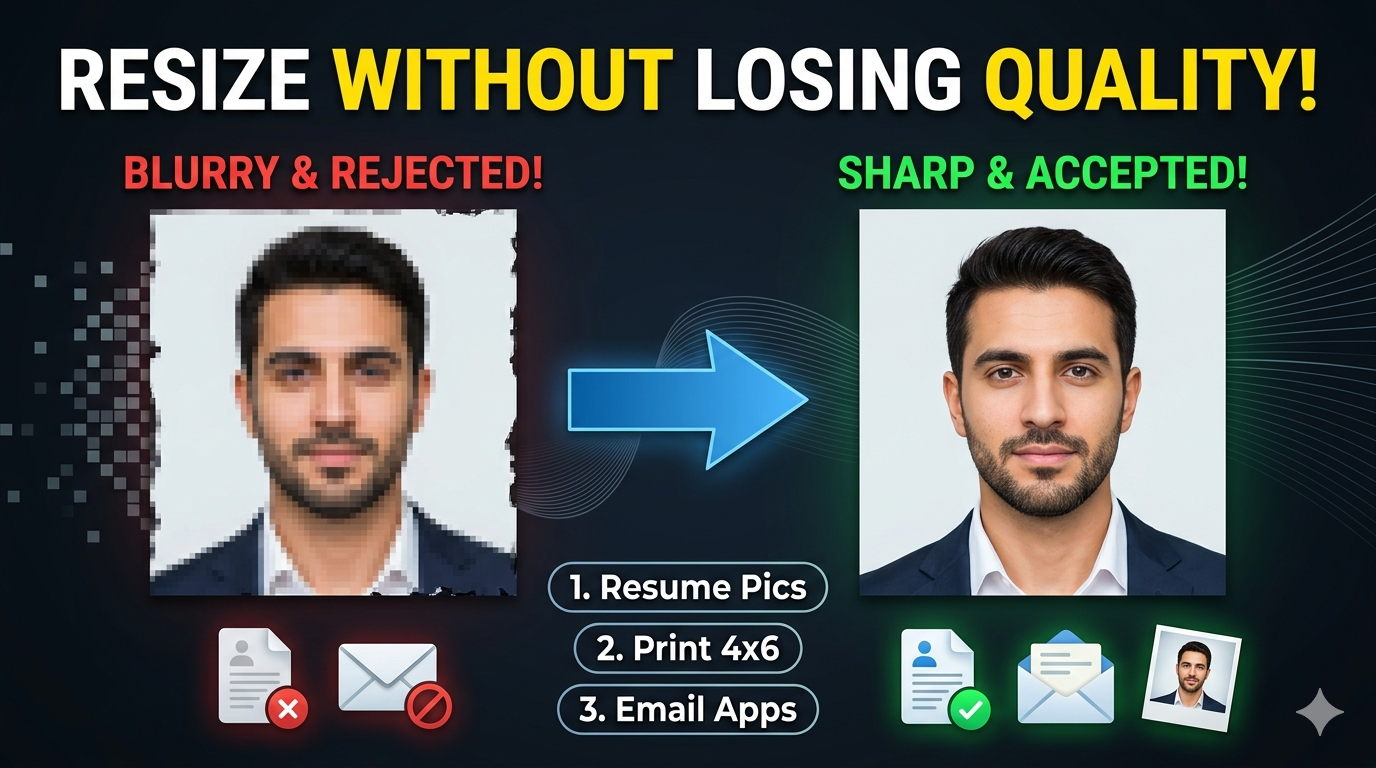
Select DPI options such as 72, 96, 200, or 300 to suit your image’s purpose. Lower DPI (72, 96) is suitable for web and digital use, providing faster load times. Higher DPI (200, 300) is ideal for printing, ensuring sharp, clear images. Adjusting DPI before downloading helps produce professional-quality images tailored to your needs.
Customizable Quality & Format Options
Adjust the quality from 0.1 to 1, balancing between file size and image clarity. Higher quality results in sharper images but larger files, while lower quality reduces size at some loss of detail. You can select formats like PNG, JPG, JPEG, WebP, or GIF depending on your needs. These options allow you to customize your image for specific platforms or purposes, ensuring optimal balance of quality and file size.
how to image

Steps to Resize Image to 320x320 Dimensions

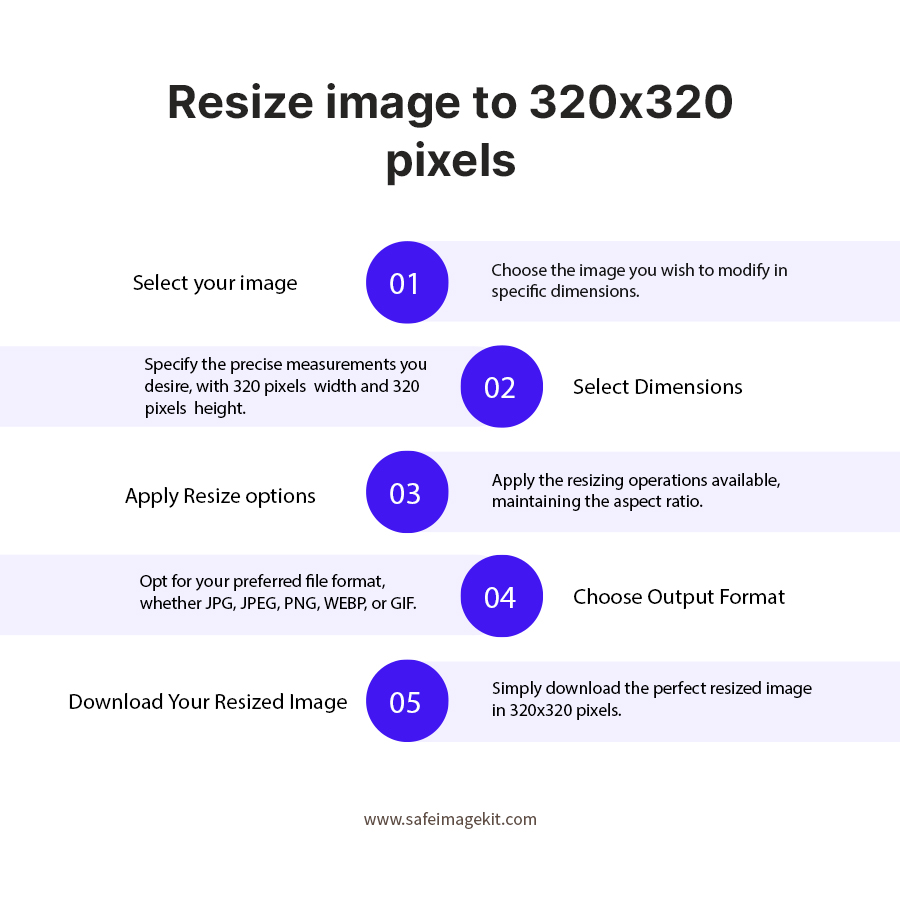
  1. 1.Select an image from the device or cloud storage.
  2. 2.Pick the appropriate resize type.
  3. 3.Adjust the image quality and set the DPI if necessary.
  4. 4.Choose the preferred format for your image.
  5. 5.Click the download button to save your resized image in 320x320 dimensions.
  6. 6.You can customize dimensions and units to suit your needs.

FAQ's

Why is resizing to 320x320 pixels important?

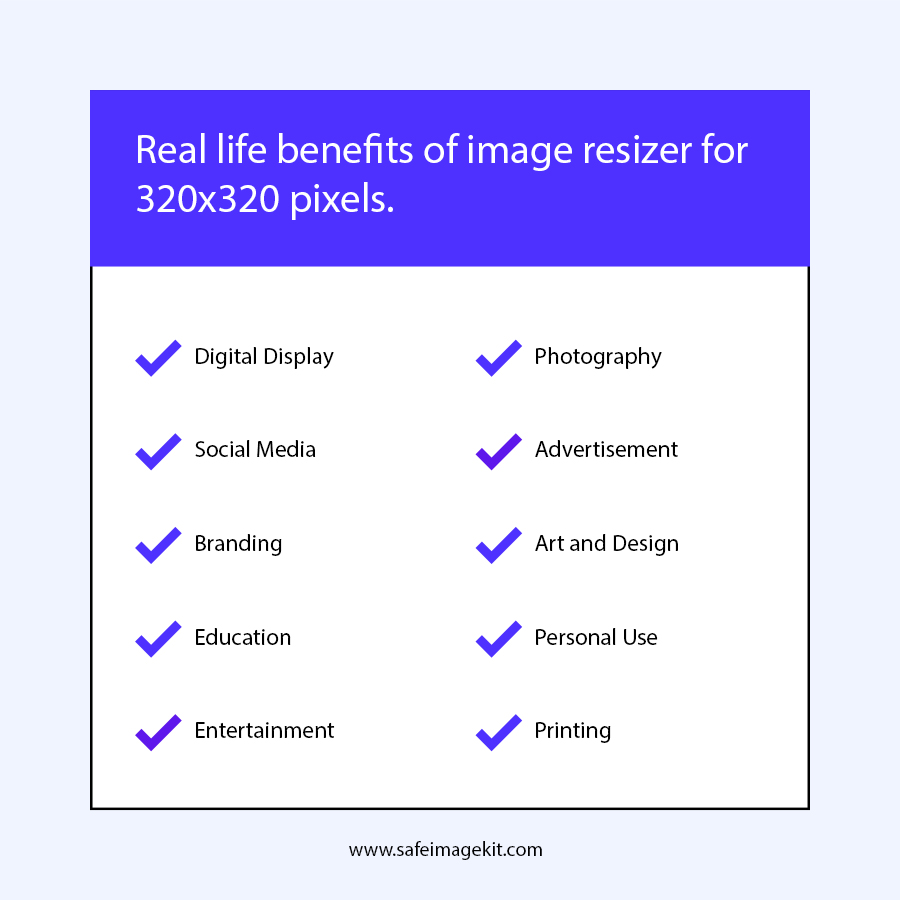
This size is widely used for profile pictures, avatars, and social media images. It ensures your photo fits platform-specific requirements for profile images on sites like Facebook, Instagram, or LinkedIn. Resizing to this uniform dimension helps your images look professional and consistent across platforms. For printing purposes, 320x320 pixels is suitable for small, clear images like ID photos or icons.

Can I upload images from my mobile device?

Yes. The tool is fully responsive and supports uploads from any device. The process is simple, fast, and designed to work smoothly on all screen sizes.

How long does resizing typically take?

Most images are resized in a matter of seconds. Larger or higher-resolution images may take slightly longer depending on your device and internet connection.

Is the tool suitable for animated GIFs?

Yes, the tool supports GIFs, including animated ones. Keep in mind that resizing may affect the quality or smoothness of the animation, so preview the result before finalizing. It’s useful for creating small animated icons or banners in the correct size.

What are common uses for a 320x320 image?

Profile pictures for social media, avatars, ID photos, app icons, and thumbnails. It’s also used for small print photos such as ID badges or membership cards. It’s suitable for profile images on gaming platforms or professional directories.

Why should I choose different units like inches or centimeters?

Some print standards specify dimensions in units other than pixels. Switching units ensures your image meets exact specifications for print or regional standards, providing flexibility for different purposes.

How do I select a background color?

Use the color palette in the background color mode. This is especially useful if your image needs a plain, uniform background for official documents or professional profiles.

How do I prepare an image for official IDs?

Resize to 320x320 pixels, set DPI to 200 or 300, select a neutral background color, and ensure your face is centered with proper lighting. Follow official guidelines on facial expression and head position for best results.

Is this service free?

Yes, the image resizing tool is free to use, with no registration required. It provides a quick, easy, and accessible way to resize images for any purpose.

Which file formats are supported?

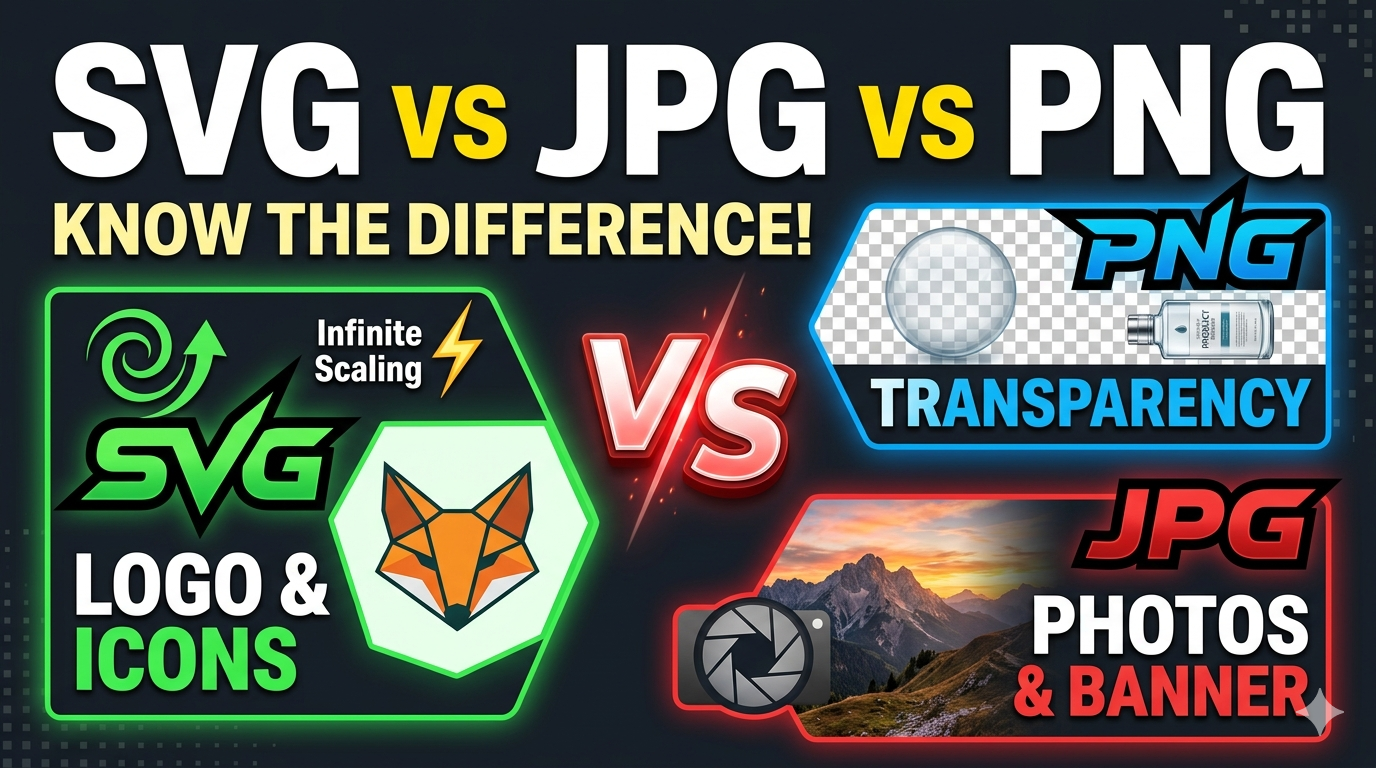
You can download your resized image as PNG, JPG, JPEG, WebP, or GIF, depending on your needs. PNG is best for transparency, JPEG for photographs, GIF for animations, and WebP for web-optimized images.

How does resizing SVG files differ from raster images?

SVG files are vector-based, so they can be scaled infinitely without losing quality, making resizing a matter of adjusting dimensions rather than quality reduction. Visit our https://imgresizers.com/svg for resizing SVG files.

Can I resize multiple images at once without losing quality?

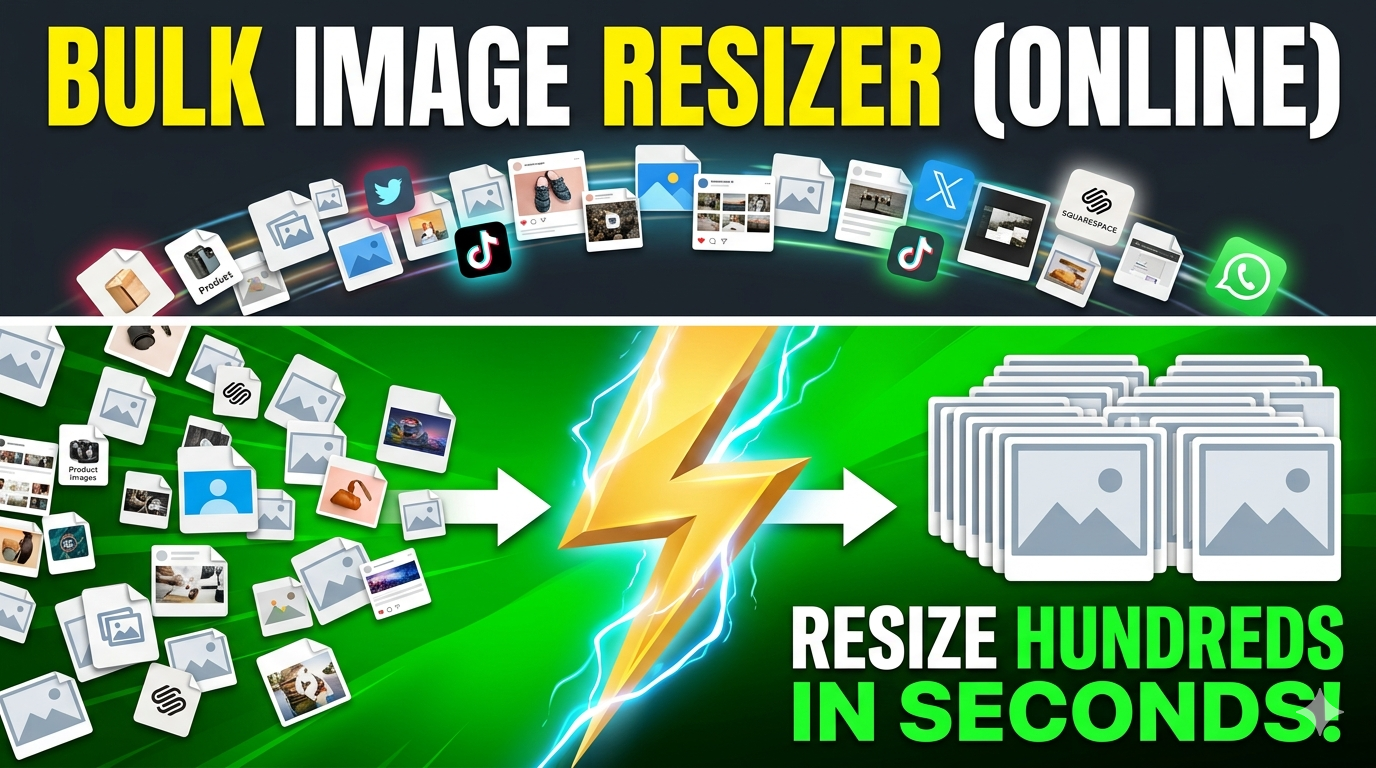
You can visit https://imgresizers.com/multiimage and resize many images simultaneously, maintaining quality and saving time.

rating-img
Rate this tool
3.88/5   81 votes

Other useful information

About The Author

Lakshmi Badige

Lakshmi Badige is a skilled content writer with expertise in creating engaging content for SaaS companies. From blog posts and case studies to website copy, Lakshmi focuses on delivering content that attracts customers, builds trust, and drives results. With experience in SEO and content strategy, ensures every piece of content is optimized for both readers and search engines.

Contributors