




FAQ's
What does resizing an image to 5×5 mean?
Resizing an image to 5×5 means making both its width and height equal, forming a square shape. This ensures that the image fits perfectly in layouts that require equal proportions. It is commonly used in digital designs and print formats
What is DPI, and when should I use it?
DPI determines how detailed an image appears, especially when printed. Higher DPI is suitable for printing, while lower DPI works for digital use.
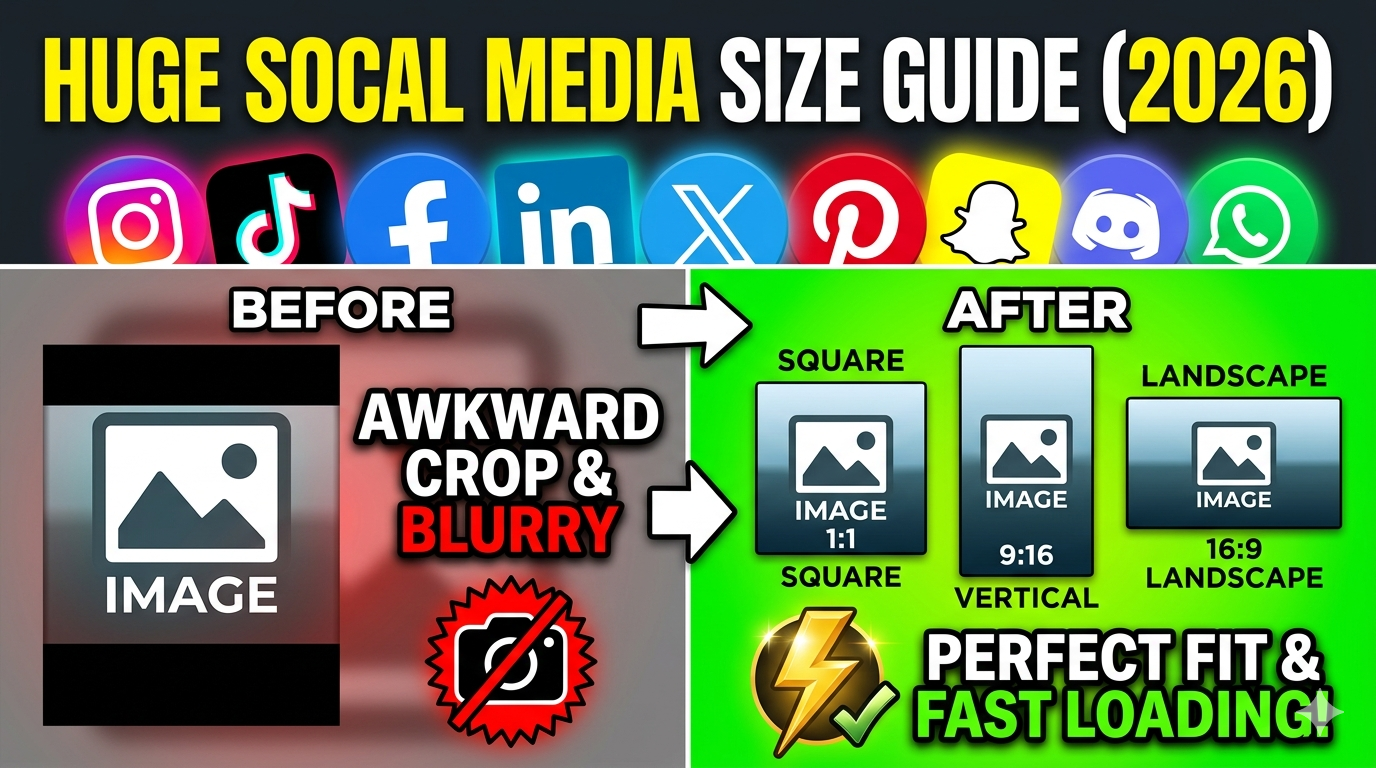
Can I use 5×5 images for social media?
Yes, square images are commonly used on social platforms. They fit well without cropping and maintain a balanced look. You can easily resize your images for any social media platforms by visiting https://imgresizers.com/social-media.
When should I use the stretch resize option?
Stretch mode is useful when you need the image to fill the entire frame without any empty space. It can be helpful in situations where exact dimensions are more important than maintaining proportions. However, it may slightly distort the image if the aspect ratio is very different.
What is the advantage of using background blur or color fill modes?
Background blur and color fill modes help maintain the original aspect ratio of your image. Instead of cropping or stretching, the tool fills empty areas creatively. A blurred background gives a modern and professional look, especially for social media content. A color fill allows you to match brand themes or design preferences. These options ensure that your image looks complete without losing important details.
How do I download my resized image?
Downloading your resized image is simple and quick. Once you have applied all the desired settings, you just need to click the download button. The tool will process your image instantly and prepare it in your selected format. Within seconds, your file will be ready to save on your device.
How fast is the download and processing system?
The tool is optimized for speed, ensuring that both resizing and downloading happen within seconds. Even larger images are processed efficiently without delays.
Do I need to convert units manually before resizing?
No, manual conversion is not required when using this tool. You can simply select your preferred unit and enter the dimensions directly. The tool automatically adjusts and processes the image based on your input.
Which DPI setting should I choose for my needs?
The ideal DPI depends on how you plan to use your image. For digital purposes such as websites or social media, 72 DPI is usually sufficient because screens do not require very high resolution. For printing, 300 DPI is recommended, as it provides sharp and detailed output. Choosing the correct DPI ensures that your image looks professional in its final form.
How does adjusting quality affect file size?
Reducing the quality level decreases the file size, making it easier to upload or share the image online. Increasing the quality keeps more detail but results in a larger file. This balance is important depending on where you plan to use the image. For example, lower quality is suitable for web use, while higher quality is better for printing.
Can I combine DPI and quality settings?
Yes, DPI and quality settings work together to determine the final output. DPI controls resolution, while quality controls compression. Adjusting both allows you to fine-tune your image for specific uses. This gives you greater control over the final result.
Do I need to install any software to use this tool?
No, the tool is completely web-based and does not require any installation. You can access it directly through your browser on any device. This eliminates the need for downloads, updates, or system compatibility concerns.
What if my image is too small?
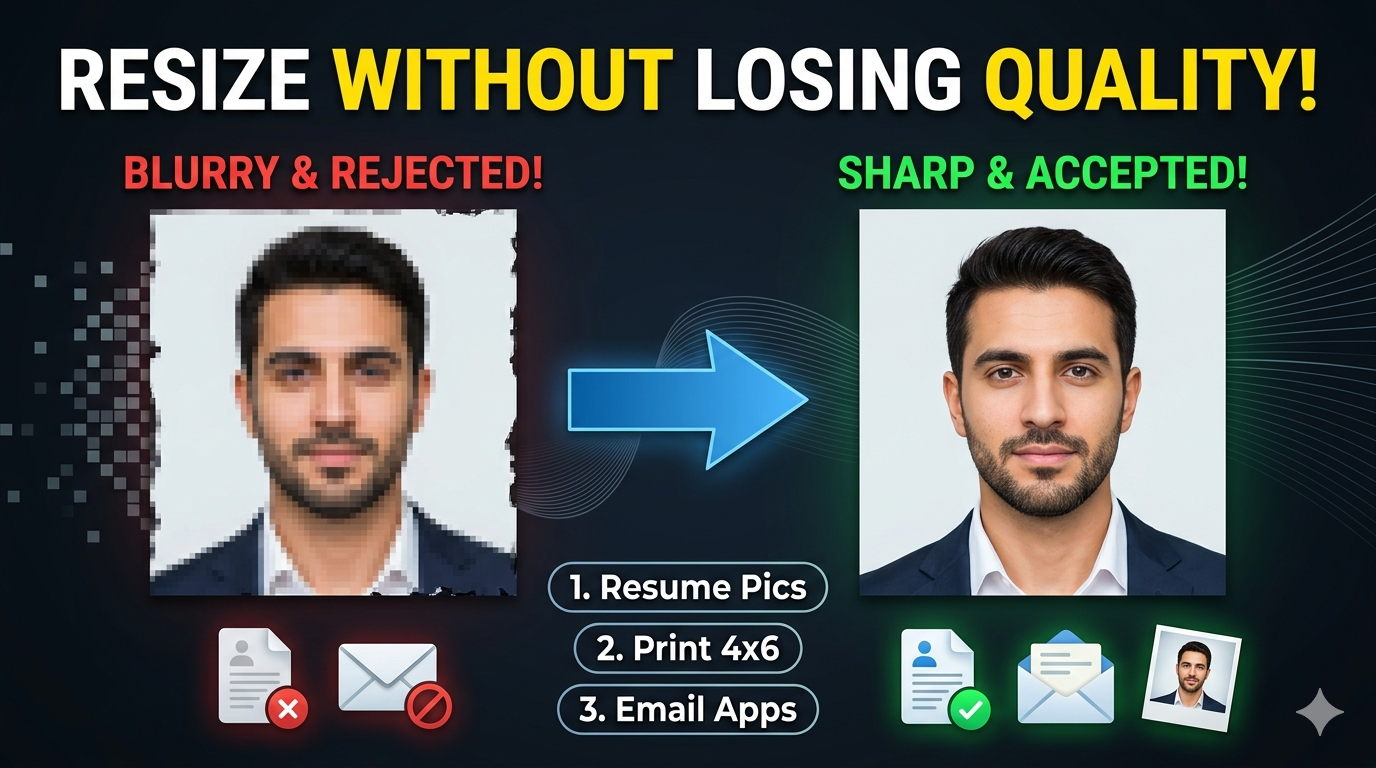
If the original image is small, enlarging it may reduce clarity. It’s best to use high-resolution images for better results.
Does the tool center the image automatically?
Yes, the image is aligned properly to maintain balance. This ensures a neat final output.
Can I use this tool for professional work?
Yes, the tool is suitable for both personal and professional use. It provides accurate and reliable results.
Can I resize multiple images?
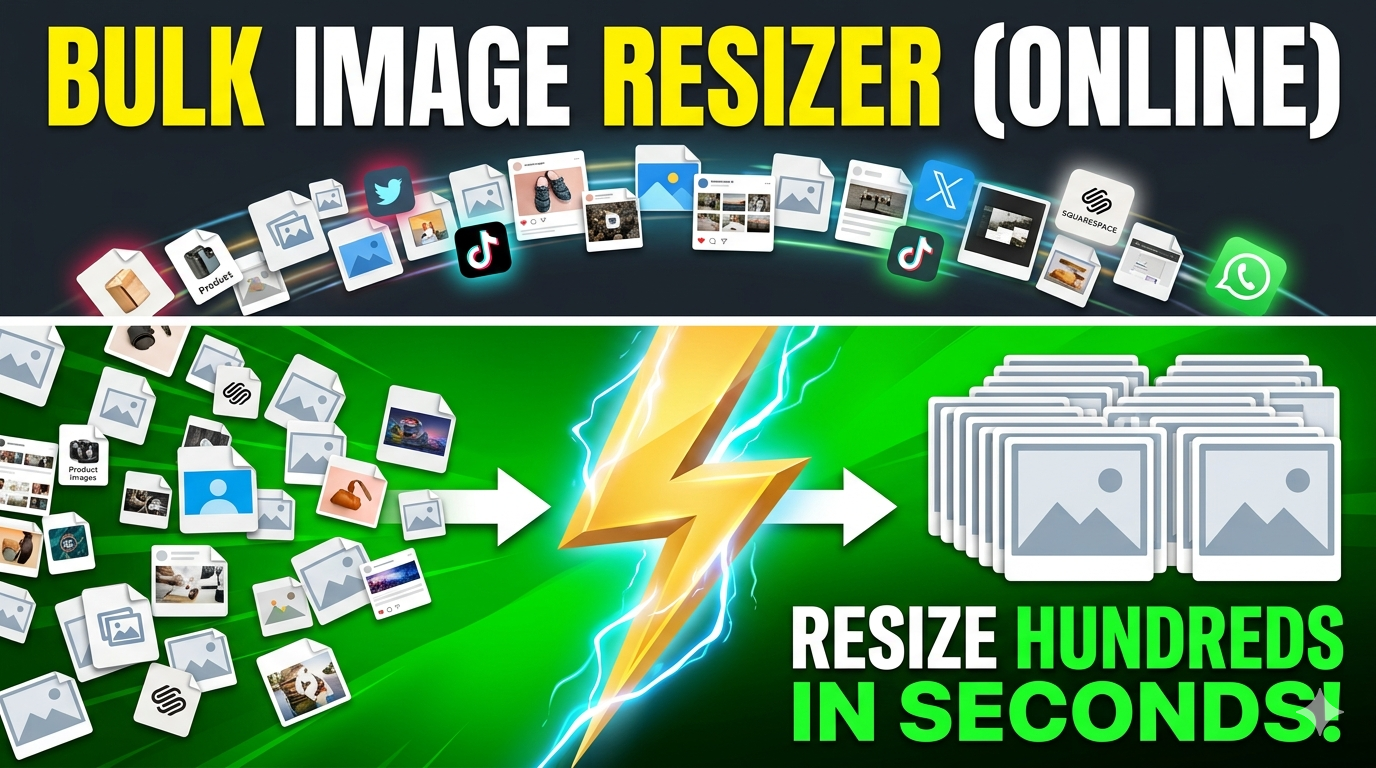
You can resize images one by one easily. For bulk resizing, you need to visit https://imgresizers.com/multiimage.
Is the tool free to use?
Yes, the tool is completely free with no hidden charges. You can use it anytime.
Do I need to install anything?
No, it works directly in your browser without installation.
Is my data safe?
Yes, your images are processed securely and not stored permanently.