





FAQ's
What is the purpose of resizing an image to 9x16?
Resizing an image to 9x16 ensures it fits perfectly for vertical video formats, social media stories, and mobile displays. This aspect ratio is ideal for platforms like Instagram Stories, TikTok, and Snapchat, providing a visually appealing and professional look.
Why is 9x16 a popular size for images and videos?
The 9x16 aspect ratio matches most smartphone screens in portrait mode, making content more engaging and optimized for mobile viewers. It enhances user experience and increases engagement rates on social media.
What types of images can I resize to 9x16 using this tool?
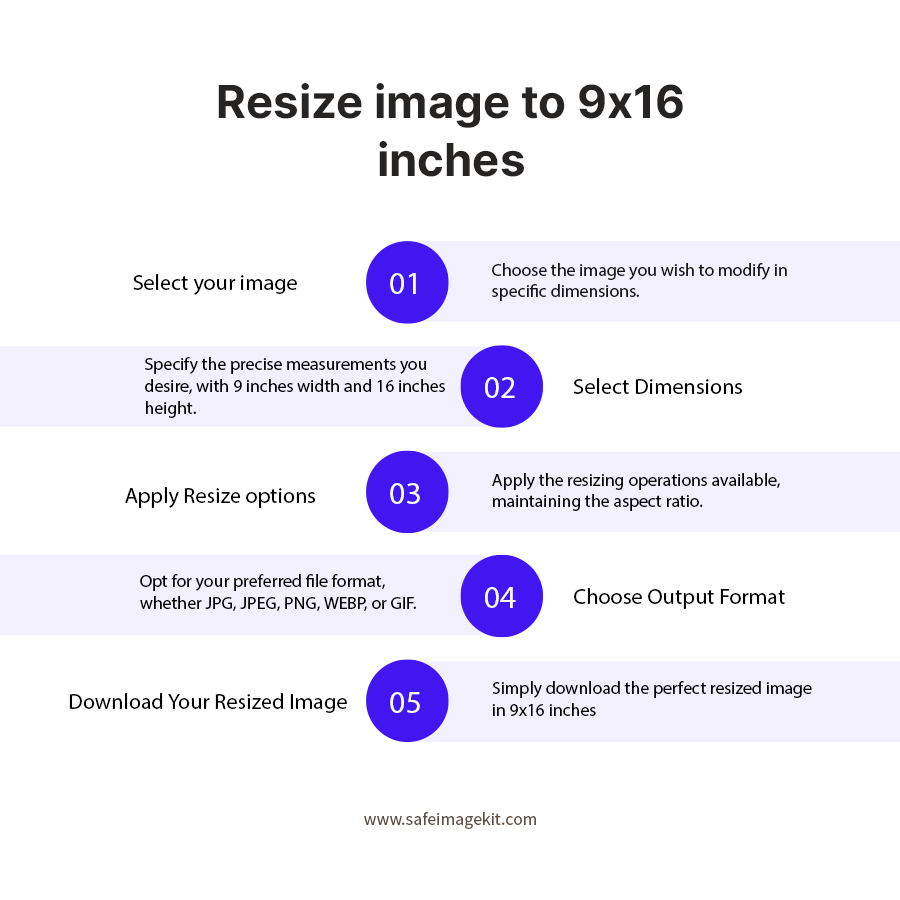
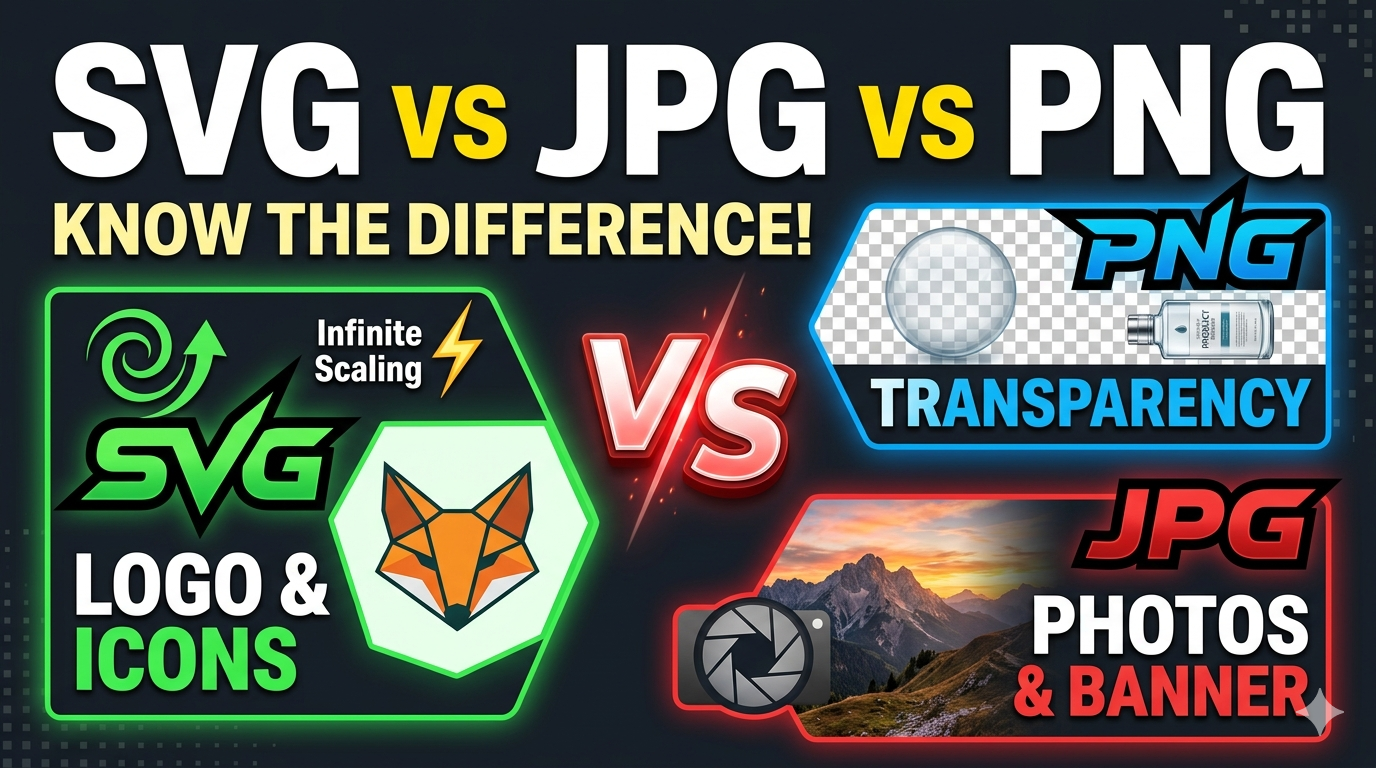
You can resize photos, screenshots, banners, posters, or any image file like PNG, JPG, JPEG, WebP, or GIF to fit the 9x16 format.
Can I customize the width and height of the image other than 9x16?
Yes, you can manually change the width and height to any dimensions you prefer, and the tool will adjust the image accordingly.
What units can I use to specify dimensions?
You can choose to set dimensions in pixels (px), centimeters (cm), millimeters (mm), or inches, offering flexibility based on your project needs.
What DPI settings are available, and why are they important?
You can select DPI options like 72, 96, 200, or 300. Higher DPI settings are essential for print quality, while 72 and 96 are standard for digital screens, ensuring clarity and sharpness.
What are resize types, and what do they do?
Resize options include Stretch (for a stretchy, full-fit look), Fit & BG Blur (to fit the image with a blurred background), and Fit & BG Color (to fit the image with a solid background color). These help achieve different aesthetic effects. You can select a color from the palette provided, allowing you to match or contrast the background with your image for a personalized touch.
What does adjusting the quality setting do?
The quality from 0.1 to 1 determines the compression level; the higher the quality, the better the image clarity, but it will be a larger file size. Adjust according to your needs for quality and file size.
Can I change the image format after resizing?
Yes, you can choose from formats like PNG, JPG, JPEG, WebP, or GIF to suit your specific use case, whether for web, social media, or print.
How quickly can I get my resized image?
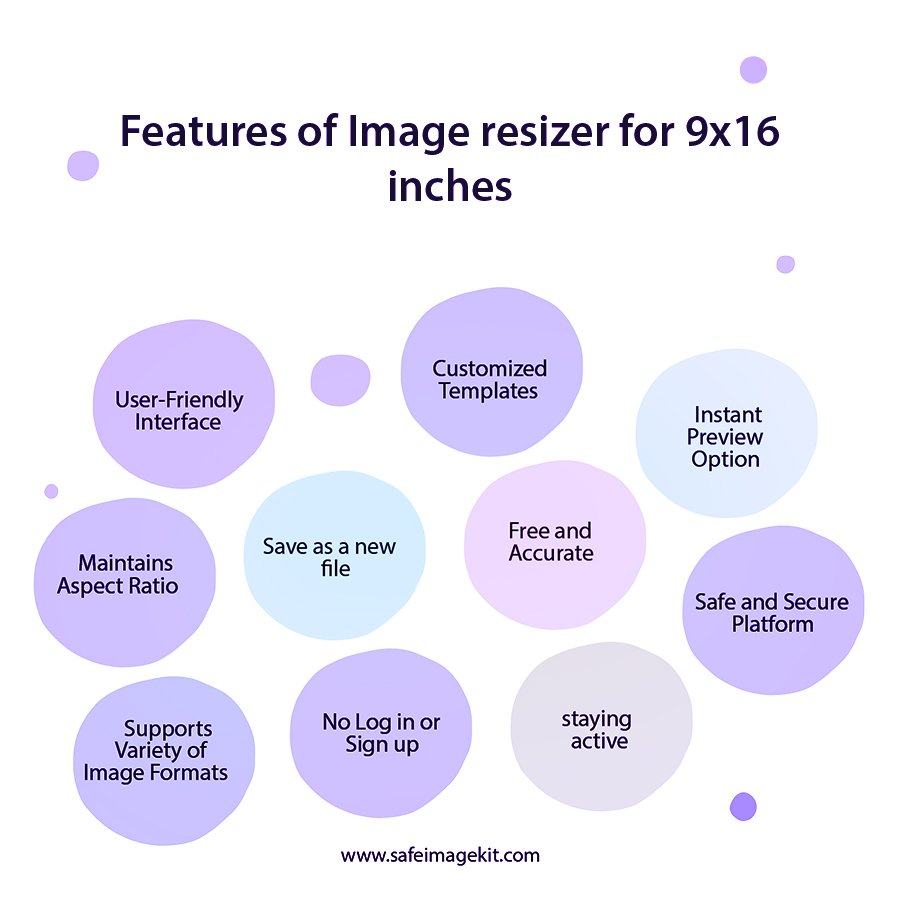
The process is instant. Simply upload, resize, and download, making it ideal for quick edits and time-sensitive projects.
Why might I need to resize an image to 9x16 for social media?
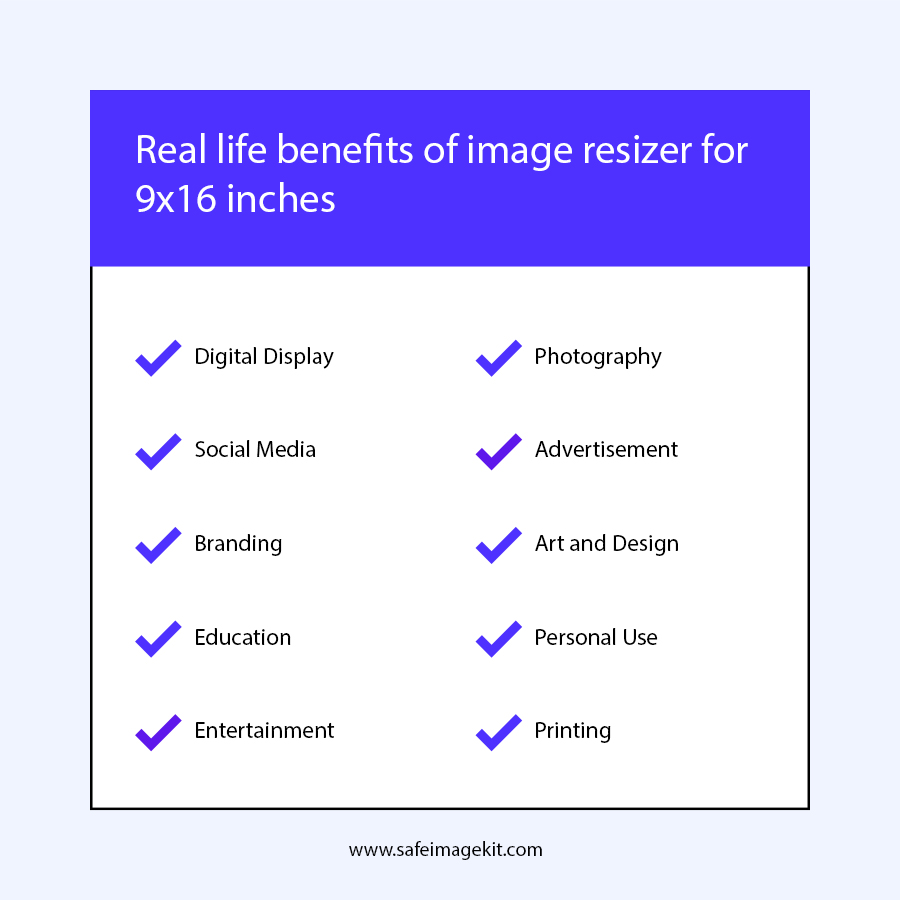
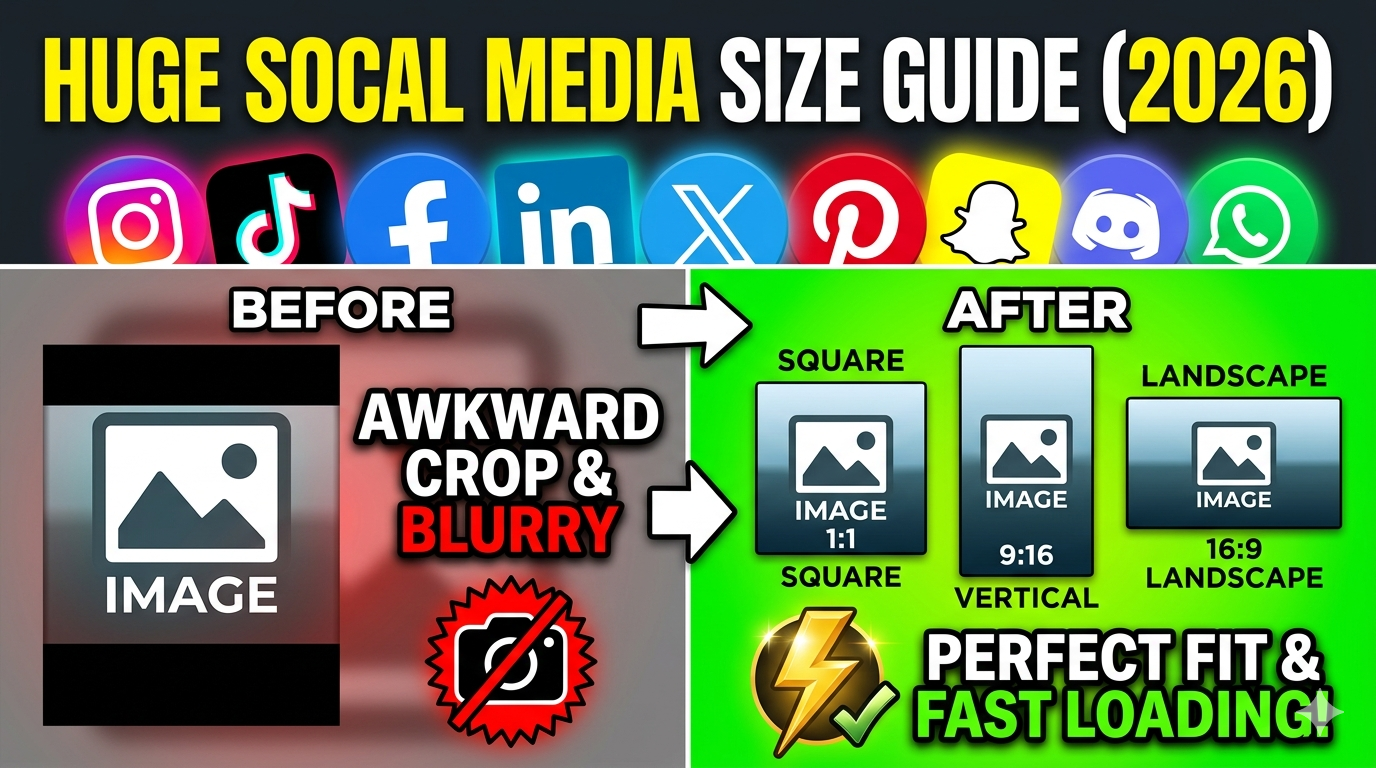
Platforms like Instagram Stories, TikTok, and Snapchat favor vertical videos and images in 9x16, making your content more optimized and engaging for viewers. For easy resizing images for social media platforms, please visit https://imgresizers.com/social-media.
How does changing the DPI affect my image?
DPI impacts print quality; higher DPI results in sharper prints. For digital use, 72 or 96 DPI is sufficient, while 200-300 DPI is ideal for printing high-quality images.
Can I undo changes or revert to the original?
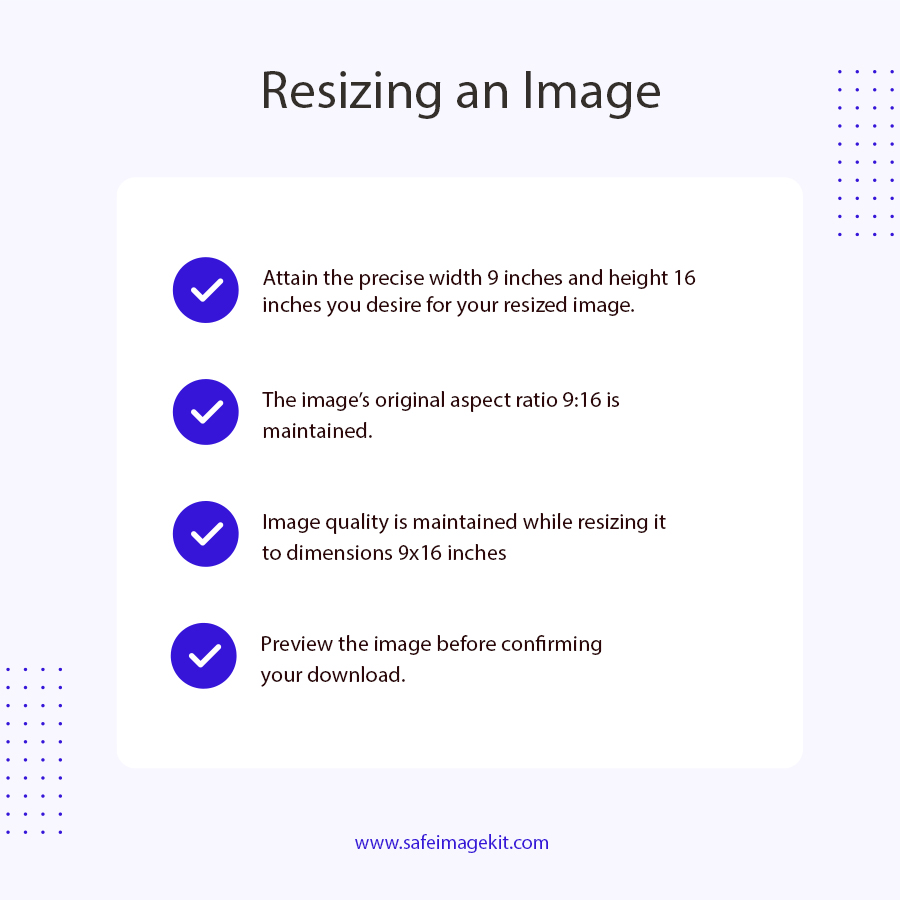
The tool provides a preview before download, so you can compare and make further adjustments if needed before downloading.
Is there a limit to the file size I can upload?
The tool supports standard image sizes, but very large files may be limited by browser or device capabilities. Usually, typical photo sizes are supported without issues.
Can I use this tool for creating banners or posters?
Yes! Resizing to 9x16 is perfect for vertical banners, posters, or flyers intended for digital display or printing.
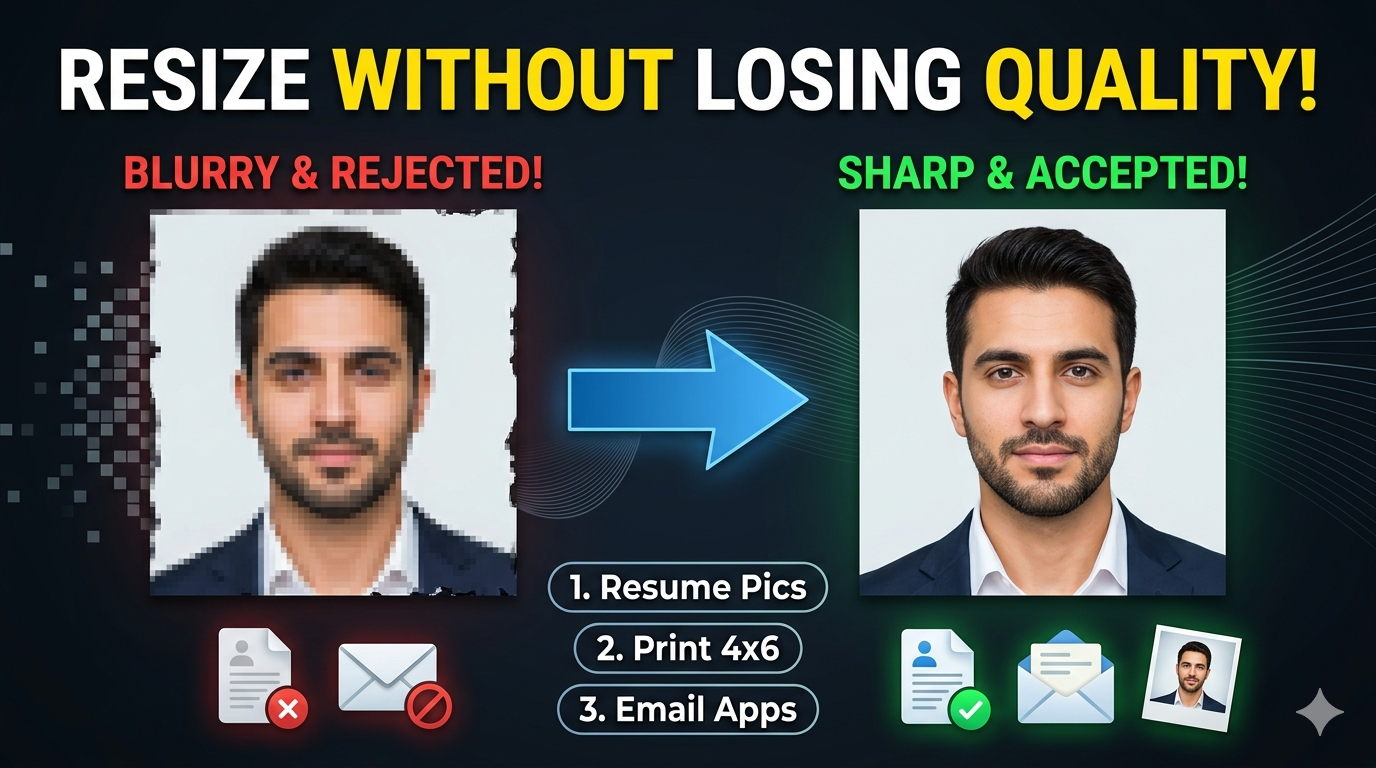
Will the resized image lose quality?
The quality setting allows you to control compression. Higher quality preserves more detail, minimizing quality loss during resizing.