





FAQ's
What is the use of resizing JPEG images?
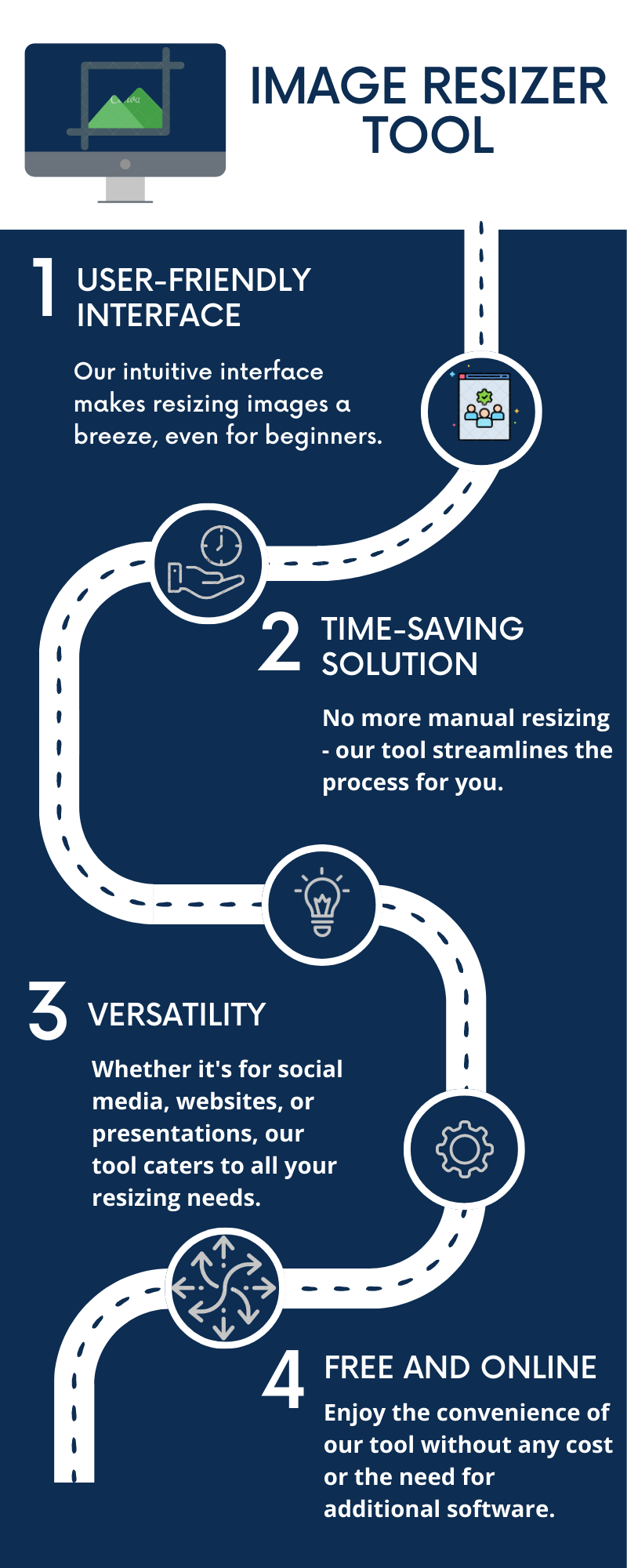
Resizing JPEG images allows you to tailor their dimensions to fit specific platforms or projects. It is useful for creating social media posts, website banners, profile pictures, or printable materials. Resizing helps maintain visual consistency and ensures your images display correctly on different devices. It also reduces file size, which improves loading times and saves data. Moreover, resized images are easier to upload and share, making your workflow smoother.
What is a JPEG image and why is it important?
JPEG (Joint Photographic Experts Group) is a widely used image format known for its efficient compression, which reduces file size while maintaining acceptable quality. It is essential for digital images, especially photographs, due to its balance between quality and size. JPEG images are compatible with almost all devices and platforms, making them versatile for web and print use.
How does resizing JPEG images benefit website owners and content creators?
Resizing JPEG images helps improve website speed by reducing image size, which enhances user experience and SEO rankings. It ensures images display correctly on all devices without distortion. For content creators, resizing allows for consistent visual presentation across platforms, whether for social media, blogs, or portfolios. It also saves storage space and bandwidth costs.
What are common real-life issues with JPEG images?
Common issues include slow website load times due to large image files, poor image quality if resized improperly, and compatibility problems with certain platforms. JPEG images can become pixelated or blurry if scaled too much. Sometimes, transparency support is lacking, leading to unwanted white backgrounds. Also, unoptimized images can consume excessive storage space. Our tool helps address these problems with easy resizing and format conversion options.
Can resizing JPEG images affect their quality?
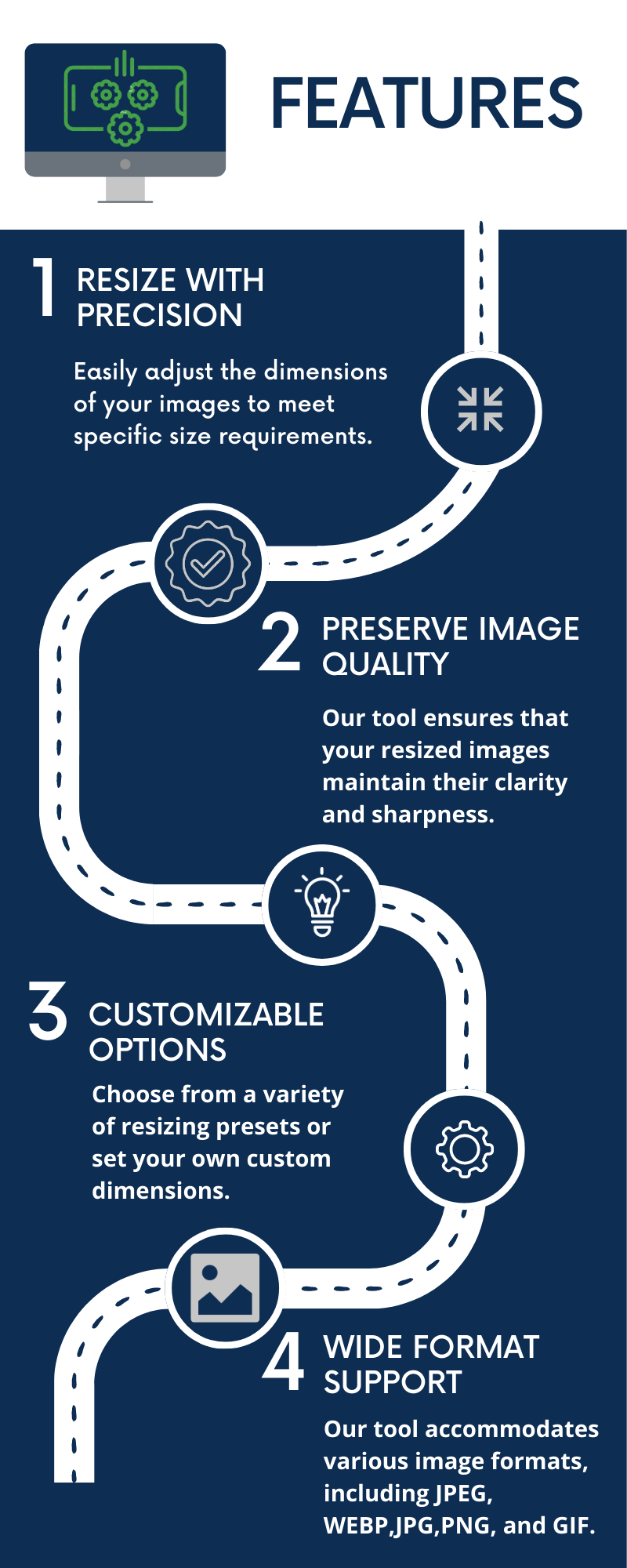
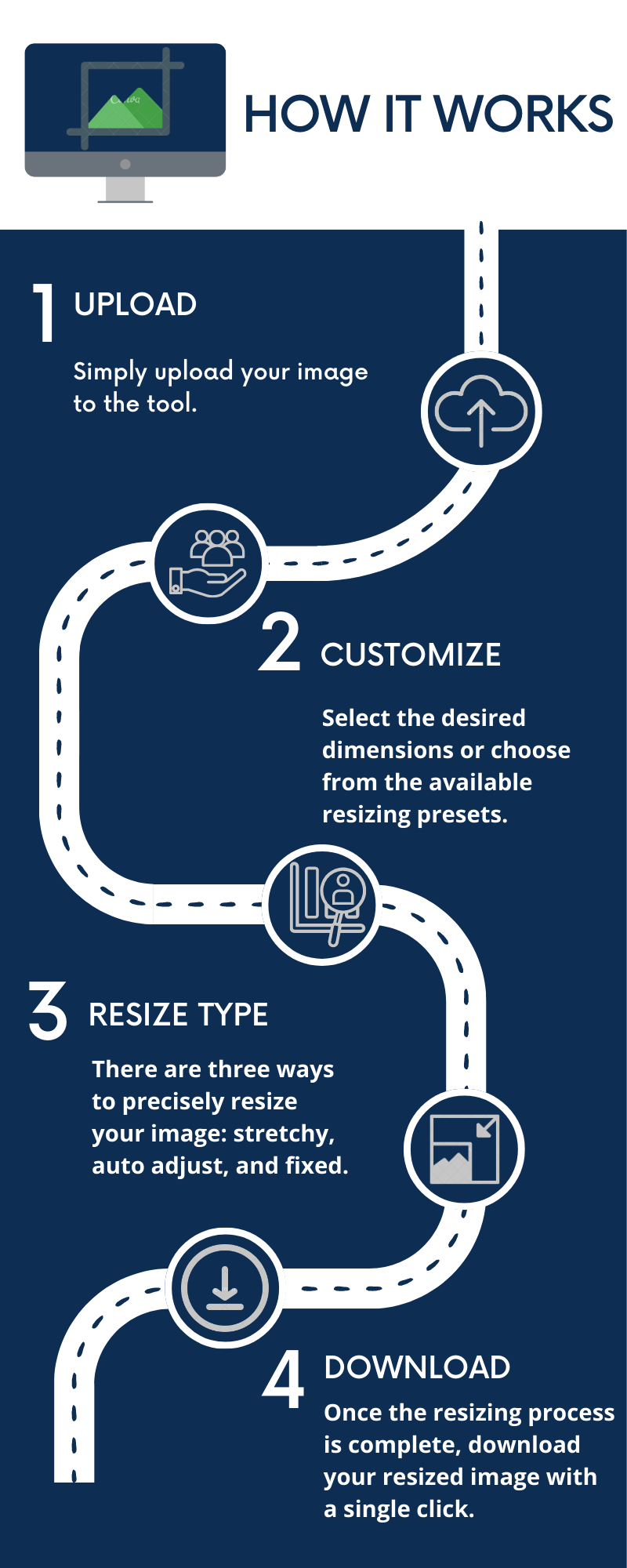
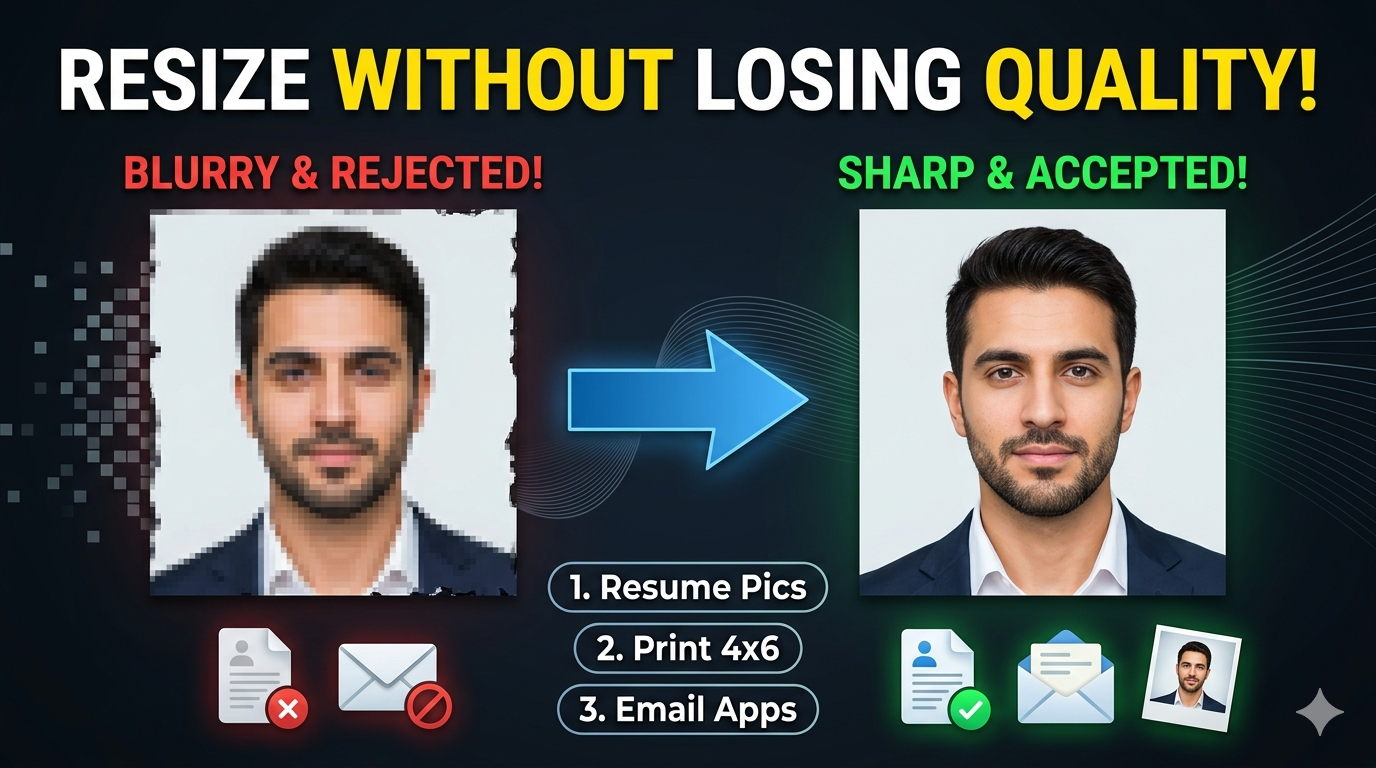
Yes, resizing JPEG images can impact quality if not done carefully. Upscaling can cause pixelation, while excessive downscaling might reduce detail. To maintain quality, it’s important to choose the right resize type and settings. Our tool preserves image clarity during resizing, especially when using high-quality algorithms. Properly resized JPEGs will look sharp and professional without losing essential details.
Can I resize multiple JPEG images at once?
Currently, our tool processes one image at a time to ensure quality and precision. If you want batch image resizing, then visit https://imgresizers.com/multiimage and quickly resize images in bulk.
How does resizing affect JPEG image transparency?
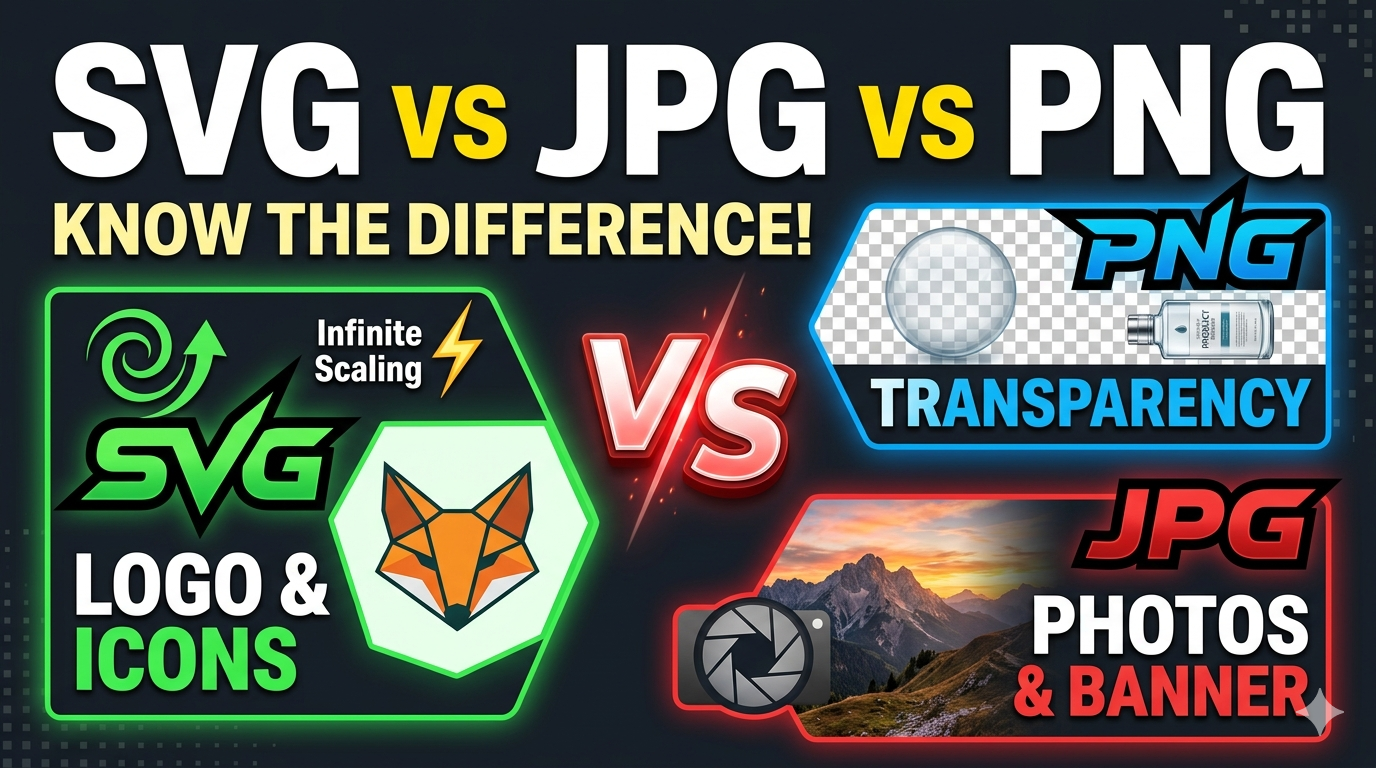
JPEG format does not support transparency, so when resizing images with transparent backgrounds, the background will default to a solid color. To preserve transparency, you should convert images to formats like PNG before resizing. Our tool allows you to choose a background color for fixed resize types to match your design needs.
Why should I convert image formats after resizing?
Changing formats can optimize images for different uses like JPEG for photos, PNG for transparency, GIF for animations, and WebP for high-quality, small file sizes. Converting formats after resizing helps reduce file size further and ensures compatibility with various platforms or devices.
Is this tool suitable for professional use?
Yes, our tool provides high-quality resizing and format conversion suitable for professional photographers, web developers, and designers. It’s reliable, fast, and produces results that meet industry standards. You can trust it for both personal and commercial projects.
Can I undo or revert changes after resizing?
Yes, you can preview your image, and then if satisfied, you can click the download button. Once you download the resized image, you cannot revert the changes within the tool.
How does resizing help reduce storage space?
Smaller images take up less space on your device or server, reducing storage costs and making backups faster. Resizing ensures your images are optimized for web use, saving bandwidth and improving website performance.