





FAQ's
Why should I resize WebP images?
Resizing WebP images helps optimize them for different uses, such as websites, social media, or printing. Smaller images load faster on websites, improving user experience and SEO. Resizing ensures the image dimensions fit perfectly within your design without unnecessary large file sizes, saving bandwidth and storage space. Additionally, resizing can help maintain aspect ratio, prevent distortion, and make images suitable for various devices and screens.
What is a WebP image and why is it important?
WebP is an image format developed by Google that provides high-quality images with smaller file sizes compared to traditional formats like JPEG or PNG. Its importance lies in its ability to deliver faster-loading images without compromising quality, which is crucial for website speed and user experience. WebP supports transparency and animation, making it versatile for modern web design. Its efficiency helps save bandwidth, especially on mobile devices.
What are common issues faced with WebP images in real life?
Some common issues include compatibility problems with older browsers that do not support WebP, requiring backup images. Large WebP images can still cause slow load times if not resized properly. Users may face difficulties editing or resizing WebP images without specialized tools. Additionally, incorrect resizing can lead to distorted or pixelated images, impacting visual quality.
Can resizing WebP images affect their quality?
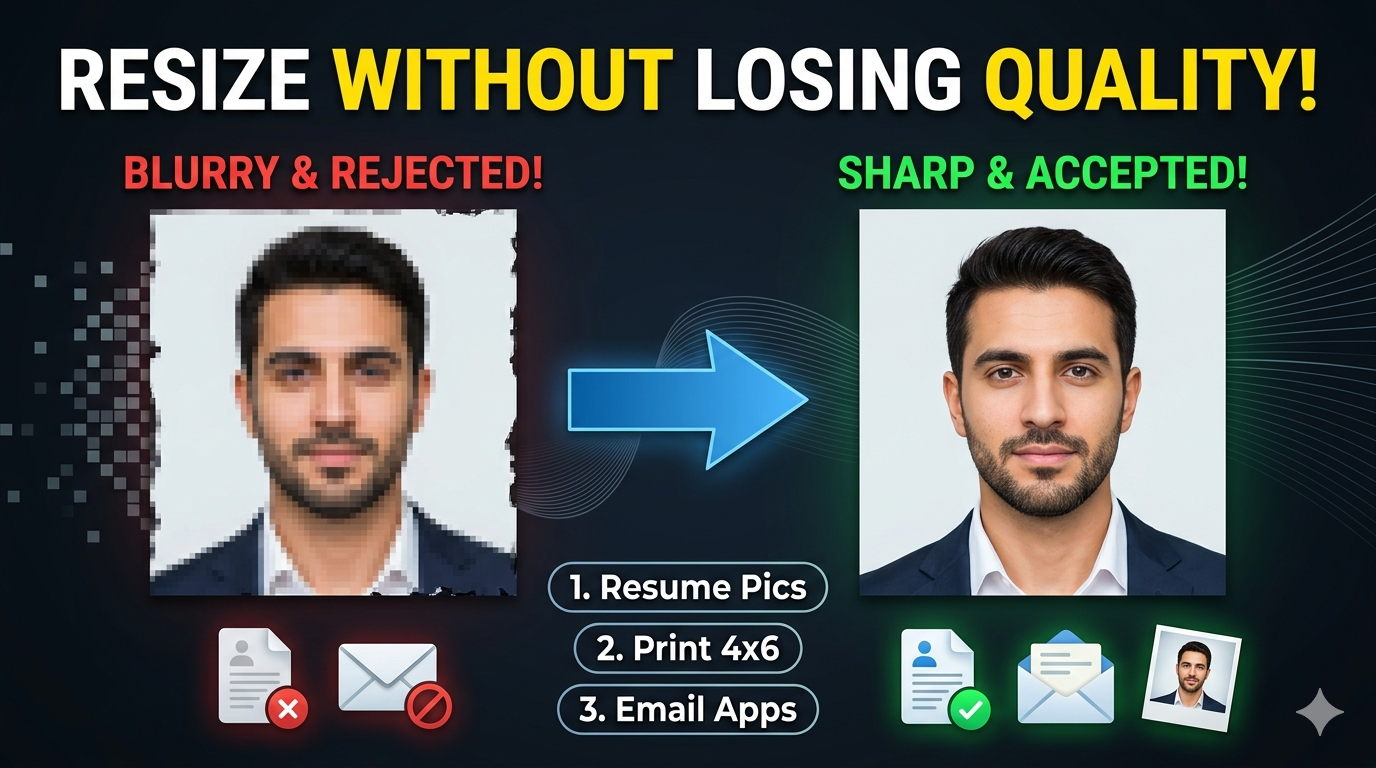
Yes, resizing WebP images can impact their quality, especially if scaled improperly or resized excessively. To maintain quality, choose appropriate resize options and use the right format. Most tools, including ours, preserve image clarity during resizing by maintaining resolution and aspect ratio. Proper resizing ensures the image remains sharp and visually appealing.
Is it safe to upload my images to this online tool?
Absolutely. Our tool is designed with security in mind. Your images are uploaded securely, and no files are sent to our servers. We do not store or share your images, ensuring your privacy is maintained. You can use our service confidently for personal or professional projects.
How does resizing WebP images help with mobile optimization?
Resizing WebP images to smaller dimensions reduces file size, allowing faster loading on mobile devices. This improves user experience, reduces data usage, and enhances accessibility. Optimized images ensure your website performs well on various screen sizes and network conditions. It also helps in achieving better rankings on mobile search results.
Will resizing WebP images affect their transparency?
Resizing with the fixed option allows you to keep transparency by selecting a background color. Properly resizing with the right settings preserves transparency. Cropfit and stretchy options may also handle transparency differently, so choose based on your needs.
How do I choose the right resize type for my image?
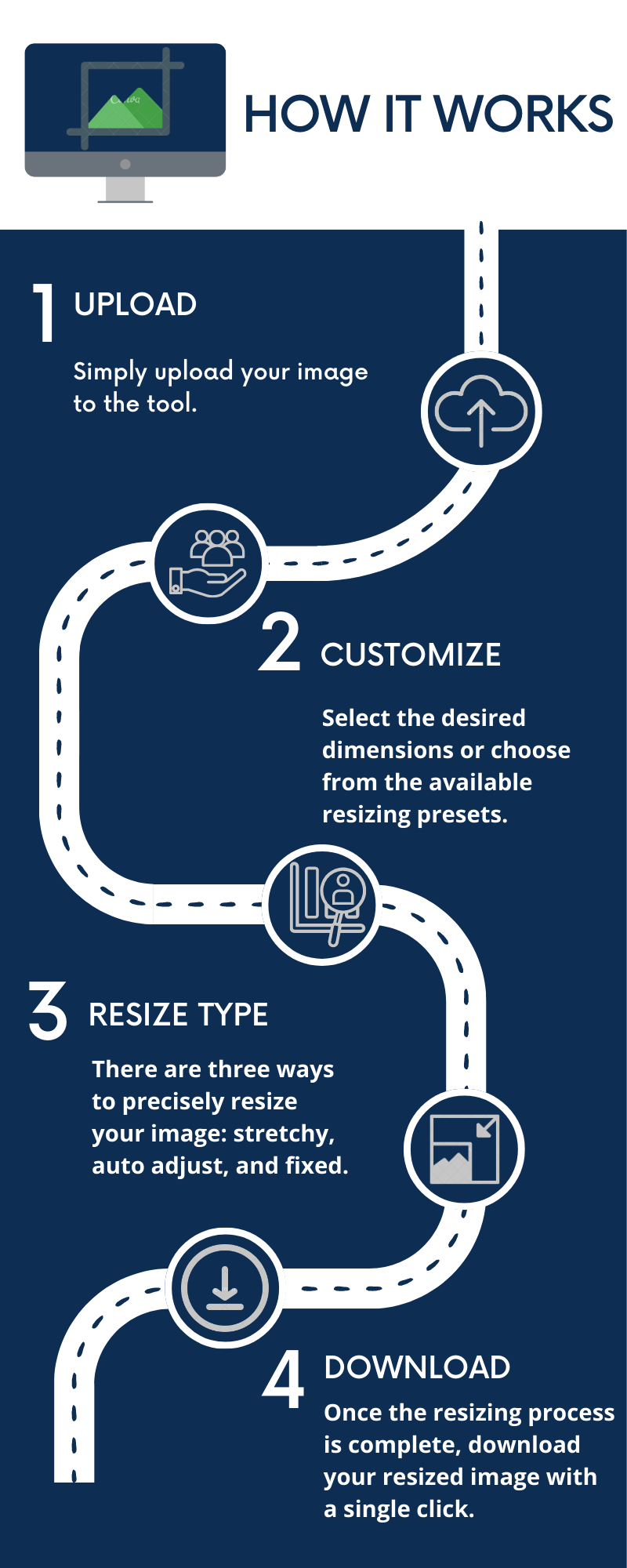
Use the "Stretchy" resize type when you want to scale the image proportionally without cropping. The "Crop Fit" type is ideal if you want to focus on a specific part of the image and crop out the rest. The "Fixed" type is best when you need exact dimensions, regardless of aspect ratio. Select based on whether you want to preserve the entire image or focus on a specific section.
What is the benefit of changing image formats after resizing?
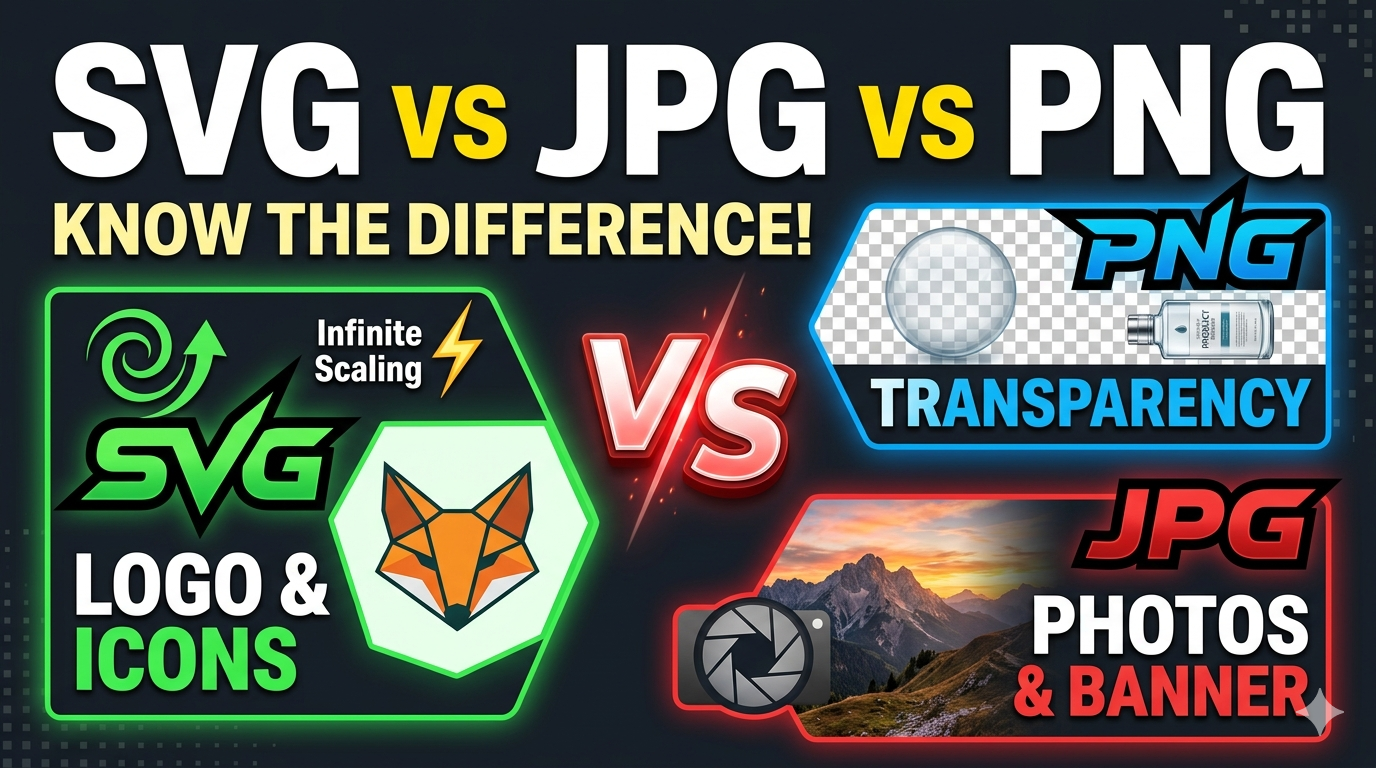
Changing formats allows you to optimize images for different uses. PNG is good for transparency, JPEG for photos with many colors, GIF for animations, and WebP for small, high-quality images. Adjusting format after resizing helps reduce file size further and ensures compatibility with your platform.
Is this tool suitable for professional use?
Yes, our tool is reliable, safe, and produces high-quality results suitable for professional projects. Whether you’re a web developer, designer, or content creator, you can trust it to deliver consistent and optimized images quickly.
Can I revert my changes after resizing?
Once you download the resized image, you cannot revert the changes directly within the tool. It’s recommended to preview the image first. If you’re not satisfied, you can resize again or adjust settings before downloading. Always keep the original image safe.
Is there a limit to the size of images I can resize?
Our tool can handle most common image sizes used for web and print. Very large images may take longer to process, but there are no strict limits.
How does resizing WebP images help in reducing storage space?
Smaller, resized WebP images consume less storage space. This is beneficial for website hosting, cloud storage, and mobile devices. Efficiently resized images contribute to faster backups and reduced costs associated with data storage.
What are the best practices for resizing images for social media?
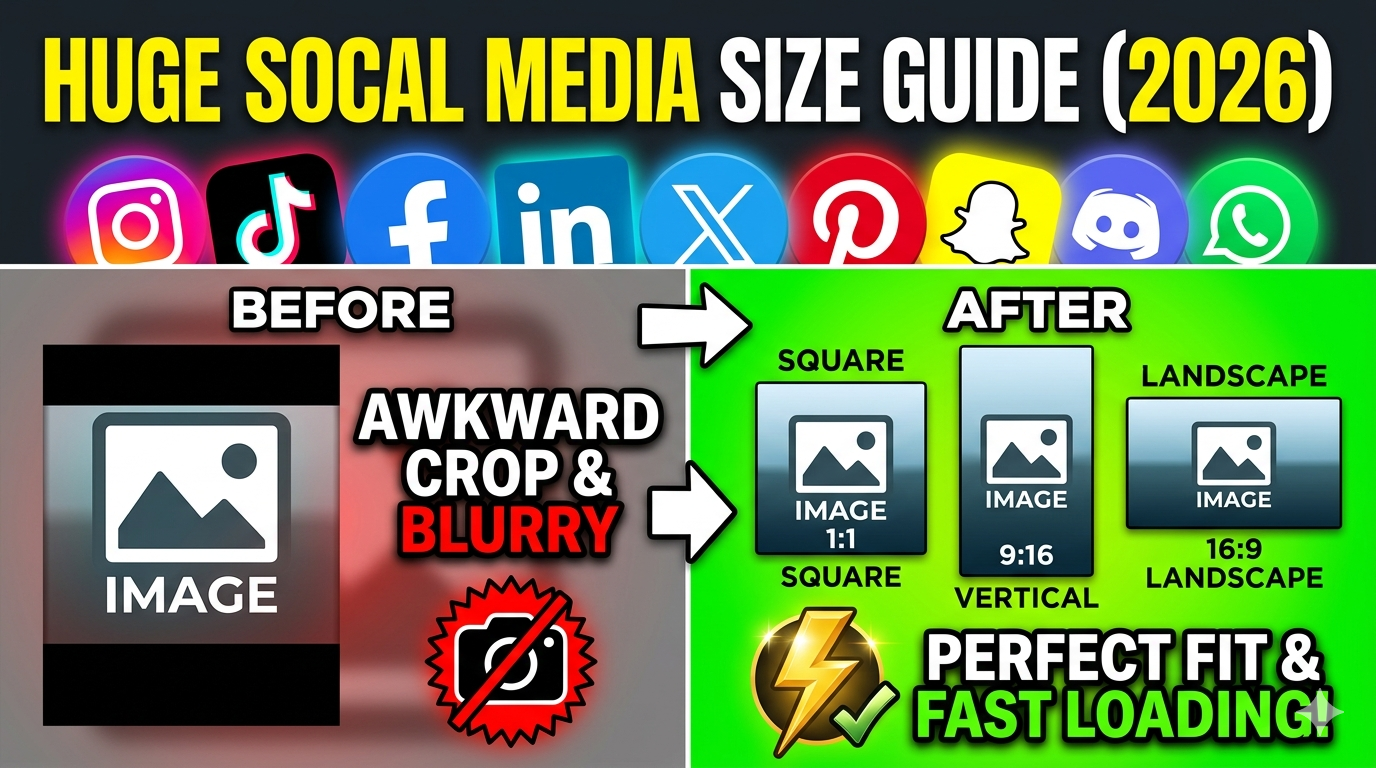
Use predefined dimensions suitable for each platform or custom sizes that match platform requirements. Keep the file size small for quick loading. Choose formats like JPEG or PNG for high quality, and ensure images are optimized for mobile viewing with appropriate dimensions.
How can I troubleshoot issues with resizing WebP images?
Ensure your original image is not corrupted and is supported by the tool. Check your internet connection if uploads are slow. Use the instant preview to verify the results before downloading. If issues persist, try resizing with different settings or formats. Contact care@imgresizers.com if needed.