# YouTube Image Sizes
Ever uploaded a YouTube thumbnail that looked great on your computer but appeared blurry or awkwardly cropped on your phone?
It’s a common problem, and it usually comes down to image size.
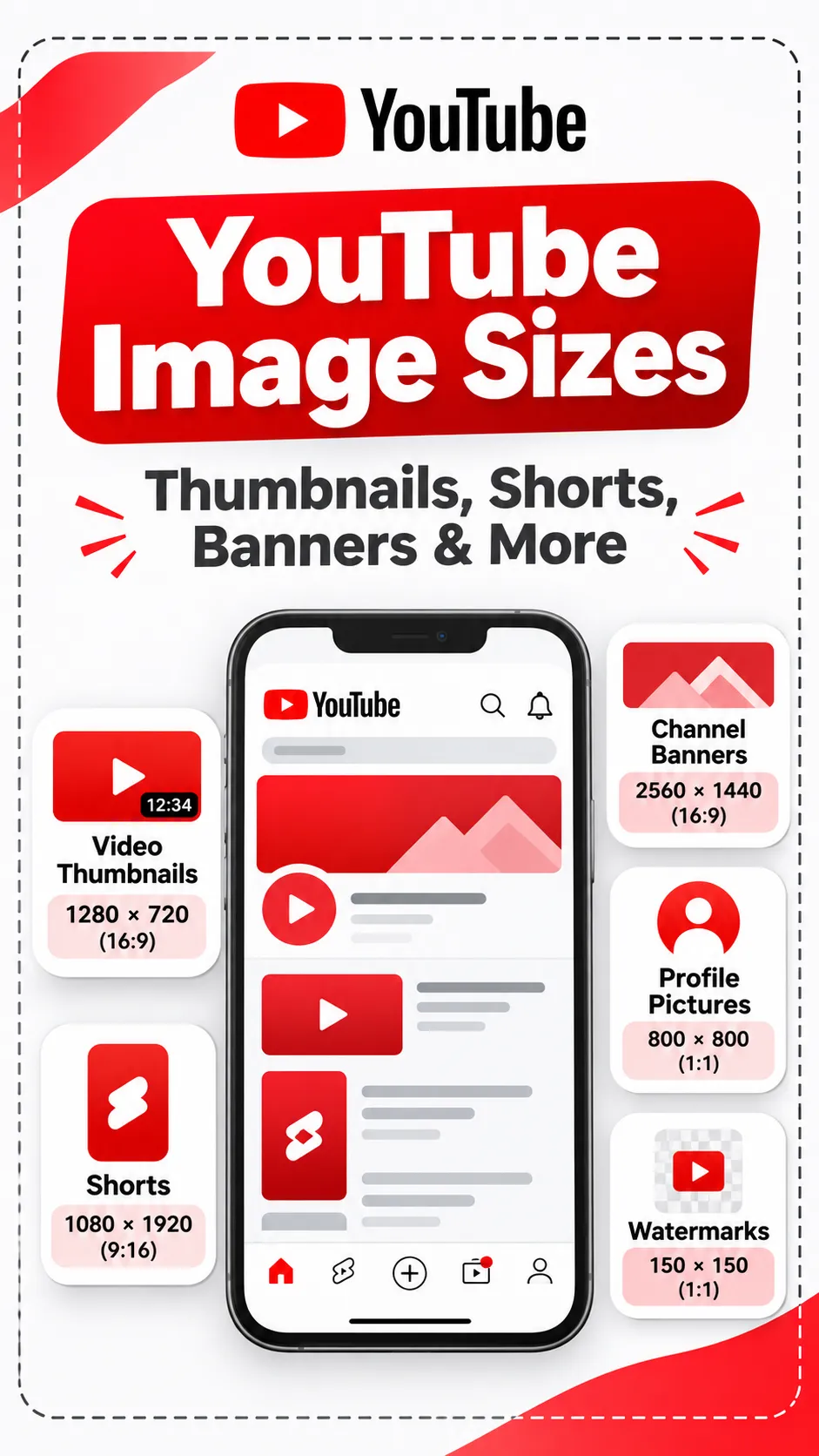
YouTube uses different dimensions for thumbnails, channel banners, Shorts, profile pictures and watermarks. An image that works perfectly as a video thumbnail might not fit your channel banner or Shorts cover.
The good news is that getting these sizes right is fairly simple once you know which dimensions to use.
In this guide, we’ll cover the latest recommended YouTube image sizes in pixels, explain how each image is displayed and share a few practical tips to help you avoid cropping and resizing issues.
YouTube Image Sizes at a Glance
Need the dimensions quickly? Here’s a handy reference table you can use whenever you’re creating images for your YouTube channel.
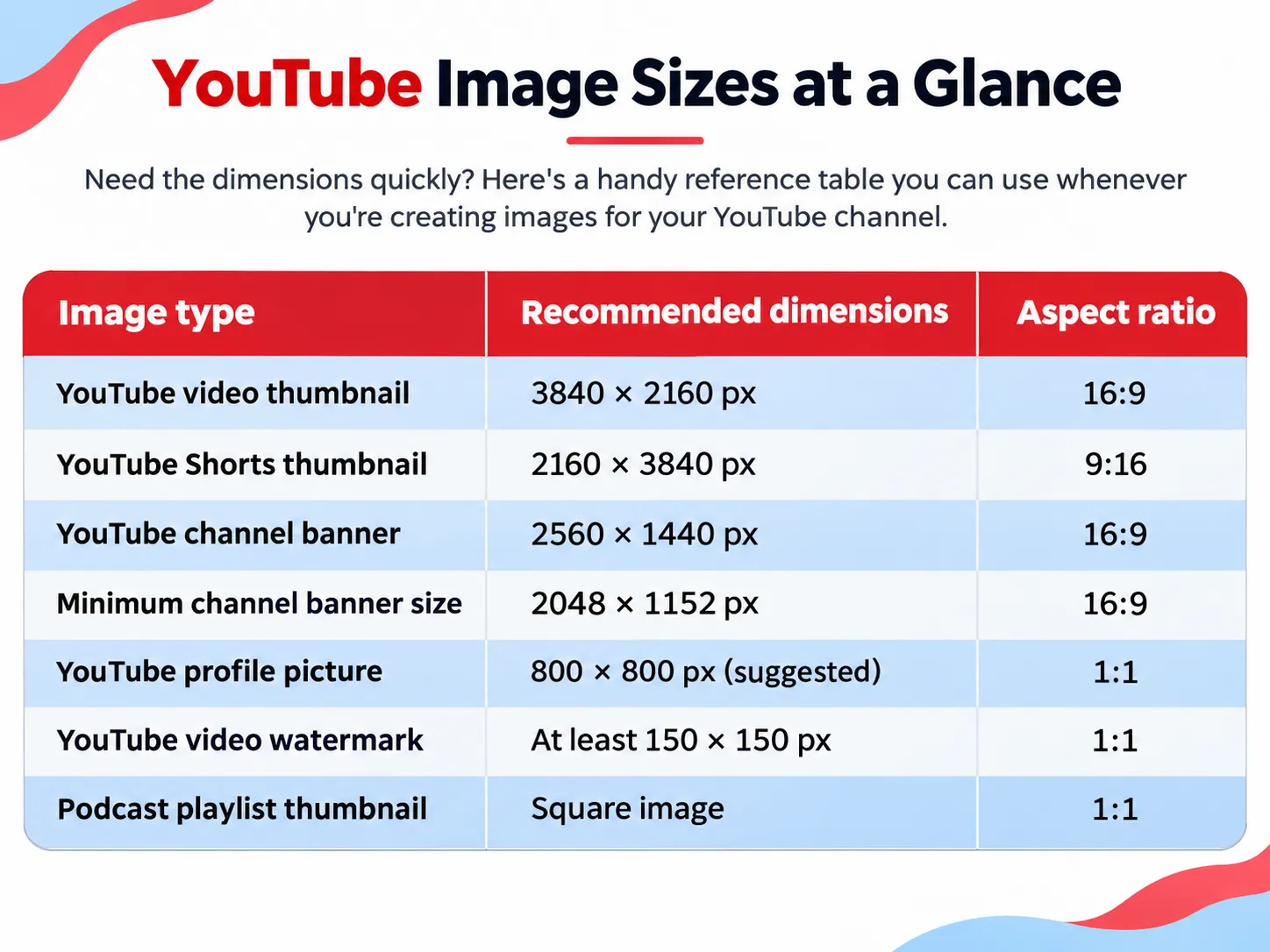
A quick note: Not all of these dimensions are strict upload requirements. For example, 800 × 800 pixels is a practical size for designing a profile picture, while 3840 × 2160 pixels is YouTube’s recommended resolution for standard video thumbnails.
You can often use smaller images, provided they meet YouTube’s minimum requirements and maintain the correct aspect ratio.
YouTube Thumbnail Size
Your YouTube thumbnail is often the first thing someone notices about your video.
Before viewers read the title or description, they see the thumbnail. That’s why having a clear, properly sized image matters.
The recommended YouTube thumbnail size is 3840 × 2160 pixels.
Here are the main requirements:
- Recommended size: 3840 × 2160 pixels
- Aspect ratio: 16:9
- Minimum width: 640 pixels
- Image format: JPG or PNG
- Orientation: Landscape
The 16:9 aspect ratio matches the standard YouTube video player, making it the best choice for most regular video thumbnails.
Tips for creating a clear YouTube thumbnail
A thumbnail doesn’t need to be complicated to look good.
Start with a sharp image, keep your main subject easy to recognise and avoid filling every corner with text.
Remember, most viewers will see your thumbnail at a much smaller size than the original design. If your text is difficult to read when you shrink the image, it probably needs to be larger.
Also, avoid stretching a small image just to reach the recommended resolution. Increasing the pixel dimensions won’t automatically improve the original image quality.
YouTube Shorts Thumbnail Size
If you’re creating YouTube Shorts, you’ll need to think vertically.
Unlike regular YouTube videos, Shorts are designed mainly for vertical viewing on mobile devices.
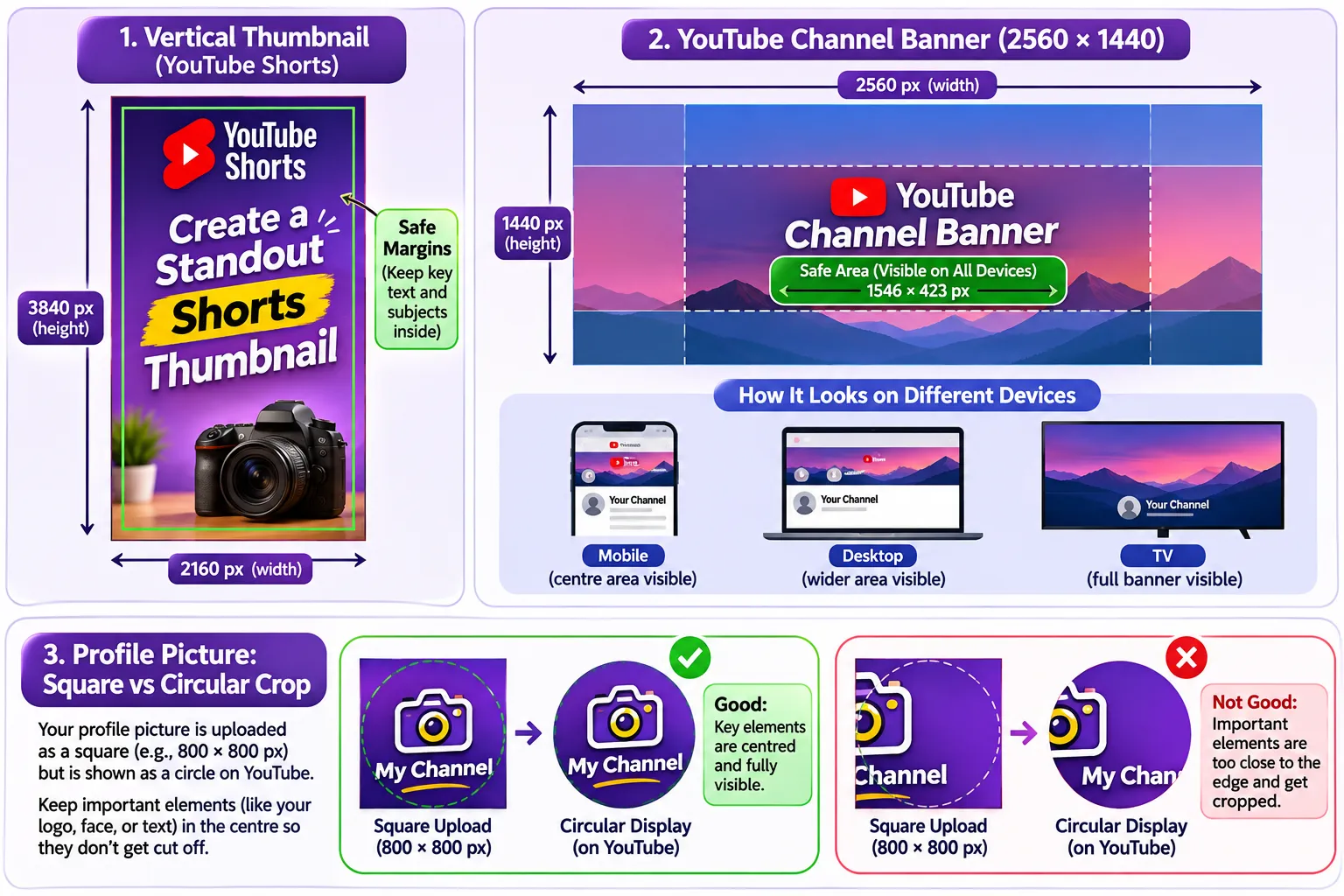
The recommended YouTube Shorts thumbnail size is 2160 × 3840 pixels.
Here’s what you should know:
- Recommended size: 2160 × 3840 pixels
- Aspect ratio: 9:16
- Minimum height: 640 pixels
- Orientation: Portrait
- Image format: JPG or PNG
A 9:16 image fits the vertical format used by Shorts. It also gives you enough space to show your main subject without squeezing everything into a landscape frame.
How to make your Shorts thumbnail look better
Keep the important parts of your design near the centre.
For example, if you’re creating a cooking Short, make sure the finished dish is clearly visible. If it’s a tutorial, keep the main object or person easy to recognise.
Try not to place important text right at the top or bottom because Shorts previews can appear differently across YouTube.
Can you upload a custom thumbnail for YouTube Shorts?
Yes, but there’s one important detail.
According to YouTube’s current guidance, uploading a custom Shorts thumbnail is available through YouTube Studio on a computer, and your account must be verified.
If you don’t see the option, check your account verification and the upload method you’re using.
YouTube Channel Banner Size
Your channel banner is the large image at the top of your YouTube channel page.
Think of it as the cover image for your channel. It gives visitors a quick idea of who you are and what kind of videos you create.
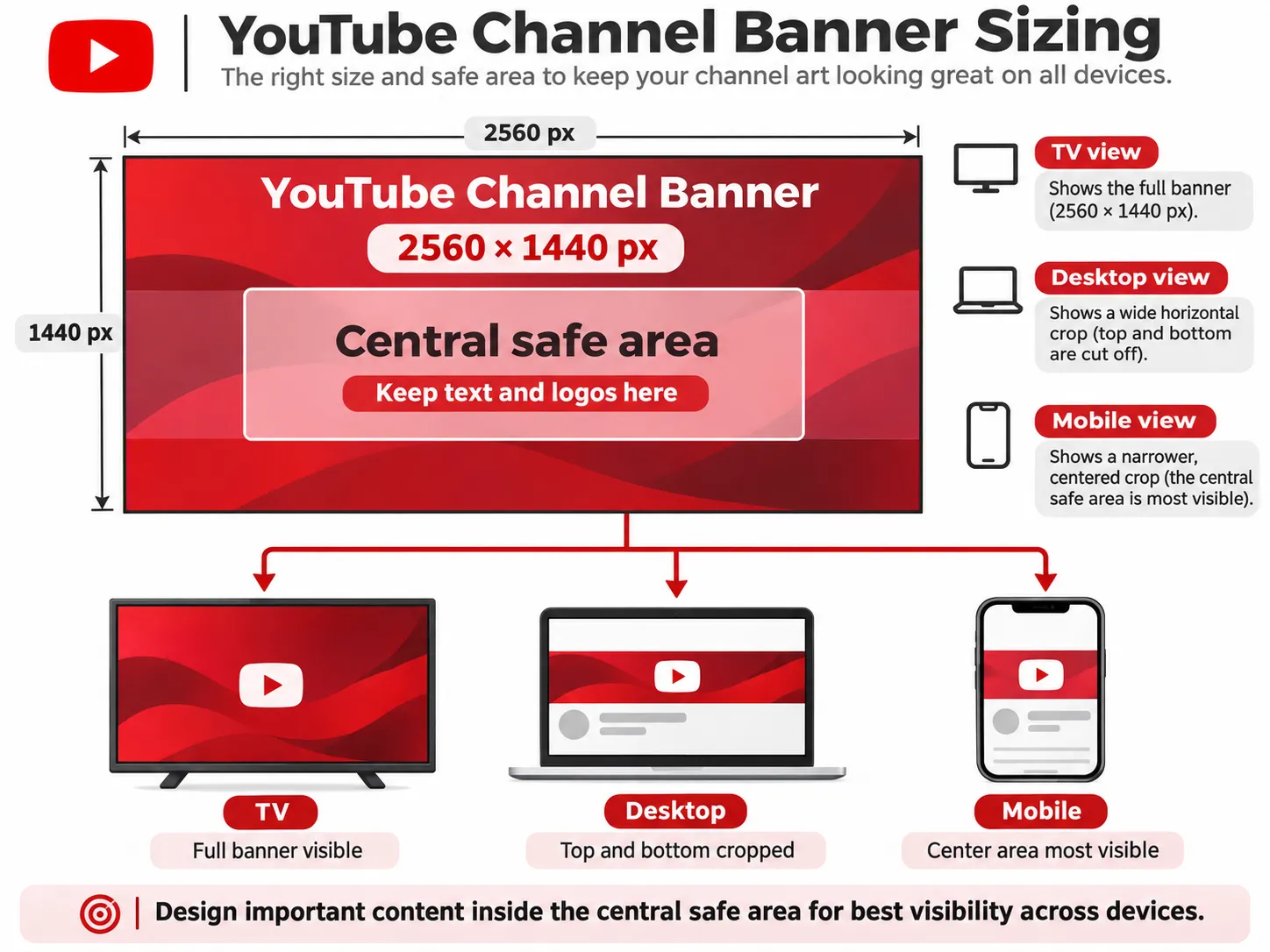
The recommended YouTube banner size is 2560 × 1440 pixels.
Here are the dimensions to remember:
- Recommended size: 2560 × 1440 pixels
- Minimum size: 2048 × 1152 pixels
- Aspect ratio: 16:9
- Maximum file size: 6 MB
These dimensions give YouTube enough image space to display your banner across different screen sizes.
But there’s something important to remember: not everyone will see your entire banner.
Why does your YouTube banner look different on mobile and desktop?
YouTube uses the same banner image across phones, computers and televisions.
The difference is how much of that image appears on each screen.
On a television, viewers may see a much larger portion of the banner. On a mobile phone, YouTube displays a narrower central section.
That’s why text or logos placed near the edges can disappear.
What is the YouTube banner safe area?
The safe area is the central part of your banner where important content should go.
At YouTube’s minimum banner dimensions of 2048 × 1152 pixels, the safe area measures 1235 × 338 pixels. If you’re designing at 2560 × 1440 pixels, the corresponding central region scales to approximately 1544 × 423 pixels.
Keep important elements inside this area, including:
- Your channel name
- Your logo
- A short tagline
- Your upload schedule
- Any important text
You can still use the rest of the banner for background images, colours and decorative designs.
For example, a travel creator might use a wide scenic photograph across the banner while keeping the channel name in the centre.
This way, the design can still look good even when YouTube crops it for smaller screens.
YouTube Profile Picture Size
Your YouTube profile picture might be small, but it appears in plenty of places.
People can see it beside your videos, in comments and on your channel page.
It helps viewers recognise your channel, especially if you use the same image consistently.
A suggested YouTube profile picture size is 800 × 800 pixels.
Here are the important details:
Suggested working size: 800 × 800 pixels
- Aspect ratio: 1:1
- Displayed shape: Circle
- Suggested format: JPG or PNG
- Displayed resolution: Approximately 98 × 98 pixels
The key thing to remember is that YouTube displays your profile picture as a circle, even if you upload a square image.
How to avoid cropping your profile picture
Imagine uploading a square logo with text running along the edges.
When YouTube turns that image into a circle, parts of the text may get cut off.
To avoid this, keep your face, logo or main design in the centre and leave some empty space around it.
For personal channels, a clear headshot usually works well. For business or branded channels, a simple logo is often easier to recognise at smaller sizes.
And remember, 800 × 800 pixels is a useful design size, not an official mandatory upload dimension.
YouTube Video Watermark Size
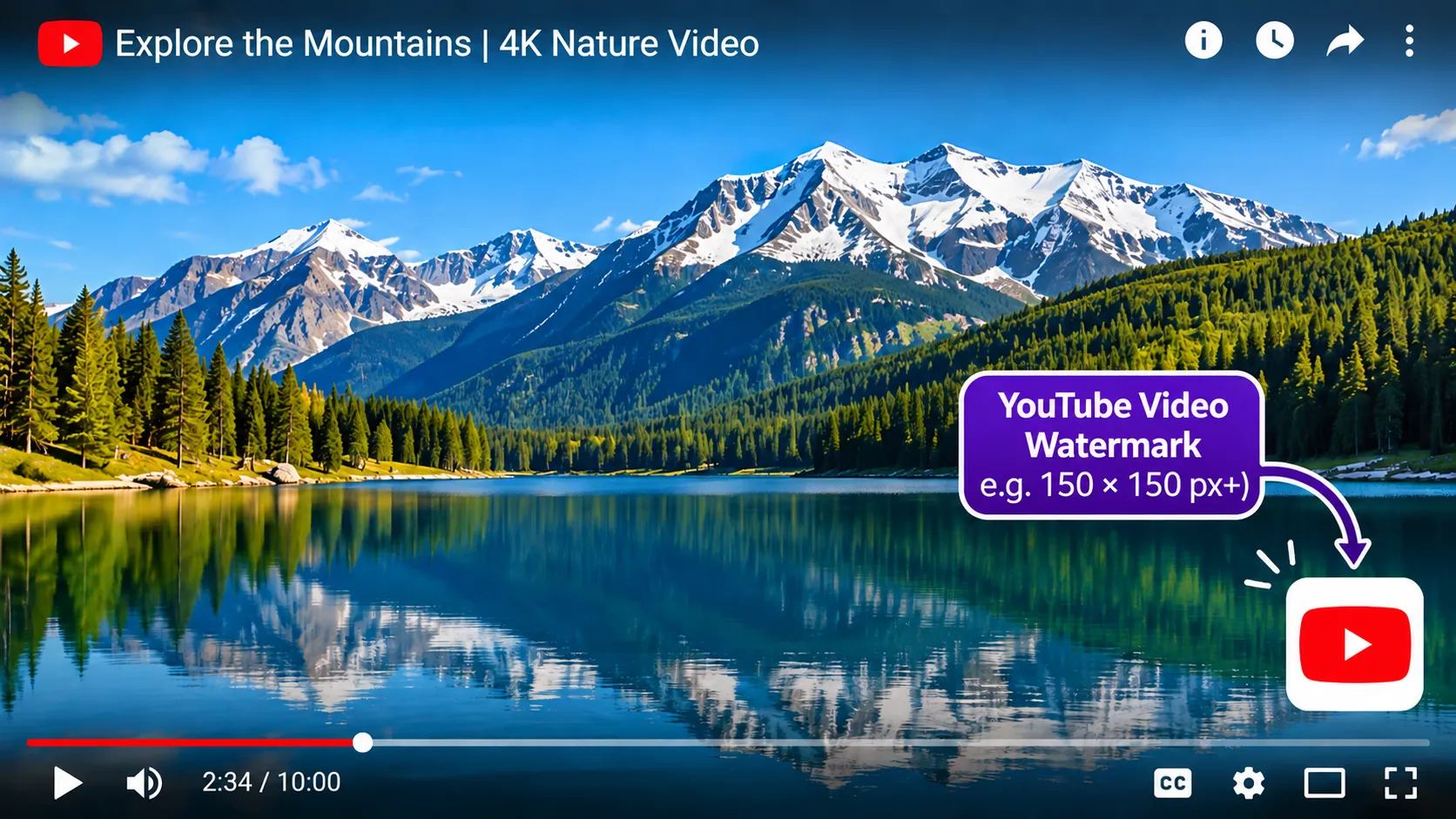
Have you noticed the small channel logo that sometimes appears in the corner of a YouTube video?
That’s a video watermark.
Creators often use watermarks to display their branding without taking attention away from the video itself.
The minimum YouTube watermark size is 150 × 150 pixels.
Here’s what you need:
- Minimum size: 150 × 150 pixels
- Aspect ratio: 1:1
- Maximum file size: Less than 1 MB
- Suggested format: PNG
A transparent PNG is usually a good choice if you’re using a logo.
Tips for creating a YouTube watermark
Keep it simple.
Since watermarks appear quite small, detailed illustrations or long text can be difficult to recognise.
A clean logo, icon or brand symbol will usually work better.
For example, if your channel logo includes a symbol and a long business name, consider using just the symbol for the watermark.
The aim is to make your branding recognisable without distracting viewers from the actual video.
Why Do YouTube Images Look Cropped or Blurry?
You’ve checked the dimensions, uploaded your image and opened YouTube to see how it looks.
But something still seems off.
Maybe the text is cut off, the image looks stretched or the quality isn’t as sharp as you expected.
Here are a few common reasons this happens.
You’re using the wrong aspect ratio
Every YouTube image has a shape that works best for its purpose.
For example, regular video thumbnails use a 16:9 aspect ratio, while Shorts thumbnails use 9:16.
If you try to turn a square image into a wide thumbnail without adjusting the layout, you may end up with unwanted cropping or empty space.
Your text is too close to the edges
This is especially common with channel banners.
A banner might look perfect in your editing software, but some of the text may disappear when viewed on mobile.
The easiest fix is to keep important content inside the recommended safe area.
Your original image is too small
Let’s say you have a tiny image and resize it to 3840 × 2160 pixels.
The file will have the right dimensions, but that doesn’t mean it will suddenly become sharp.
Resizing can change the number of pixels, but it can’t fully restore details that weren’t in the original image.
Whenever possible, start with a high-quality image.
You’re stretching the image instead of resizing it properly
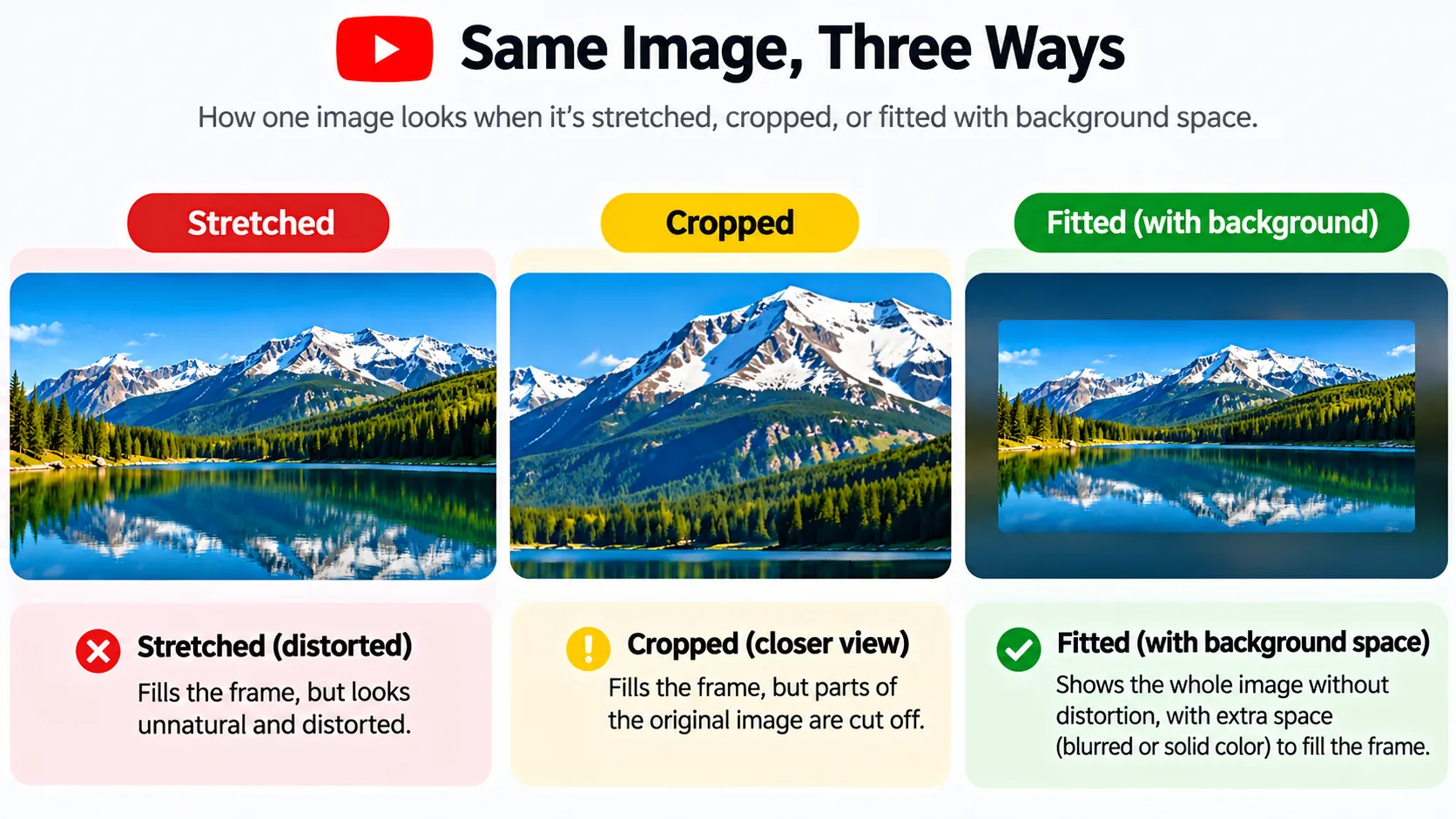
Stretching can make people look wider, logos look distorted and objects appear unnatural.
If your original image has a different aspect ratio, try cropping it or using a background-fill option instead.
That way, you can match YouTube’s required dimensions without distorting the main subject.
How to Resize an Image for YouTube
Now that you know the recommended dimensions, the next step is getting your images ready for upload.
You don’t need advanced editing skills to do this.
If your image is already designed and you simply need to adjust its size, you can use ImgResizers to enter custom pixel dimensions.
Here’s how:
- Open ImgResizers ]([https://imgresizers.com/)and[and) upload the image you want to resize.
- Choose the custom resize option.
- Enter your required width and height in pixels.
- Check that you’re using the correct aspect ratio.
- Choose a suitable crop or fit option to avoid unwanted stretching.
- Preview the resized image and download it when you’re happy with the result.
Which dimensions should you enter?
Use these values depending on what you’re creating:
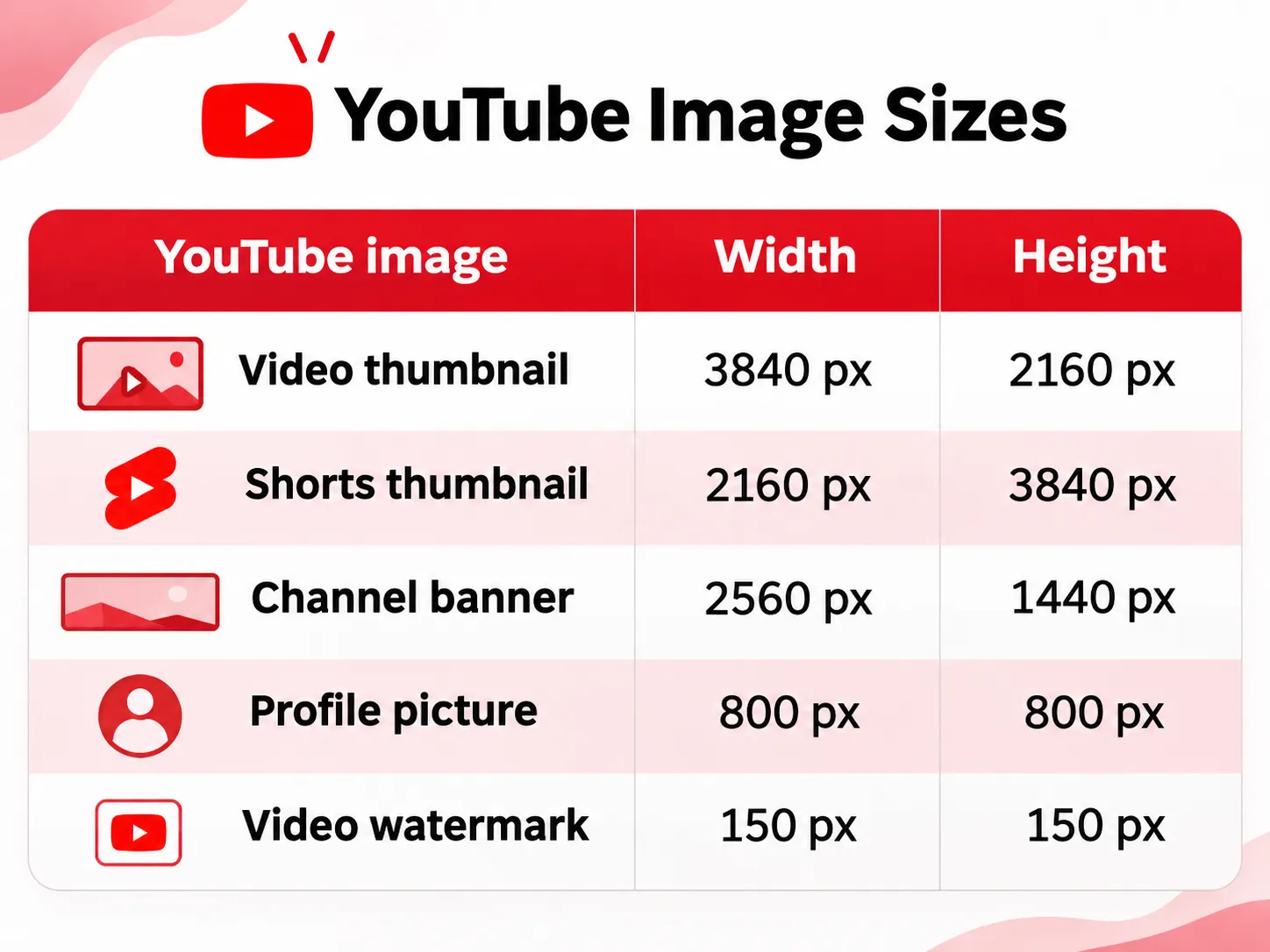
For example, if you’re preparing a thumbnail for a regular YouTube video, enter 3840 pixels for the width and 2160 pixels for the height.
If you’re working on a Shorts cover, use 2160 × 3840 pixels instead.
You can also use the 9:16 image resizing tool when you need a vertical image for Shorts.
One thing worth checking before you download: make sure your text, logo and main subject are still visible.
Getting the dimensions right is important, but the actual layout matters just as much.
Conclusion
Getting your YouTube image sizes right doesn’t have to be complicated.
Once you know the recommended dimensions for thumbnails, banners, Shorts, profile pictures and watermarks, preparing your images becomes much easier.
Before uploading, take a moment to check three things: the pixel dimensions, the aspect ratio and whether your important content is safely positioned.
These small checks can help you avoid blurry thumbnails, cropped banners and awkward-looking profile pictures.
And if you need to adjust an image to a specific size, ImgResizers can help you enter the exact pixel dimensions and prepare your image without unnecessary stretching.
That way, you can spend less time fixing image sizes and more time creating content for your channel.